HP OfficeJet 4500 troubleshooting can feel overwhelming if you are not sure where to start, but most problems have a logical cause – and a straightforward solution.
When your HP OfficeJet 4500 stops working, it rarely fails without warning.
You might notice it showing as offline in Windows, refusing to pick up paper, or producing faded, streaky prints that are barely readable.
This guide is designed to help you work through those causes methodically, so you can fix the issue quickly and get back to printing without frustration.
AT A GLANCE
The HP OfficeJet 4500 is a reliable machine, but like any printer, it can develop predictable faults that respond well to targeted fixes.
Whether your printer is offline, jammed, or simply not communicating with your computer, the solutions in this guide address the root cause – not just the symptom.
Work through the relevant section below and you will have your printer back in action in minutes.
Common Causes of HP OfficeJet 4500 Problems
Understanding why a printer fails is the first step toward fixing it properly.
The HP OfficeJet 4500 is a capable all-in-one device, but it is susceptible to a handful of recurring issues that affect thousands of users.
Knowing the root cause helps you apply the right fix the first time, rather than cycling through random restarts and hoping for the best.
Driver Problems
The printer driver is the software layer that allows Windows or macOS to communicate with your printer.
When drivers become outdated, corrupted, or incompatible following a Windows update, the printer can appear offline, fail to respond to print commands, or produce garbled output.
This is one of the most common causes of the HP OfficeJet 4500 not printing, and it is also one of the easiest to resolve.
Drivers can become mismatched after a major operating system update, so if your problems started after a Windows upgrade, this should be your first port of call.
Connectivity Issues
The HP OfficeJet 4500 supports both USB and wireless connections, and problems with either can cause the printer to disappear from your device list entirely.
USB cables can degrade over time, particularly at the connector ends, leading to intermittent communication failures.
On the wireless side, the printer may lose its connection to the router if the network password changes, if the router assigns a new IP address, or if the signal strength drops below a usable threshold.
The printer does not support 5GHz WiFi bands, so if your router has switched to a 5GHz-only mode, the printer will be unable to connect at all.
Paper Jams and Feed Errors
Paper jams are a physical problem, but they are often caused by avoidable habits.
Loading too much paper at once, using paper that is damp or curled, or mixing different paper sizes in the same tray can all cause the printer to misfeed or jam.
Even after clearing an obvious jam, small torn fragments of paper left inside the mechanism can trigger repeated jam errors.
The HP OfficeJet 4500 has a rear access door that allows you to clear jams that are not visible from the front, and this is often overlooked during a quick fix attempt.
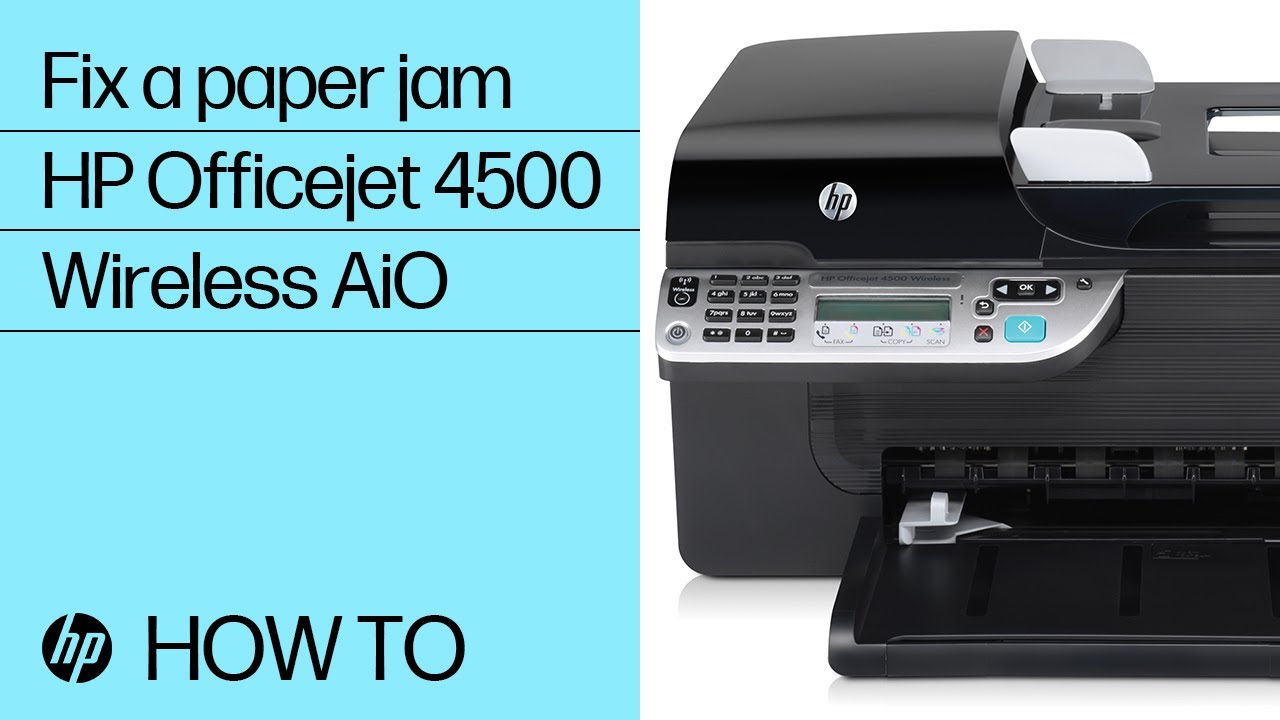
If you are struggling to clear a stubborn paper or carriage jam, this official HP OfficeJet 4500 troubleshooting video provides a clear visual walkthrough of the process (and is hopefully also embedded below!):
Print Queue Errors
The Windows print spooler manages the queue of documents waiting to be printed.
When a job becomes corrupted – perhaps because the printer went offline mid-print – it can get stuck at the top of the queue and block every subsequent document.
The printer may appear to be working normally, but nothing will print until the stuck job is cleared.
This is a software-side issue that does not require any physical intervention with the printer itself.
Outdated Firmware
Firmware is the internal software that runs on the printer itself, separate from the driver installed on your computer.
HP periodically releases firmware updates that fix bugs, improve compatibility with newer operating systems, and address known hardware faults.
Running outdated firmware can cause the printer to behave erratically, particularly with wireless connectivity and ink cartridge recognition.
Step-by-Step HP OfficeJet 4500 Troubleshooting Fixes
Restart the Printer and Computer
This sounds obvious, but a proper restart – not just a sleep-and-wake cycle – clears temporary errors from both the printer’s memory and your computer’s communication stack.
Turn the printer off using its power button, unplug it from the wall, wait a full 60 seconds, and then plug it back in and power it on. Restart your computer at the same time.
Once both devices have fully booted, attempt to print a test page before trying anything else.
Check and Reset the Printer Connection
For USB connections, try a different cable and a different USB port on your computer. USB 2.0 ports are preferable for older printers, as some USB 3.0 ports can cause compatibility issues.
For wireless connections, print a network configuration page directly from the printer by pressing and holding the Wireless button for three seconds.
This page will show you the printer’s current IP address and whether it is successfully connected to your network.
If the IP address has changed, you may need to re-add the printer in Windows using the new address.
Clear the Print Queue
To clear a stuck print queue in Windows, open the Run dialog by pressing Windows Key + R, type services.msc, and press Enter.
Scroll down to the Print Spooler service, right-click it, and select Stop.
Open File Explorer and navigate to:
C:\Windows\System32\spool\PRINTERS.
Delete all files inside this folder – do not delete the folder itself.
Return to the Services window, right-click Print Spooler, and select Start.
Your queue will now be empty and the printer should respond to new print jobs immediately.
Update or Reinstall HP Printer Drivers
Visit the HP Support Download Centre and search for the HP OfficeJet 4500.
Select your operating system from the dropdown menu and download the full feature software package rather than just the basic driver.
Before installing, open Device Manager, locate your printer under the Printers section, right-click it, and select Uninstall device.
Restart your computer, then run the downloaded installer.
A clean installation ensures there are no conflicting remnants of the old driver causing interference.
Run the Windows Printer Troubleshooter
One of the best ways of performing HP OfficeJet 4500 troubleshooting is simply to use Windows built-in diagnostic tool that can automatically detect and resolve many common printer problems for you.
On Windows 10, navigate to Settings > Update & Security > Troubleshoot > Additional troubleshooters > Printer.
On Windows 11, go to Settings > System > Troubleshoot > Other troubleshooters > Printer.
Run the tool and allow it to complete its scan.
It will often identify issues such as the print spooler not running, missing drivers, or incorrect port configurations, and can fix them automatically without any manual intervention.
Fix HP OfficeJet 4500 Not Connecting to WiFi
If your HP OfficeJet 4500 is not connecting to WiFi, begin by confirming that your router is broadcasting on the 2.4GHz band.
Access your router’s admin panel – usually at 192.168.1.1 or 192.168.0.1 – and check the wireless settings.
If your router uses a combined 2.4GHz and 5GHz network under a single SSID, the printer may struggle to connect consistently.
Consider splitting these into two separate networks and connecting the printer to the 2.4GHz network specifically.
You can also run the Wireless Setup Wizard directly from the printer’s front panel menu to reconnect it to your network from scratch.
Check Ink Cartridges and Print Quality
Faded or streaky prints are usually caused by low ink levels or clogged print heads.
Open the HP printer software on your computer and navigate to the maintenance or tools section.
Run a Print Head Cleaning cycle, which will push ink through the nozzles to clear any blockages.
Follow this with a Print Quality Diagnostic page to see exactly which nozzles are underperforming.
If the problem persists after two cleaning cycles, the cartridge itself may be faulty or near-empty.
Always use genuine HP cartridges, as third-party alternatives can sometimes cause the printer to report incorrect ink levels or refuse to print entirely.
You can find compatible cartridges and check compatibility on the HP Store.
Advanced HP OfficeJet 4500 Troubleshooting
Update Printer Firmware
To update the firmware on your HP OfficeJet 4500, open the HP printer software on your computer and look for the Printer Update or Firmware Update option in the tools or settings menu.
Alternatively, you can check the HP Firmware Downloads page and download the update manually.
Connect the printer via USB for the most reliable firmware update process, as a wireless update can fail if the connection drops mid-update.
After updating, restart the printer and check whether your original issue has been resolved.
Printer Not Detected by Windows
If Windows cannot detect the printer at all, even after restarting and checking connections, the issue may lie with the Windows port configuration.
Open the Printers & Scanners settings, remove the HP OfficeJet 4500 entirely, and then click Add a printer or scanner.
If Windows does not find it automatically, select The printer that I want isn’t listed and choose to add it by IP address.
Enter the IP address shown on the printer’s network configuration page.
This method bypasses automatic discovery and connects directly, which is useful when the printer is on a network with strict broadcast settings.
Resolving Edge Cases During HP OfficeJet 4500 Troubleshooting
Some users encounter a situation where the printer installs correctly and shows as online, but every print job fails silently with no error message.
This is often caused by a conflict between the HP software and a third-party firewall or antivirus application.
Temporarily disable your firewall and attempt to print.
If the job succeeds, you will need to add an exception for the HP printer software in your security application’s settings.
This is a less obvious cause but a surprisingly common one, particularly on systems running aggressive endpoint security software.
Preventing Future HP OfficeJet 4500 Problems
Prevention is significantly easier than HP OfficeJet 4500 troubleshooting.
Set a reminder to check for driver and firmware updates every three months, or enable automatic updates within the HP software if your version supports it.
Print at least one page per week to keep the ink nozzles from drying out – even a simple black-and-white test page is sufficient.
Store paper in a dry location and avoid leaving it in the tray for extended periods, as humidity can cause sheets to curl and feed unevenly.
If you use the printer infrequently, consider running a nozzle cleaning cycle at the start of each session to ensure consistent print quality from the first page.
Final thoughts on HP OfficeJet 4500 Troubleshooting
HP OfficeJet 4500 troubleshooting does not need to be a drawn-out process.
The vast majority of problems – offline errors, paper jams, poor print quality, and connectivity failures – have clear, repeatable solutions that you can apply yourself in a matter of minutes.
By understanding what causes each fault and working through the relevant fix methodically, you can resolve most issues without calling a technician or replacing the printer.
Keep your drivers and firmware up to date, maintain a regular printing schedule, and your HP OfficeJet 4500 should serve you reliably for years to come.
Frequently Asked Questions on HP OfficeJet 4500 Troubleshooting
Q: Why is my HP OfficeJet 4500 showing as offline in Windows?
A: This usually means Windows has lost communication with the printer, either because the printer’s IP address has changed on the network or because the print spooler has encountered an error.
Restart both the printer and your router, then check the printer’s network configuration page to confirm its current IP address. If the address has changed, remove the printer from Windows and re-add it using the new IP address.
Q: How do I fix a paper jam on the HP OfficeJet 4500?
A: Turn the printer off and carefully remove any paper you can see from the input tray. Open the rear access door and check for paper that may have become lodged further inside the mechanism.
Remove any torn fragments, as even small pieces can trigger repeat jam errors. Once the path is clear, reload the paper tray with a fresh, properly aligned stack and power the printer back on.
Q: Why is my HP OfficeJet 4500 not connecting to WiFi?
A: The most common reasons are an incorrect network password, a router broadcasting only on the 5GHz band (which the printer does not support), or a change in the router’s security settings.
Run the Wireless Setup Wizard from the printer’s front panel to reconnect from scratch, and ensure your router has an active 2.4GHz network.
Q: How do I update the drivers for my HP OfficeJet 4500?
A: Visit the HP Support website, search for the HP OfficeJet 4500, select your operating system, and download the full feature software package.
Uninstall the existing driver via Device Manager before running the new installer to ensure a clean installation.
Q: Why are my prints coming out faded or streaky?
A: Faded or streaky prints typically indicate clogged print heads or low ink. Run a print head cleaning cycle from the HP printer software’s maintenance section, followed by a print quality diagnostic page.
If the issue persists after two cleaning cycles, replace the affected cartridge.
How to Clear a Stuck Print Queue on the HP OfficeJet 4500
What you need: A Windows PC connected to the printer.
Estimated time: 5 minutes.
Step 1: Press Windows Key + R to open the Run dialog. Type services.msc and press Enter to open the Windows Services panel.
Step 2: Scroll down the list to find the Print Spooler service. Right-click it and select Stop. Wait until the status column shows that the service has stopped.
Step 3: Open File Explorer and navigate to:
C:\Windows\System32\spool\PRINTERS.
Select all files inside this folder and delete them. Do not delete the folder itself – only the files within it.
Step 4: Return to the Services panel. Right-click the Print Spooler service again and select Start to restart it.
Step 5: Open your document and send a new print job to the HP OfficeJet 4500. The queue is now clear and the printer should respond immediately.
Finally be sure to check out our Tech Troubleshooting FAQ or our Printer Troubleshooting Tips pages for even more general tips that cover a wide range of technical problems and solutions.
(If after reading the above article you still have a problem with “HP OfficeJet 4500 Troubleshooting”, then you might find a much less obvious solution on the above tech pages!)