It can be incredibly frustrating as an HP printer owner when you need to print something important, only to find HP printer airprint not working.
You tap the print button on your iPhone or Mac, and nothing happens. The convenience of wirelessly printing from anywhere in your home suddenly vanishes, leaving you with a “No AirPrint Printers Found” message.
The good news is that in most cases, this is a solvable problem. This guide is here to walk you through the troubleshooting steps, from the simple to the more advanced, to get your HP printer and Apple devices communicating again.
In a Rush? Here’s the Quick Fix – When you find HP printer airprint not working, the issue is almost always a network connection problem. First, ensure both your HP printer and your Apple device (iPhone, iPad, or Mac) are connected to the same Wi-Fi network. A simple restart of your printer, router, and Apple device can often resolve the issue instantly. This article provides detailed, step-by-step instructions for these and more advanced solutions.
Common Causes Of HP Printer AirPrint Not Working
When your HP printer suddenly stops working with AirPrint, it’s usually due to a handful of common issues. Before diving into more complex solutions, it’s helpful to understand what might be causing the problem. In many situations, a simple check of your network and device settings can reveal the culprit.
Network Mismatch: Devices on Different Wi-Fi Networks
For AirPrint to function correctly, both your HP printer and your Apple device must be connected to the exact same Wi-Fi network. This is the most frequent reason for the “No AirPrint Printers Found” error. It’s easy to overlook, especially if you have multiple Wi-Fi networks in your home, such as a primary network and a guest network. Your iPhone might have automatically connected to the guest network, while your printer remains on the main one, severing the AirPrint connection.
Printer Status: Sleep Mode or Offline
Modern printers are designed to save energy by entering a sleep or auto-off mode when not in use. However, sometimes the printer doesn’t wake up correctly when an AirPrint job is sent. In other cases, the printer might be completely offline due to a power issue or a lost network connection. A quick glance at the printer’s control panel can often tell you if it’s in an error state or disconnected from the network.
Outdated Firmware or Software Causing HP Printer AirPrint Not Working
Technology is constantly evolving, and manufacturers release firmware updates for printers and software updates for operating systems to improve performance, patch security vulnerabilities, and fix bugs. If your HP printer’s firmware is outdated, it may no longer be fully compatible with the latest version of iOS or macOS on your Apple device. Similarly, an older version of iOS or macOS could have a bug that prevents it from discovering AirPrint printers on the network. Therefore, keeping everything up to date is a crucial step.
Router and Network Configuration Challenges
Sometimes, the problem lies not with the printer or the Apple device, but with the network router itself. Certain router settings can interfere with AirPrint, which relies on a technology called Bonjour (also known as mDNS or multicast DNS) to broadcast its presence on the network. If multicast is disabled on your router, or if a firewall is blocking the necessary ports, your Apple devices won’t be able to see your HP printer, even if they are on the same network.
Advanced Troubleshooting Steps
If the basic checks didn’t resolve the problem, it’s time to move on to more advanced troubleshooting steps. These solutions involve delving into your printer’s settings and your network configuration. While they may seem more technical, following them step-by-step can often uncover and fix the root cause of why your hp printer airprint not working.
Deep Dive into Network Settings
As we’ve established, network issues are the primary culprit behind AirPrint failures. If your devices are on the same network but still can’t communicate, your router’s configuration might be to blame. AirPrint relies on the Bonjour protocol to function, which uses multicast DNS (mDNS) to discover devices. Some routers have multicast or mDNS disabled by default for security or performance reasons.
To fix this, you’ll need to log in to your router’s administration panel. The method for this varies by manufacturer, but it typically involves entering the router’s IP address (often 192.168.1.1 or 192.168.0.1) into a web browser. Look for settings related to “multicast,” “mDNS,” or “IGMP snooping” and ensure they are enabled. Additionally, check that your printer is not on a “guest” network, as these are often isolated from the main network, which would prevent AirPrint discovery.
Keeping Firmware and Software Up-to-Date
Manufacturers regularly release updates to improve device performance and fix known bugs. An outdated firmware on your HP printer can cause compatibility issues with newer versions of iOS or macOS. You can usually check for and install firmware updates directly from the printer’s control panel or through the HP Smart app. For detailed instructions on updating your specific model, you can refer to HP’s official support documentation on how to update the printer firmware.
Similarly, ensure your Apple devices are running the latest software. Apple often includes networking improvements and bug fixes in its updates. You can check for iOS or iPadOS updates by going to Settings > General > Software Update. On a Mac, go to System Settings > General > Software Update. For general printer connection issues, Microsoft also provides a comprehensive guide on fixing printer connection and printing problems in Windows, which can offer additional insights into network-related troubleshooting.
EWS: AirPrint and Bonjour Settings
The Embedded Web Server (EWS) is a powerful administration panel built into your HP printer that allows you to configure its network settings. To access it, you’ll first need to find your printer’s IP address, which can usually be found in the network settings menu on the printer’s display. Once you have the IP address, type it into a web browser on a computer connected to the same network.
Inside the EWS, navigate to the “Networking” tab. Look for settings related to “Bonjour,” “AirPrint,” and “IPP Printing.” Ensure all of these are enabled. As Apple’s official documentation on About AirPrint explains, AirPrint is a driverless technology that relies on these network protocols to function. If they are disabled, your printer will not be discoverable by your Apple devices.
Comprehensive Reset for HP Printer AirPrint Not Working
When all else fails, a more comprehensive reset can often clear up any underlying issues. This involves a specific sequence of restarts. First, power off your router, your HP printer, and all your Apple devices. Wait for about a minute, then power on your router first and wait for it to fully establish an internet connection. Next, turn on your HP printer and allow it to connect to the Wi-Fi network. Finally, power on your Apple devices.
If the problem persists on a Mac, you can try resetting the printing system. This will remove all printers from your settings, so you will need to add them back again. To do this, go to System Settings > Printers & Scanners. Right-click (or Control-click) in the list of printers on the left and select “Reset printing system.” After the reset, click the “Add Printer, Scanner, or Fax” button to re-add your HP printer.
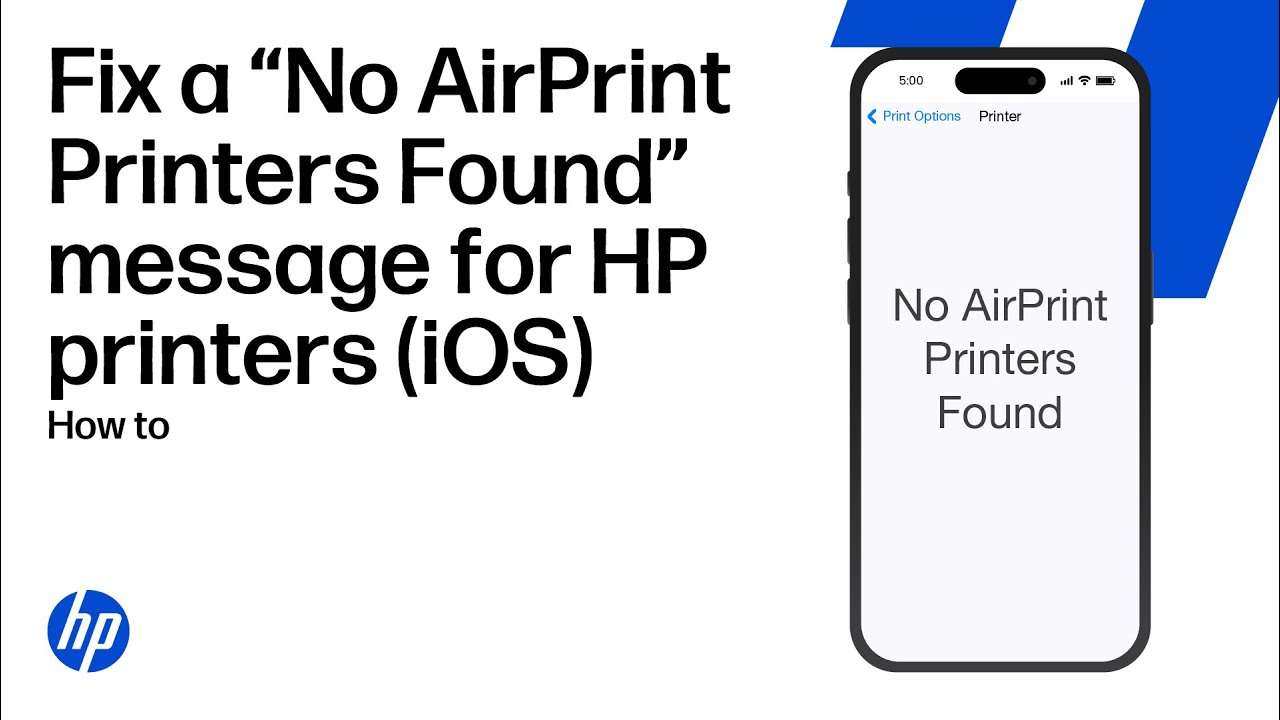
For a visual guide on resolving the “No AirPrint Printers Found” message, this helpful YouTube video on fixing AirPrint connectivity (hopefully embedded above) provides clear, step-by-step instructions.
Final thoughts on HP printer airprint not working
Dealing with a situation where the HP printer airprint not working issue happens can certainly be a test of patience. However, by systematically working through the troubleshooting steps outlined in this guide, you can resolve the vast majority of issues.
The key is to remember that the problem almost always lies in the communication between your devices, not necessarily a hardware fault. Start with the simplest solutions, like restarting your devices and checking your network connections, before moving on to more advanced steps like firmware updates and router configurations.
To prevent future AirPrint problems, it’s a good practice to occasionally restart your network router and printer. Additionally, keeping your printer’s firmware and your Apple devices’ software up to date will ensure continued compatibility and smooth, hassle-free wireless printing. With a little maintenance, you can enjoy the convenience of AirPrint without interruption.
Frequently Asked Questions (FAQ)
Why does my iPhone say “No AirPrint Printers Found”?
This error almost always means your iPhone and HP printer are not on the same Wi-Fi network. Ensure both devices are connected to the same network name (SSID). Also, try restarting your iPhone, printer, and Wi-Fi router, as this often resolves temporary network glitches.
Can I use AirPrint if my HP printer is connected via USB?
No, AirPrint only works over a network connection (Wi-Fi or Ethernet). A printer connected directly to a computer via USB is not accessible through AirPrint. Your HP printer must be connected to the same wireless network as your Apple device.
How do I know if my HP printer is AirPrint compatible?
Most HP printers released after 2010 are AirPrint compatible. You can confirm by checking your printer’s manual or visiting the official Apple or HP support websites. As a general rule, if your printer has Wi-Fi capabilities, it likely supports AirPrint.
Do I need to install an app to use AirPrint?
No, AirPrint is a built-in feature of iOS and macOS. You do not need to install any special apps or drivers to use it. As long as your printer is AirPrint-compatible and on the same network, it should appear automatically in the print dialog.
How to Fix HP Printer AirPrint Not Working by Restarting Your Devices
This simple procedure resolves the majority of AirPrint issues by clearing temporary network glitches and re-establishing a clean connection between your devices.
Total Time: Approximately 5 minutes
Supply:
- Your HP Printer
- An Apple Device (iPhone, iPad, or Mac)
- Your Wi-Fi Router
Tool:
- None
Steps:
- Power Off All Devices: First, turn off your HP printer and your Apple device. Then, unplug your Wi-Fi router from the power outlet.
- Wait: It is important to wait for at least 60 seconds. This allows the devices to fully power down and clear their temporary memory.
- Power On the Router: Next, plug your Wi-Fi router back in and wait for it to fully restart. You will know it is ready when the status lights indicate a stable internet connection.
- Power On the Printer: Now, turn on your HP printer. Give it a minute or two to connect to the Wi-Fi network. The Wi-Fi light on the printer should be solid.
- Power On Your Apple Device: Finally, turn on your iPhone, iPad, or Mac. Ensure it automatically connects to the same Wi-Fi network as the printer.
- Test Printing: Open an email, photo, or webpage and try to print. Your HP printer should now appear in the AirPrint selection list.
Finally be sure to check out our Tech Troubleshooting FAQ or our Printer Troubleshooting Tips pages for even more general tips that cover a wide range of technical problems and solutions.
(If after reading the above article you still do not have a solution for your hp printer airprint not working problem, the above tech solutions page might just have a less obvious solution for you!)