Frustrated when your HP printer connected to WiFi shows offline? Learn the common causes and follow our easy, step-by-step guide to fix the problem fast.
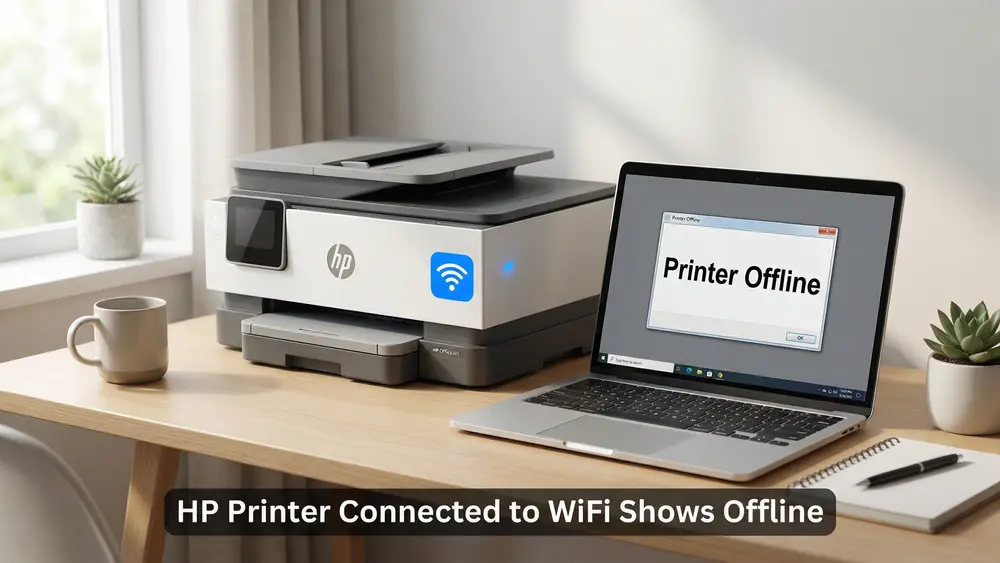
It’s a familiar and frustrating scenario: you need to print an important document, but your computer insists your printer is offline. The problem is that your HP printer connected to WiFi shows offline, even though you can see it’s on and the WiFi indicator is solid blue.
This communication breakdown is a common issue that can bring both home and office workflows to a grinding halt. Fortunately, you can solve this problem with a bit of troubleshooting.
- Quick Summary: Fixing Your HP Printer’s Wi-Fi Connection
- Core Issue: Communication breakdown between your HP printer and the local wireless network, often due to IP conflicts, driver issues, outdated firmware, or firewall interference.
- Main Solution: A combination of power cycling, clearing the print queue, updating drivers and firmware, and assigning a stable static IP address to ensure reliable connectivity.
- Who This Is For: Home users and office professionals who need a reliable, step-by-step path to restore their HP printer’s wireless functionality and prevent future offline issues.
Understanding Why Your HP Printer Connected to WiFi Shows Offline
Before diving into the fixes, it’s helpful to understand what’s happening behind the scenes. When your computer reports that an HP printer connected to WiFi shows offline, it means that it can no longer communicate with the printer over the network.
This isn’t necessarily a problem with the printer itself; more often, it’s a symptom of a communication breakdown somewhere between your computer, your router, and your printer.
Several factors can contribute to this issue, ranging from simple glitches to more complex network configurations. In most cases, the problem can be traced back to one of the following areas:
•Network Instability: Your Wi-Fi network may be experiencing intermittent drops or interference.
•IP Address Issues: The printer’s IP address may have changed, or there might be a conflict with another device.
•Software and Driver Problems: Outdated or corrupt printer drivers on your computer can cause communication errors.
•Printer Settings: The printer’s power-saving or sleep modes can sometimes prevent it from waking up to accept print jobs.
•Firewall Interference: Your computer’s security software might be blocking the connection to the printer.
By systematically addressing each of these potential causes, you can identify and resolve the root of the problem.
Initial Troubleshooting Steps: The Quick Fixes
In many situations, the “offline” issue is caused by a temporary glitch that can be resolved with a few simple steps. Before you move on to more advanced troubleshooting, start with these quick fixes. They may be all you need to get your printer back online.
1. Power Cycle Everything
A full power cycle of your devices is often the most effective first step. This process clears out temporary memory and re-establishes network connections from scratch.
1. Turn off your printer. Use the power button, and then unplug it from the power source.
2. Turn off your computer.
3. Restart your router. Unplug your router from the power outlet, wait for about 60 seconds, and then plug it back in. Wait for all the indicator lights to return to their normal state.
4. Turn everything back on. Once your router is fully operational, plug your printer back in and turn it on. Then, turn on your computer.
After everything has restarted, try printing a test page. If the issue persists, move on to the next step.
2. Verify Network Connections
It’s crucial to ensure that your computer and printer are on the exact same Wi-Fi network. This can sometimes be overlooked, especially in homes or offices with multiple networks or guest networks.
• On your computer: Check your Wi-Fi settings to confirm the name of the network (SSID) you are connected to.
• On your printer: Most HP printers have a display that shows the connected network. You can also print a network configuration page from the printer’s settings menu to get detailed information about its network connection.
If you find that your devices are on different networks, connect your computer to the same network as your printer and try printing again.
3. Check the “Use Printer Offline” Setting (Windows)
Windows has a specific setting that can manually force a printer to operate in offline mode. If this setting is accidentally enabled, it will prevent you from printing.
1. Open the Control Panel on your computer and go to Devices and Printers.
2. Right-click on your HP printer and select See what’s printing.
3. In the new window that opens, click on the Printer menu at the top.
4. Make sure that Use Printer Offline is not checked. If it is, click on it to uncheck it.
This simple step can often be the solution, especially if the printer was previously working correctly.
Advanced Solutions for When Your HP Printer Connected to WiFi Shows Offline
If the initial troubleshooting steps didn’t resolve the issue, it’s time to dig a little deeper. The following solutions address more persistent problems related to software, network configuration, and printer settings.
4. Run the HP Smart App
HP provides a free utility called HP Smart App that can automatically diagnose and resolve many common printing and scanning problems. This tool is an excellent resource and should be one of your next steps.
1. Download the HP Smart from the official HP support website.
2. Run the tool and select your printer from the list.
3. The HP Smart App will check for a variety of issues, including driver problems, connectivity errors, and print queue conflicts.
4. Follow the on-screen instructions to resolve any issues that are found.
In many cases, this utility can identify and fix the problem without requiring any further manual intervention.
5. Update Your Printer Drivers and Firmware
Outdated drivers and firmware are a common source of connectivity problems. Printer manufacturers regularly release updates to improve performance, fix bugs, and enhance security.
• Printer Drivers: Go to the HP support website and enter your printer model to find the latest drivers for your operating system. Download and install them, even if you think you already have the most recent version.
• Printer Firmware: You can usually update your printer’s firmware directly from the printer’s control panel or through the HP Smart app. Check the settings menu for a “Firmware Update” or “Product Update” option.
Keeping your drivers and firmware up to date is a crucial step in preventing the “offline” issue from recurring.
6. Clear and Restart the Print Spooler
A stuck print job can jam up the print queue and cause your printer to appear offline. Clearing the print queue and restarting the Print Spooler service can resolve this.
1. Open the Services app on your Windows computer. You can do this by searching for “Services” in the Start menu.
2. Scroll down and find the Print Spooler service.
3. Right-click on Print Spooler and select Stop.
4. Open File Explorer and navigate to:
C:\Windows\System32\spool\PRINTERS.
You may need to enable viewing of hidden files to see this folder.
5. Delete all the files in this folder. This will clear all the jobs from your print queue.
6. Go back to the Services app, right-click on Print Spooler, and select Start.
After restarting the Print Spooler, try printing again. For a visual guide on this process, you can find helpful tutorials on YouTube that demonstrate how to clear a stuck print queue.
7. Assign a Static IP Address
By default, most routers assign IP addresses to devices dynamically. This means that your printer’s IP address can change from time to time, which can cause your computer to lose track of it. Assigning a static IP address ensures that your printer always has the same address on your network.
1. Find your printer’s current IP address. You can usually find this on the printer’s display or by printing a network configuration page.
2. Access your router’s web interface. You can do this by entering your router’s IP address (often 192.168.1.1 or 192.168.0.1) into a web browser.
3. Find the DHCP settings. Look for a section related to DHCP or IP address reservation.
4. Assign a static IP address to your printer. You will need to enter the printer’s MAC address (which can also be found on the network configuration page) and the IP address you want to assign to it. It’s best to choose an IP address that is outside the router’s normal DHCP range to avoid conflicts.
While this is a more advanced step, it is one of the most effective ways to prevent your HP printer connected to WiFi shows offline issue from happening in the future.
8. Temporarily Disable Your Firewall
In some cases, your computer’s firewall or antivirus software can mistakenly block communication with your printer. To check if this is the problem, you can temporarily disable your security software and try printing.
• Windows Defender Firewall: You can disable the Windows Defender Firewall through the Control Panel.
• Third-Party Antivirus: If you are using a third-party antivirus program, you will need to open the program’s settings to disable the firewall.
If you are able to print after disabling the firewall, you will need to add an exception for your printer in your security software’s settings. The process for this will vary depending on the software you are using, but you can usually find instructions on the software manufacturer’s website, such as the info from Microsoft in their Firewall and Network Protection in the Windows Security App document and more in their Risks of Allowing Apps Through Windows Firewall document.
Final thoughts on HP printer connected to WiFi shows offline
Dealing with a printer that constantly goes offline can be a major headache, but with a systematic approach, you can almost always find a solution. By starting with the simple fixes and working your way up to the more advanced steps, you can diagnose and resolve the communication issues that are causing your HP printer connected to Wi-Fi shows offline problem.
To prevent this issue from happening again, make it a habit to keep your printer’s drivers and firmware up to date. If you frequently experience this problem, consider assigning a static IP address to your printer for a more stable and reliable connection. With a little bit of maintenance, you can ensure that your printer is always ready when you need it.
Frequently Asked Questions
Why does my HP printer say it’s offline when it’s connected to Wi-Fi?
This usually happens because of a communication breakdown between your computer and the printer. Common causes include an unstable Wi-Fi signal, an IP address conflict, or outdated printer drivers. Your printer might be connected, but your computer can’t find it on the network.
How do I get my HP printer back online?
Start by power cycling your printer, computer, and router. If that doesn’t work, run the HP Print and Scan Doctor utility and make sure the “Use Printer Offline” mode is disabled in Windows. For a more permanent fix, consider assigning a static IP address to your printer.
Can my firewall make my printer go offline?
Yes, firewall or antivirus software can sometimes block the printer’s connection, causing it to appear offline. You can test this by temporarily disabling the firewall. If the printer comes back online, you’ll need to add an exception for your printer in your security software’s settings.
What is a static IP address and why does my printer need one?
A static IP address is a permanent, unchanging address for your printer on your network. It prevents the connection issues that can occur when a router assigns a new, temporary (dynamic) IP address that your computer can’t find. Assigning a static IP is a reliable way to maintain a stable connection.
How to Set a Static IP Address for Your HP Printer
Assigning a permanent IP address to your printer can prevent it from going offline by creating a stable, predictable network connection. This guide walks you through the process.
Total Time: 15 minutes
Supplies:
•Your HP printer’s current IP address
•Your HP printer’s MAC address
Tools:
•A computer connected to the same Wi-Fi network
•Access to your router’s administrative settings
Steps:
1. Find Your Printer’s Network Information: First, you need to find your printer’s current IP address and its MAC address. You can typically get this information by printing a network configuration page from your printer’s control panel menu.
2. Log In to Your Router: Next, open a web browser on your computer and enter your router’s IP address into the address bar. Common router addresses are 192.168.1.1 or 192.168.0.1. You will be prompted to enter your router’s username and password.
3. Find the DHCP or Address Reservation Settings: Once you are logged in, look for a section in your router’s settings related to DHCP, LAN, or Network settings. Within that section, you should find an option for “Address Reservation,” “Static IP,” or “DHCP Reservation.”
4. Create a New Static IP Reservation: In the Address Reservation section, you will see a list of devices connected to your network. You should see your HP printer in this list. There will be an option to add a new reservation.
5. Enter the Printer’s Information: Select your printer from the list or manually enter its MAC address. Then, enter the IP address you want to assign to it. It is best to choose an IP address that is outside the router’s dynamic IP range to avoid conflicts (e.g., if your router assigns addresses from 192.168.1.100 to 192.168.1.200, you could choose 192.168.1.99).
6. Save and Restart: After you have entered the information, save your settings. Finally, restart your printer so it can obtain the new static IP address from the router.
7. Update Your Printer Port (Optional but Recommended): On your Windows computer, you may need to update the printer port to use the new static IP address. Go to Devices and Printers, right-click your printer, select Printer properties, go to the Ports tab, and add a new Standard TCP/IP Port with the static IP address you just set.
Finally be sure to check out our Tech Troubleshooting FAQ or our Printer Troubleshooting Tips pages for even more general tips that cover a wide range of technical problems and solutions.