The silence of a printer that refuses to wake up is a sound every home office worker dreads, especially when a deadline is looming. In many cases, you might find your HP printer not connecting to WiFi despite it working perfectly just the day before.
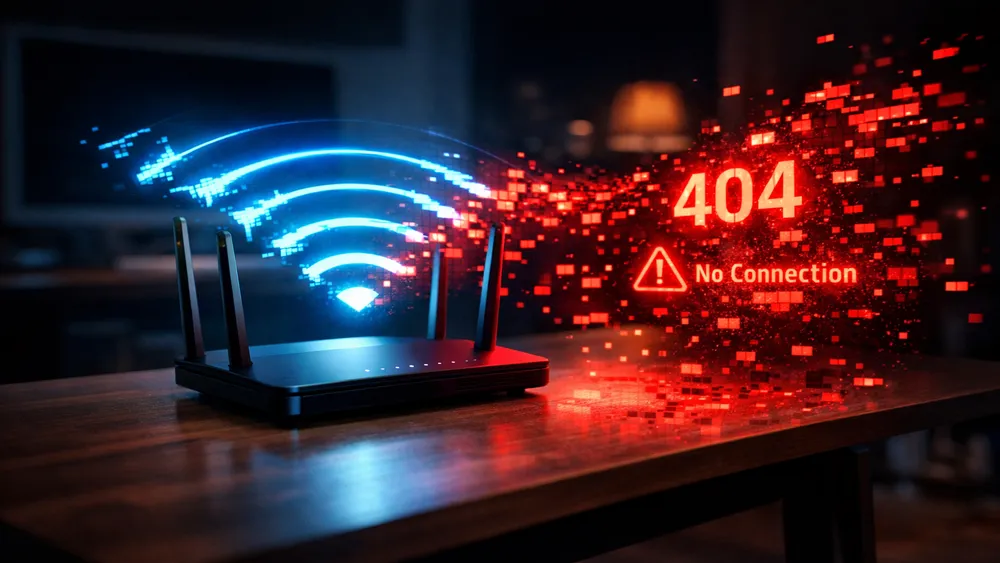
Because of this, it is easy to feel overwhelmed by technical jargon and blinking orange lights. However, you should know that these issues are common and, more importantly, entirely fixable with the right approach.
Whether you are dealing with a new setup or a sudden disconnection, this guide will walk you through every possible solution to restore your wireless connection.
Quick Summary: Fixing HP Wireless Connectivity
- Core Issue: Communication breakdown between the printer and the wireless router.
- Main Solution: Restoring Wi-Fi setup mode and using the HP Smart app to re-establish the handshake.
- Who This Is For: Home and small office users experiencing persistent “Offline” or “Not Connected” status on HP InkJet, LaserJet, or Envy printers.
Understanding the Root Causes of an HP Printer Not Connecting to WiFi
Before diving into the fixes, it is helpful to understand why an HP printer not connecting to WiFi happens in the first place. In most situations, the problem is not a hardware failure but rather a “handshake” issue between devices.
For example, if your router recently updated its firmware or if you changed your network password, the printer may still be trying to use old credentials. Additionally, electronic interference from other household devices can sometimes disrupt the delicate signal required for stable printing.
Moreover, modern routers often use “Band Steering,” which automatically switches devices between 2.4GHz and 5GHz frequencies. While this is great for smartphones, many older HP printers only support 2.4GHz.
As a result, the printer might see the network but fail to maintain a stable connection because the router is trying to force it onto a frequency it cannot handle. Understanding these underlying factors is the first step toward a permanent solution rather than a temporary band-aid.
Initial Diagnostics: Before You Start Fixing
When you encounter an HP printer not connecting to WiFi, your first instinct might be to start pressing buttons randomly. However, taking a moment to perform a few diagnostic checks can save you hours of unnecessary work.
In particular, you should look at the wireless light on your printer’s control panel. If it is blinking, the printer is in setup mode or searching for a network; if it is off, the wireless radio might be disabled entirely.
One of the most powerful tools at your disposal is the Wireless Network Test Report. Most HP printers allow you to print this report from the “Network” or “Setup” menu.
This document provides a wealth of information, including your printer’s IP address, the signal strength, and any specific error codes that might be blocking the connection. For instance, if the report shows a “Fail” next to “Network Name (SSID) Found,” you know the issue is likely related to the printer’s proximity to the router or an incorrect network name.
Essential Troubleshooting Steps for an HP Printer Not Connecting to WiFi
Step 1: The Power Cycle
It may sound like a cliché, but the “turn it off and back on again” method remains one of the most effective ways to fix an HP printer not connecting to WiFi. This process works because it clears the temporary memory (RAM) of both the printer and the router, forcing them to re-establish a fresh connection.
To do this properly, you should not just press the power button. Instead, follow these specific steps:
- 1. While the printer is on, disconnect the power cord from the back of the device.
- 2. Unplug the power cord from the wall outlet.
- 3. Wait at least 60 seconds to allow all residual electricity to dissipate.
- 4. Plug the cord back into the wall outlet and then into the printer.
- 5. Restart your router by unplugging it for 30 seconds and then plugging it back in.
Once both devices have fully rebooted, check if the wireless light stays solid. In many cases, this simple reset is all that is needed to resolve minor IP conflicts or temporary software hangs.
Step 2: Restoring Wi-Fi Setup Mode
If a power cycle does not work, the next logical step is to put the printer back into “Setup Mode.” This essentially tells the printer to forget its previous network settings and prepare for a new connection. Because different HP models have different interfaces, the method varies:
•Printers with a Touchscreen: Navigate to Setup > Network Setup > Restore Network Settings.
•Printers without a Touchscreen: Press and hold the Wireless and Cancel buttons simultaneously until the Power light flashes.
After performing this action, the printer will be “visible” to the HP Smart app again. This is a crucial step because it allows you to use your smartphone or computer to “push” the correct WiFi credentials to the printer without having to type a long password on a tiny screen.
Step 3: Using the HP Smart App to Fix an HP Printer Not Connecting to WiFi
The HP Smart app is the primary tool recommended by HP for managing wireless connections. If your HP printer not connecting to WiFi persists, you should ensure you have the latest version of the app installed on your mobile device or PC. You can find the official software at the HP Support website.
Once the app is open, click the “Add Printer” or the plus sign icon. Because you previously restored the network settings, the app should detect the printer in “Setup Mode.” Follow the on-screen prompts to select your WiFi network and enter the password. Importantly, ensure that your phone or computer is connected to the exact same 2.4GHz network that you want the printer to use. If your phone is on a 5GHz band, the setup might fail during the final handshake.
Advanced Network Fixes for Persistent Issues
Sometimes, the basic steps are not enough to solve an HP printer not connecting to WiFi. In these instances, the problem often lies deep within your network architecture. For example, IP address conflicts occur when two devices on the same network are assigned the same identification number. When this happens, the router becomes “confused” and may drop the printer’s connection to prioritize another device, like a smartphone or laptop.
To resolve this, you can assign a “Static IP” to your printer. This ensures that every time the printer wakes up, it requests the exact same address from the router. You can usually do this by accessing the printer’s Embedded Web Server (EWS). Simply type the printer’s current IP address into a web browser on your computer. Once inside the EWS, look for the “Network” or “Wireless” tab and find the “IPv4 Configuration” section. Changing the setting from “Automatic (DHCP)” to “Manual” will provide much-needed stability to your connection.
The 2.4GHz vs. 5GHz Dilemma for an HP Printer Not Connecting to WiFi
Another common hurdle is the frequency band of your wireless router. Most modern routers are “Dual-Band,” meaning they broadcast on both 2.4GHz and 5GHz. While 5GHz is faster, it has a shorter range and is often incompatible with older HP printer hardware. If you find your HP printer not connecting to WiFi, it might be because it is trying to connect to a 5GHz signal that it cannot properly decode.
To fix this, you may need to log into your router’s settings and temporarily disable the 5GHz band while you set up the printer. Alternatively, you can give the 2.4GHz and 5GHz bands different names (SSIDs). For instance, name one “Home_WiFi_2.4” and the other “Home_WiFi_5.” By manually connecting your printer to the 2.4GHz version, you eliminate the risk of the router trying to “steer” the printer to the incompatible 5GHz band.
Router Settings and Security Protocols
In some cases, your router’s security settings might be too restrictive for the printer. For example, if you have “MAC Address Filtering” enabled, the router will block any new device – including your printer – unless its unique hardware ID is manually added to an “allow list.” Additionally, ensure that your router is using WPA2 or WPA3 encryption. Older protocols like WEP are not only insecure but are often unsupported by modern HP firmware, leading to a failed connection attempt.
Software and Driver Solutions for an HP Printer Not Connecting to WiFi
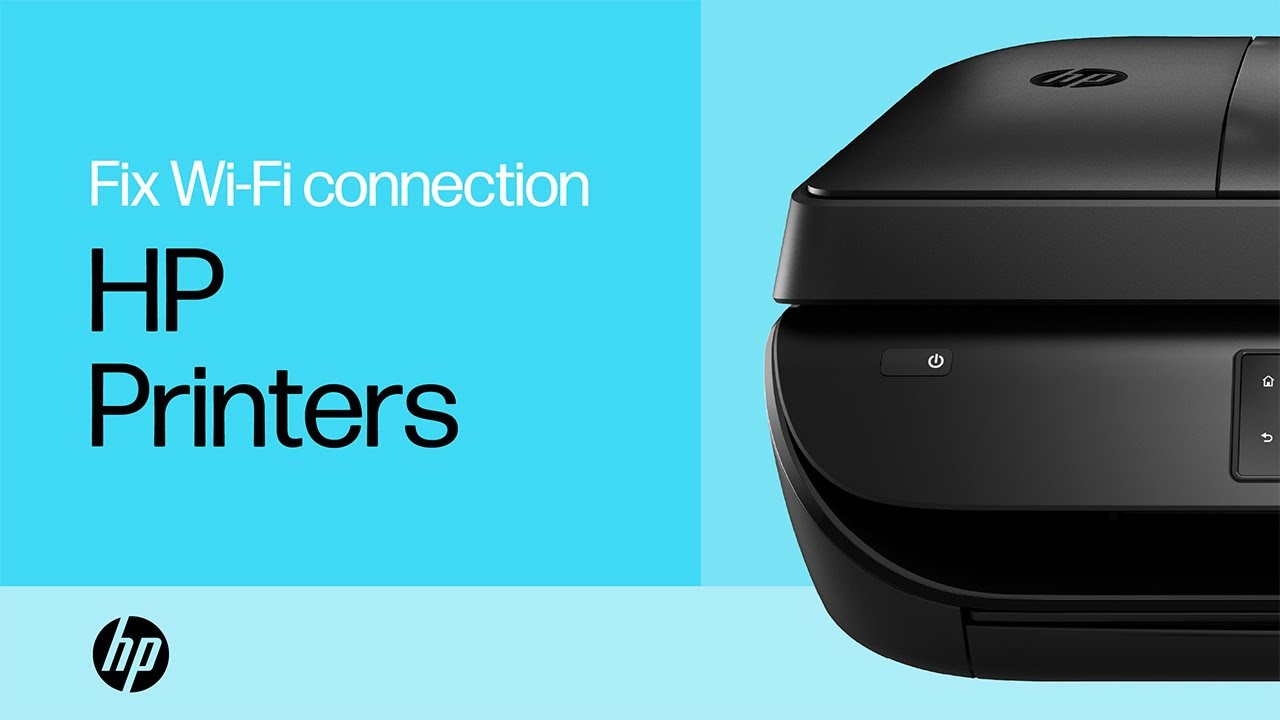
Beyond the network itself, the software on your computer can also be a culprit. If your HP printer not connecting to WiFi only happens when printing from a specific PC, the issue is likely a corrupted driver or a stuck print spooler. Windows users can use the “Print and Scan Doctor” tool, which is a free utility provided by HP to automatically diagnose and fix common printing errors.
Furthermore, keeping your printer’s firmware up to date is essential. Manufacturers frequently release updates that improve network compatibility and fix bugs that cause disconnections. You can check for updates directly on the printer’s control panel or through the HP Smart app. For more advanced driver issues, visiting the Microsoft Support page for printer troubleshooting can provide additional OS-specific fixes that go beyond the printer itself.
Edge Cases: Mesh Networks and Guest WiFi
If you live in a large home and use a Mesh WiFi system (like Eero, Orbi, or Google Nest), you might face unique challenges. Mesh systems use multiple “nodes” to spread the signal. Sometimes, a printer will try to stay connected to a distant node even when a closer one is available, resulting in a weak and unstable connection. In this case, “pinning” the printer to a specific node in your Mesh app can often solve the problem.
Additionally, avoid connecting your printer to a “Guest” network. Guest networks are often designed with “Access Isolation,” which prevents devices on that network from communicating with each other. Because your computer needs to “talk” to your printer to send a document, being on a guest network will make the printer appear offline even if it has a perfect WiFi signal.
Prevention and Long-Term Stability
To avoid the headache of an HP printer not connecting to WiFi in the future, a little bit of prevention goes a long way. First, try to keep your printer within 10 to 15 feet of your router, with as few walls in between as possible. Physical obstructions and distance are the leading causes of signal “drops” that lead to offline errors.
Second, consider using a wired connection (Ethernet) if your printer and router are close enough. While wireless is convenient, a physical cable is 100% immune to the interference and frequency issues discussed earlier. Finally, make it a habit to restart your router once a month. This clears out “ghost” connections and ensures that all your devices, not just your printer, have a clean path to the internet.
Final thoughts on HP Printer Not Connecting to WiFi
Dealing with an HP printer not connecting to WiFi is a rite of passage for many modern technology users. However, by following a structured troubleshooting path – starting with a simple power cycle and moving toward advanced IP configurations – you can overcome almost any connectivity hurdle. Remember that the goal is not just to get the printer online today, but to create a stable environment where it stays online for years to come. If you ever feel stuck, don’t hesitate to reach out to HP’s official community forums, where thousands of users and knowledgeable individuals share solutions for even the most obscure printer problems.
Frequently Asked Questions
Why does my HP printer keep disconnecting from WiFi?
In most cases, this is due to signal interference or the router switching between 2.4GHz and 5GHz bands. Assigning a static IP address and ensuring the printer is on a dedicated 2.4GHz band usually fixes this.
What does a blinking blue light on my HP printer mean?
A blinking blue light indicates that the printer’s wireless radio is on, but it is not currently connected to a network. It is either in setup mode or searching for a previously saved connection.
Can I connect my HP printer to WiFi without the HP Smart app?
Yes, you can use the Wireless Setup Wizard on the printer’s control panel (if it has a screen) or use the WPS button on your router for a quick connection.
How to Reconnect Your HP Printer to WiFi
Follow these steps to quickly restore your printer’s wireless connection using the most reliable method:
- 1. Restore Network Settings: On your printer, go to the Network menu and select “Restore Network Settings” to clear old data.
- 2. Open HP Smart App: Launch the app on your computer or smartphone and ensure Bluetooth is enabled.
- 3. Add New Printer: Click the “Add Printer” button and wait for the app to find your device in setup mode.
- 4. Enter WiFi Credentials: Select your 2.4GHz network and enter the password when prompted.
- 5. Confirm Connection: Wait for the wireless light on the printer to turn solid blue, indicating a successful link.
Finally be sure to check out our Tech Troubleshooting FAQ or our Printer Troubleshooting Tips pages for even more general tips that cover a wide range of technical problems and solutions.