It’s a familiar and frustrating scenario: you have an important document to print, but find your HP printer not printing black ink.
The color cartridges are working fine, yet every page comes out with crisp colors and glaringly blank spaces where the black text should be.
This is one of the most common issues HP printer owners face, and as a result, it can bring your productivity to a screeching halt. Fortunately, the problem is usually solvable without a trip to the repair shop.
This guide is here to help you diagnose and fix the issue, walking you through the most common causes and solutions in a clear, step-by-step format. Whether you’re dealing with a simple clog or a more complex software issue, we’ll help you get your printer back to printing sharp, black text.
In a Rush? Here’s the Quick Fix
If your HP printer not printing black ink is the problem, the issue is most likely a clogged printhead or a faulty cartridge.
Therefore, start by running the built-in printhead cleaning cycle from your printer’s control panel 2-3 times. If that doesn’t work, then try replacing the black ink cartridge with a new, genuine HP cartridge.
This article is for anyone whose HP printer is producing blank pages or faded black text, despite having ink.
Common Causes of an HP Printer Not Printing Black Ink
When you suddenly find your HP printer not printing black ink, it’s usually due to one of a few common culprits. Understanding these can help you quickly identify the root of the problem.
In most cases, the issue is related to the ink cartridge or the printhead.
1. The Black Ink Cartridge is Low or Empty
This might seem obvious; however, it’s the first thing to check. Even if you don’t print in black often, cartridges can dry out over time.
Your printer’s ink level indicators are usually accurate, but sometimes they can be misleading. For this reason, it’s always a good idea to have a spare genuine HP black ink cartridge on hand for a quick swap to rule this out.
2. The Printhead is Clogged
This is by far the most common reason for an HP printer not printing black ink.
The printhead is the component that distributes ink from the cartridge onto the page. Because of this, tiny nozzles in the printhead can get clogged with dried ink, especially if the printer isn’t used regularly.
When this happens, the black ink simply can’t get through. You can usually resolve this by running the built-in printhead cleaning function on your printer.
For a detailed guide on this, you can refer to HP’s official support page on print quality issues.
3. The Ink Cartridge Vent is Clogged
Ink cartridges have a tiny vent that allows air to enter as ink is used, which is necessary for proper ink flow. If this vent gets clogged with ink or debris, it can create a vacuum and stop the ink from flowing.
You can typically find this vent on the top of the cartridge and gently clean it with a pin or paperclip.
4. You Are Using a Non-Genuine HP Cartridge
While refilled or third-party cartridges can be cheaper, they are a frequent source of printing problems.
These cartridges may not be fully compatible with your printer, can have lower quality ink that clogs the printhead more easily, or may not be recognized by the printer’s firmware.
Consequently, HP strongly recommends using genuine HP cartridges to ensure optimal performance and print quality.
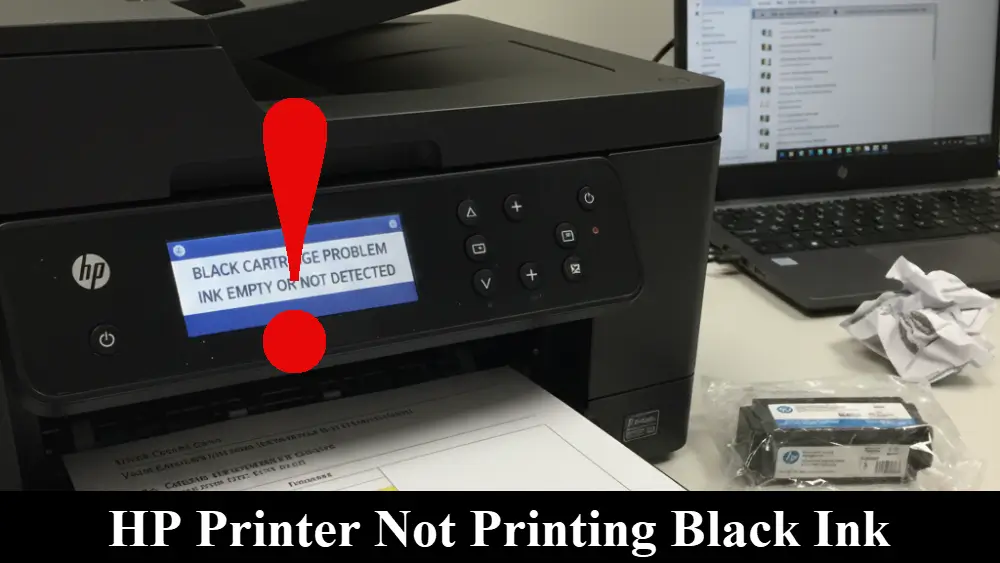
Advanced Troubleshooting for an HP Printer Not Printing Black Ink
If the basic checks don’t solve the problem, it’s time to move on to some more advanced troubleshooting steps. These methods will help you address more stubborn clogs and potential software conflicts that could be causing your HP printer not printing black ink.
1. Run the Printhead Cleaning Cycle Multiple Times
Sometimes, a single cleaning cycle isn’t enough to clear a stubborn clog.
If you’ve run the cleaning cycle once and still see no improvement, don’t give up. Instead, run the automated cleaning cycle two or three more times.
HP’s own documentation suggests that for a badly clogged printhead, you might need to wait 30 minutes before performing all three levels of cleaning again. This gives the ink time to soften and break down the clog.
2. Manually Clean the Printhead and Cartridge Contacts
If the automated cleaning doesn’t work, a manual clean may be necessary. This process can be a bit more delicate, so proceed with care.
- First, remove the black ink cartridge.
- Next, dampen a lint-free cloth or a cotton swab with distilled water. Importantly, do not use tap water, as it can contain minerals that can clog the printhead.
- Then, gently wipe the printhead. The printhead is located where the ink cartridge sits in the printer. You should see a small, mesh-like screen. Wipe this area gently to remove any dried ink.
- After that, clean the electrical contacts. Both the cartridge and the carriage have small copper-colored electrical contacts. Gently wipe these with the damp cloth to ensure a good connection.
- Finally, reinstall the cartridge and run a test print.
3. Check and Clean the Cartridge Vents Thoroughly
A clogged vent is a common but often overlooked cause. To properly clean the vent:
- First, locate the vent. It’s usually a small, grooved area on the top of the cartridge.
- Then, use a pin or paperclip to gently clear the vent. Be careful not to puncture the cartridge itself.
- Finally, wipe away any excess ink with a dry, lint-free cloth.
4. Update Your Printer’s Firmware
Printer firmware is the software that runs your printer. Outdated firmware can sometimes cause compatibility issues with new cartridges or even your computer’s operating system.
You can check for and install firmware updates from the HP support website. Simply search for your printer model and look for the latest firmware version.
5. Perform a Printer Reset
A reset can often clear internal memory and resolve temporary glitches. To do this:
- First, with the printer turned on, disconnect the power cord from the back of the printer.
- Then, unplug the power cord from the wall outlet.
- Wait for at least 60 seconds.
- After that, plug the power cord back into the wall outlet and then into the printer.
- Finally, the printer should turn on automatically. If it doesn’t, press the power button.
6. Consider Environmental and Storage Factors
Sometimes, the issue isn’t with the printer itself but with its environment.
For example, high humidity can cause paper to absorb moisture, leading to poor print quality, while very low humidity can cause ink to dry out faster.
Similarly, storing ink cartridges in a hot or dry place can cause them to fail prematurely.
Therefore, always store your cartridges in a cool, dark place and in their sealed packaging until you are ready to use them.
7. Watch a Video for a Visual Guide
Sometimes, seeing the steps in action can make all the difference.
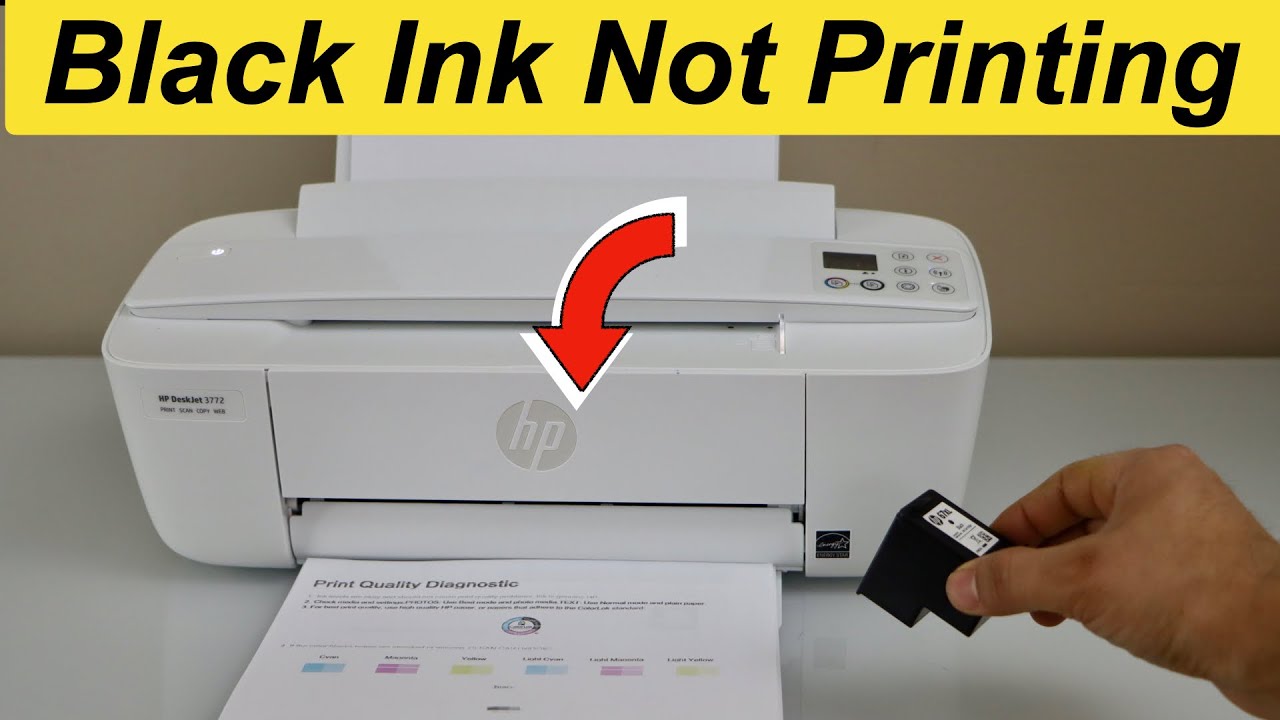
For a helpful visual walkthrough of how to fix an HP printer not printing black ink, you can watch this excellent tutorial on how to fix a printer not printing black ink (which is also hopefully embedded below!)
Final thoughts on an HP Printer Not Printing Black Ink
Dealing with an HP printer not printing black ink can be incredibly disruptive, but as we’ve seen, the solutions are often straightforward.
By working through these troubleshooting steps, from the simple to the more advanced, you can resolve the vast majority of issues without needing to call in a professional. The key, however, is to be patient and methodical.
To prevent this issue from recurring, try to print a page with black ink at least once a week to keep the ink flowing and the printhead clear.
Additionally, always use genuine HP ink cartridges and turn off your printer using the power button to allow it to properly cap the cartridges.
With a little regular maintenance, you can keep your HP printer running smoothly and reliably for years to come.
Frequently Asked Questions (FAQ)
Why is my HP printer not printing black ink when the cartridge is full?
If you have a full black ink cartridge but your HP printer is not printing black ink, the most likely cause is a clogged printhead. Because of this, dried ink can block the nozzles, preventing ink flow.
Try running the printer’s built-in printhead cleaning cycle a few times. If that fails, the cartridge’s vent might be blocked, or there could be an issue with the electrical contacts.
Can I use a non-HP ink cartridge?
While you can use non-HP cartridges, it is not recommended. Refilled or third-party cartridges can cause a range of issues, from poor print quality to printer damage.
For this reason, HP printers are designed to work with genuine HP cartridges, and using them ensures the best performance and reliability. Many printing problems can be traced back to non-genuine cartridges.
How do I know if my printhead is clogged?
Your printer will give you clear signs of a clogged printhead. For example, if your printouts are missing black ink entirely, or if you see faint, streaky, or faded black text, a clog is the most probable cause.
You can confirm this by printing a diagnostic page or a print quality report from your printer’s control panel. This report will show which colors are printing correctly and which are not.
Is it better to leave my HP printer on or off?
In most cases, it is better to leave your printer on, especially if you don’t use it every day. When you turn off your printer using the power button, it goes through a shutdown process that properly parks and caps the printhead, which helps prevent clogging.
In contrast, if you unplug the printer directly, this process is skipped, and the printhead is left exposed to the air, which can cause the ink to dry out.
How to Clean an HP Printer Printhead
This guide will walk you through using your HP printer’s built-in automated tool to clean a clogged printhead, which is the most common fix for when your printer is not printing black ink.
Total Time: 10 Minutes
Supplies:
- Plain white paper
Tools:
- Your HP printer
Steps:
- Prepare the Printer: First, make sure your printer is on and connected. Then, load plain white paper into the paper tray, as the printer will produce a test page after the cleaning cycle.
- Access Printer Maintenance: Next, on your printer’s control panel, navigate to the Setup menu (it may look like a gear icon). From there, select Printer Maintenance or Tools.
- Start the Cleaning Cycle: After that, select the Clean Printhead option. The printer will begin an automated cleaning process, which may take a few minutes and will make some mechanical noises. A test page will print automatically when it’s finished.
- Evaluate the Test Page: Then, examine the test page. If the black ink is now printing clearly, your issue is resolved. However, if the print quality is still poor or there is no black ink, proceed to the next step.
- Repeat if Necessary: Finally, for stubborn clogs, you may need to run the cleaning cycle a second or even a third time. Select Clean Again if the option is available. HP recommends waiting 30 minutes between full cleaning cycles if the clog is particularly bad.
Finally be sure to check out our Tech Troubleshooting FAQ or our Printer Troubleshooting Tips pages for even more general tips that cover a wide range of technical problems and solutions.
(If after reading the above article you still have a problem with an HP printer not printing black ink, then you might find a much less obvious solution on the above tech pages!)