The “HP printer setup incomplete error” is a frustrating roadblock that typically surfaces during the final stages of the HP Smart app configuration.
You might have successfully connected the device to your Wi-Fi, only to find the app spinning indefinitely on a “Finishing setup” screen or the printer’s control panel flashing a warning.
This issue is rarely a hardware defect; instead, it is usually a digital “handshake” failure where the printer, the app, and HP’s cloud servers fail to sync their final registration data.
Whether you are setting up a brand-new Envy, DeskJet, or OfficeJet, understanding why this happens is the first step toward a permanent fix.
If you are staring at a “setup incomplete” message, do not worry – you are in the right place.
This guide provides the exact sequence of steps needed to bypass configuration hangs and get your HP printer online.
By following these proven fixes, you will resolve the underlying communication errors and finish your installation successfully.
What Does ‘Setup Incomplete’ Actually Mean?
When you encounter the HP printer setup incomplete error, it signifies that the mandatory registration process has been interrupted.
This error is not a single point of failure but a status that appears in several distinct contexts:
- During HP Smart app setup:
The most common scenario occurs when the app discovers the printer and connects it to the network, but cannot complete the final cloud registration. - On the printer display:
Many modern HP printers feature a small control panel that will explicitly display “Setup incomplete” if the initial configuration was bypassed or failed. - After Wi-Fi connection:
The printer may show a solid blue light (indicating it is on the network), yet the app remains unable to perform the final “handshake” to link the device to your HP account. - During HP+ enrollment:
For “e” series printers, the setup is considered incomplete until the HP+ cloud features are fully activated and the printer is registered for its warranty and Instant Ink benefits.
Identifying exactly when the error appears – whether at the discovery phase or the final account linking phase – is the essential first step to choosing the correct troubleshooting path.
Before You Begin: Determine Your Printer’s Current State
Before diving into deep software fixes, you must assess the physical and network status of your device.
This helps narrow down whether the HP printer setup incomplete error is caused by a local connection issue or a cloud-side registration failure.
First, check the status lights on your printer.
Is the Wi-Fi light (usually blue) blinking or solid?
A blinking light means the printer is still in “setup mode” or searching for a network, while a solid light indicates it has successfully grabbed an IP address.
Next, look for an amber or orange light, which signifies a general error state that might require a power cycle.
Try to print a configuration page directly from the printer’s control panel (usually by holding the Information “i” button or through the “Tools” menu).
If the printer can produce this page, the hardware is functional.
Finally, check if the printer appears in your computer’s “Printers & Scanners” list or within the HP Smart app.
If it is visible but listed as “Offline” or “Setup Required,” you have a software handshake issue rather than a hardware failure.
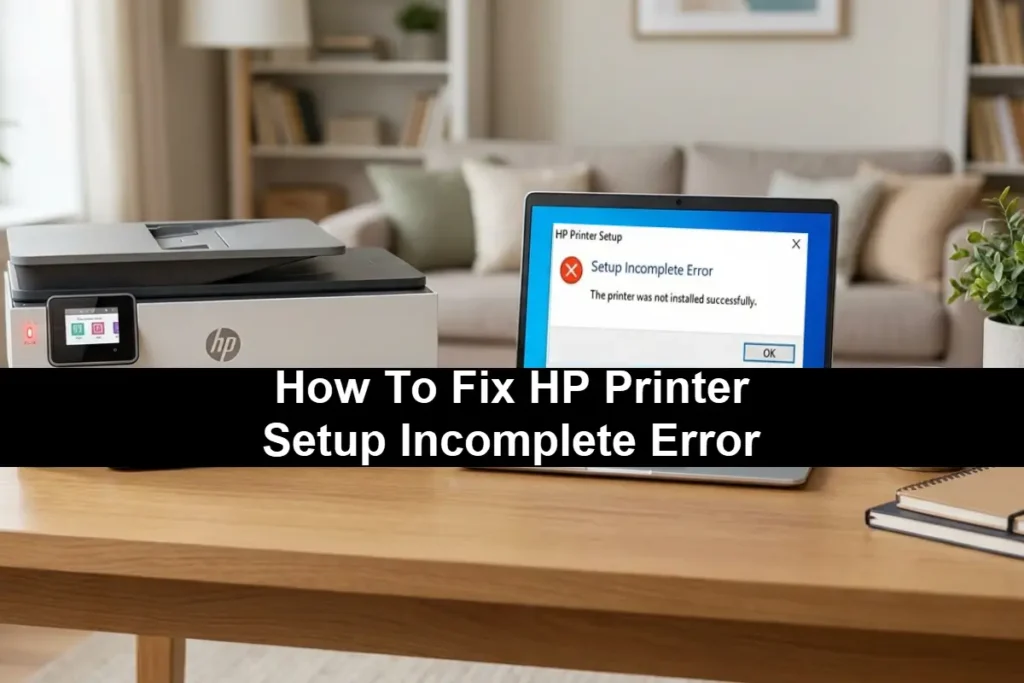
Common Causes Of The HP Printer Setup Incomplete Error
Understanding the “why” behind the HP printer setup incomplete error makes the “how” of fixing it much easier.
Several realistic causes often collide to prevent a smooth installation:
- Outdated HP Smart App:
If your app version is old, it may lack the necessary protocols to communicate with newer printer firmware. - Network Handshake Failure:
This occurs when the app sends Wi-Fi credentials to the printer, but the printer fails to report back to the app that it has successfully joined the network. - HP+ Enrollment Requirements:
Many new HP printers (models ending in “e”) require a constant internet connection and HP+ enrollment. If the enrollment fails due to regional restrictions or account issues, the setup remains incomplete. - Firewall and VPN Interference:
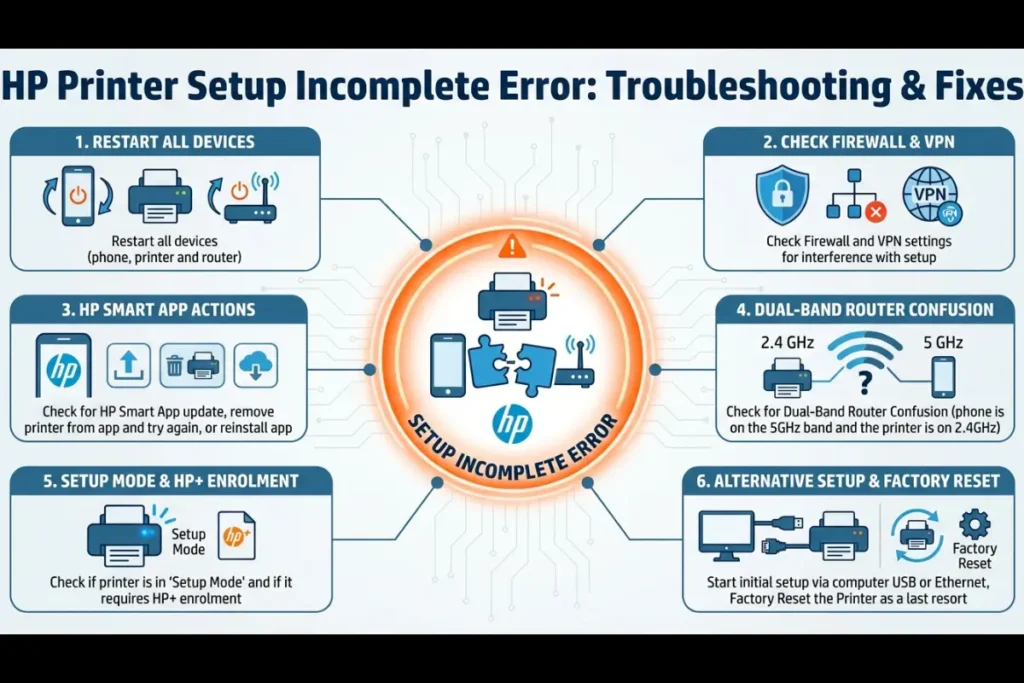
Active VPNs or aggressive third-party firewalls can block the local discovery packets that the HP Smart app uses to find the printer on your network. - Dual-Band Router Confusion:
Most HP printers only support the 2.4GHz Wi-Fi band. If your phone is on the 5GHz band and the printer is on 2.4GHz, the “handshake” often fails because the devices cannot “see” each other properly. - AP Isolation:
This router feature prevents wireless devices from communicating with each other, often leading to a setup incomplete error.
HP Smart App Setup Stages: Where Does It Fail?
To resolve the HP printer setup incomplete error, you must identify which of the four setup stages is failing.
Each stage requires a different tactical approach.
Stage 1: Printer Discovery
In this stage, the app searches for a printer in setup mode.
If the app cannot find the printer, ensure the device is in “Setup Mode” (indicated by a purple pulsing light on many models).
You can reset setup mode by pressing and holding the Wireless and Cancel buttons simultaneously for five seconds.
Stage 2: Wi-Fi Connection
The app finds the printer and attempts to share your Wi-Fi password.
If this fails, the app will hang.
The fix here is often to temporarily disable “Cellular Data” on your mobile device, as the phone may try to switch back to LTE when it loses internet access during the printer’s local Wi-Fi broadcast.
Stage 3: Account Registration
The printer is on the Wi-Fi, but the app cannot link it to your HP account.
This is a common point for the HP printer setup incomplete error.
Ensure you have a valid HP account and that you are not using a “Guest” account, which often limits registration capabilities.
Stage 4: Final Configuration
The app hangs on “Finishing setup.”
This usually means the printer has registered with the cloud, but the app hasn’t received the confirmation.
Often, simply closing and reopening the app at this stage will reveal that the printer is actually ready to use.
For a visual guide to the basic setup of an HP printer over WiFi with the HP app you can watch a helpful YouTube video (also hopefully embedded below!)
Network Handshake Troubleshooting
The most technical cause of the HP printer setup incomplete error is a failed network handshake.
When the HP Smart app transfers credentials, it expects a specific response from the printer’s internal web server.
If your router settings are too restrictive, this response is blocked.
To fix this, start by temporarily disabling the 5GHz band on your router, leaving only the 2.4GHz band active.
This forces both your setup device and the printer onto the same frequency, eliminating “band steering” issues.
You should also check your router settings for “AP Isolation” or “Guest Network” modes; these must be disabled, as they prevent wireless devices from communicating with one another.
For Windows users, ensure your network profile is set to “Private” rather than “Public.”
A Public profile engages strict firewall rules that block printer discovery.
If you are using a mobile device, disabling “Private Relay” (on iOS) or “MAC Randomization” can also help the HP Smart app maintain a stable connection during the critical handshake phase.
HP+ Enrollment Failures
If you own an HP+ enabled printer (identifiable by the “e” in the model name, such as the LaserJet M209dwe), the HP printer setup incomplete error is often tied to mandatory cloud enrollment.
HP+ printers require an active HP account and an internet connection to function; they cannot be set up using only basic drivers.
If enrollment fails, first verify that HP+ is available in your country.
You can do that by choosing the HP Country/Language Selector and from there navigating to your specific local store.
Look under the “Printers” menu and you should see an HP+/HP Plus option which then confirms it is supported officially in your region.
If you are in a supported region but the enrollment still hangs, try performing the setup on a different device.
For example, if the mobile app fails, use the HP Smart app for Windows or macOS.
It is important to note that once an HP+ printer is initialized, the requirement for an HP account and original HP toner/ink is permanent – you cannot “opt-out” later to fix a setup error.
How to Recover from a Partial Setup
If you have already tried to install your printer multiple times and keep hitting the HP printer setup incomplete error, your printer may be stuck in a “partial setup” state.
To fix this, you must clear the memory and start fresh.
- Factory Reset the Printer:
For printers with a screen, go to Setup > Service > Restore Defaults. For printers without a screen, hold the Power button and press the Resume button five times. - Clean the App:
Remove the printer from the HP Smart app by long-pressing the printer icon and selecting “Forget this Printer.” - Restore Network Settings:
Hold the Wireless button and the Cancel button for five seconds until the Power light blinks. This puts the printer back into “Purple Pulse” setup mode. - Reboot Everything:
Turn off your router, printer, and smartphone. Wait 60 seconds, then power them back on in that order. - Attempt Fresh Setup:
Open the HP Smart app and select “Add Printer” to begin the process again from a clean slate.
Alternative Setup Methods
If the HP Smart app continues to trigger the HP printer setup incomplete error despite your best efforts, you can use alternative methods to get the job done.
USB Setup:
Connect the printer to your computer via a USB cable and download the “Full Feature Software and Drivers” from the HP Driver Download page.
This bypasses the wireless handshake entirely.
Once the USB setup is complete, the software often gives you the option to convert the USB connection to wireless.
Wi-Fi Protected Setup (WPS):
If your router has a WPS button, press it, and then press the Wireless button on your printer until the light blinks.
This establishes a hardware-level connection that bypasses the app’s discovery phase.
Once the light is solid blue, you can add the “already connected” printer to the HP Smart app.
Ethernet Connection:
If your printer has an Ethernet port, plug it directly into your router.
This provides the most stable connection for registration and is the fastest way to resolve cloud-based setup errors.
Less Common Causes
Sometimes the HP printer setup incomplete error is caused by unusual circumstances:
- Mobile vs. Desktop:
If setup fails on a phone, it often succeeds on a PC.
Desktop operating systems have more robust network stacks for handling printer handshakes. - Power Outages:
If the power goes out during a firmware update in the setup phase, the printer may become “bricked.”
A factory reset is the only recovery. - Open-Box Units:
If you bought a used or open-box printer, it might still be registered to the previous owner’s HP account.
You must perform a full factory reset to “un-link” it before you can complete your own setup. - DNS Settings:
If you use custom DNS (like Pi-hole or AdGuard), it might block the specific HP servers required for “Finishing setup.”
Temporarily switch to Google DNS (8.8.8.8) during installation.
Prevention Tips
To avoid seeing the HP printer setup incomplete error in the future, follow these best practices:
- Always download the official HP support software rather than using third-party driver sites.
- Keep your router’s firmware updated to ensure it supports the latest security protocols used by HP.
- Before starting any setup, disable your VPN and pause your antivirus software for 10 minutes.
- If you plan to sell or gift your printer, always perform a factory reset first to ensure the next user doesn’t face an “incomplete” error due to your account linkage.
Final Thoughts On HP Printer Setup Incomplete Error
The HP printer setup incomplete error is a common but manageable hurdle in the modern “connected” printing era.
By identifying the specific stage of failure – whether it is a local network handshake or a cloud registration issue – you can apply the targeted fixes outlined in this guide.
Remember that a fresh start via a factory reset is often the quickest path to success when multiple setup attempts have failed.
With patience and the right troubleshooting sequence, your HP printer will be ready to print in no time.
FAQ’s About The HP Printer Setup Incomplete Error
Why does my HP printer say “setup incomplete” even after completing HP Smart?
This usually happens because the printer has not successfully “checked in” with the HP cloud servers to verify its registration or HP+ status.
Even if the app says “Ready,” the printer hardware needs its own confirmation signal.
A quick power cycle often resolves this.
Can I use my HP printer without completing the full setup?
For standard models, yes, you can often print via USB.
However, for “e” series (HP+) models, the printer will eventually lock itself or refuse to print if the cloud setup is not completed within a certain timeframe.
How do I reset my HP printer to start setup over?
You can restore network settings by holding the Wireless and Cancel buttons for five seconds.
For a full factory reset, look for the “Restore Defaults” option in the printer’s “Service” or “Settings” menu.
Why does HP Smart get stuck on “Finishing setup”?
This is typically a network timeout.
The app is waiting for the printer to confirm it has connected to the internet.
Disabling 5GHz Wi-Fi and cellular data on your phone before starting the process is the best way to prevent this hang.
Does my printer require HP+ to complete setup?
Only if it is an “e” series model.
These printers are designed to require an HP account and internet connection as part of their value proposition.
Standard models can often be set up with basic drivers, though HP strongly encourages using the app.
How To Fix The HP Printer Setup Incomplete Error
Follow these steps to clear a stalled configuration and successfully finish your HP printer setup.
- Total Time:
15 minutes - Supply:
None required - Tools:
Computer, smartphone, or tablet with internet access
HP Smart app installed from official app store
HP account credentials
Access to the printer’s control panel
USB cable (optional)
Steps:
- Restore Setup Mode:
Press and hold the Wireless and Cancel buttons for five seconds until the power light flashes. This clears previous failed attempts. - Optimize Network:
Disable 5GHz Wi-Fi on your router and turn off VPN/Cellular data on your smartphone to ensure a clear communication path. - Restart Devices:
Power cycle your router, then your printer, and finally your setup device to refresh all network handshakes. - Re-add in HP Smart:
Open the HP Smart app, remove any existing printer icons, and select “Add Printer” to start a fresh discovery process. - Complete Cloud Link:
Follow the on-screen prompts to sign into your HP account and, if prompted, complete the HP+ enrollment to finalize the setup.
Finally be sure to check out our Tech Troubleshooting FAQ or our Printer Troubleshooting Tips pages for even more general tips that cover a wide range of technical problems and solutions.
(If after reading the above article you still have a “HP Printer Setup Incomplete Error”, then you might find a much less obvious solution on the above tech pages!)