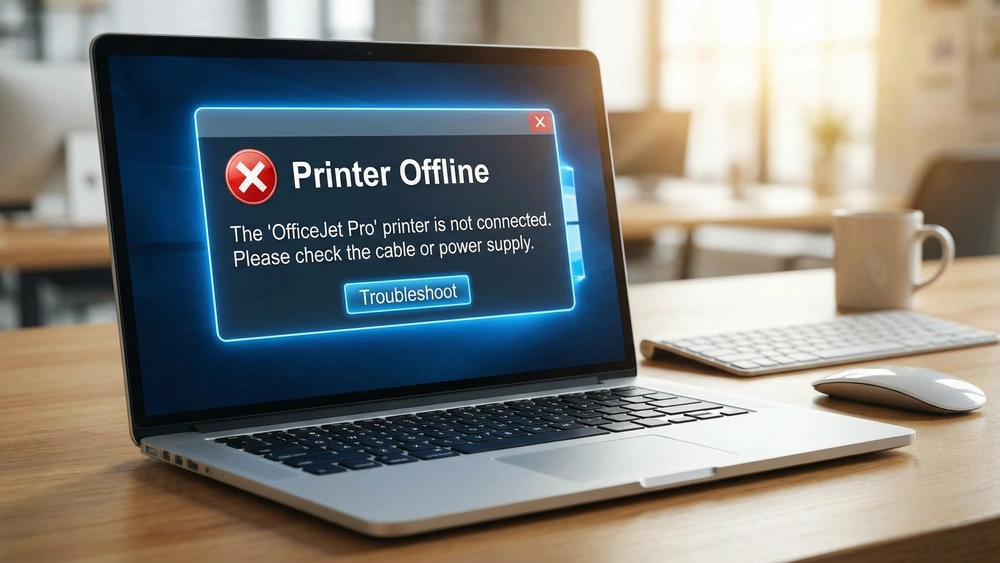
Finding your HP printer shows offline can be incredibly frustrating, interrupting important tasks. This common issue, however, is often easily resolved with targeted troubleshooting. This article aims to demystify the problem, guiding you through practical steps to get your HP printer back online and printing efficiently.
Quick Fix Guide: HP Printer Shows Offline?
- Core Issue
- Your HP printer displays an “offline” status, preventing printing.
- Main Solution
- This guide provides a comprehensive, step-by-step troubleshooting process, from basic restarts to advanced network configurations, to bring your HP printer back online.
- Who This Is For
- HP printer users experiencing offline issues on Windows or macOS, seeking clear, actionable solutions to restore printing functionality.
Understanding Why Your HP Printer Shows Offline
When your HP printer shows offline, it indicates a communication breakdown between your computer and the printer. This common issue arises from various factors, from simple glitches to complex network configurations. Understanding these root causes is crucial for effective troubleshooting.
Key culprits include connectivity issues (loose cables, unstable Wi-Fi, router problems) and printers entering deep power-saving modes. Network configuration problems, such as changing IP addresses, also frequently cause an offline status. Outdated or corrupted drivers and software further contribute to communication barriers. A comprehensive approach addressing both hardware and software is essential.
Initial Troubleshooting: Getting Your HP Printer Back Online
When your HP printer shows offline, many common issues are resolvable with simple steps. Start with the easiest solutions.
1. The Universal Fix: Restart Everything
Restarting devices clears temporary errors and refreshes network connections. This is always the recommended starting point.
How to do it:
- 1. Power cycle your HP printer: Turn it off, disconnect the power cord for 10-15 seconds, then reconnect and power on.
- 2. Restart your computer/mobile device: Perform a standard restart.
- 3. Restart your wireless router (if applicable): Unplug for 10-15 seconds, then plug back in. Allow a few minutes to boot.
After restarting, attempt to print. A simple restart often resolves transient communication issues (as described on this HP Support reference page and confirmed on this HP Printer Offline Issues page).
2. Check Physical Connections and Wireless Status
Loose cables or a dropped Wi-Fi signal frequently cause printers to appear offline. A quick visual inspection can reveal the problem.
How to do it:
- 1. For USB: Ensure the USB cable is securely plugged into both printer and computer. Test different ports/cables if needed.
- 2. For Ethernet: Verify the Ethernet cable is firmly connected to the printer and router/switch. Check for damage.
- 3. For Wireless: Check the printer’s Wi-Fi light (solid blue = stable). Ensure your computer/mobile device is on the same Wi-Fi network (SSID). Temporarily move the printer closer to the router to rule out signal issues.
If your HP printer shows offline due to wireless problems, reconnect it via the printer’s control panel or the HP Smart app as confirmed on this HP page about repairing common printing issues.
3. Utilize the HP Smart App’s Diagnose & Fix Tool
The HP Smart app offers a powerful “Diagnose & Fix” tool to automatically resolve many common printer problems, including an offline status.
How to do it:
- 1. Install/Open HP Smart App: Download from 123.hp.com or your device’s app store. Open and ensure your printer is set up.
- 2. Run Diagnose & Fix: Select your printer in the app, then locate and click “Diagnose & Fix.” Click “Start” to analyze and resolve issues.
This tool is highly recommended for addressing software conflicts, driver issues, and network communication problems specific to HP printers.
4. Re-add Your HP Printer to the System
A corrupted printer installation or network setting change can cause your HP printer shows offline. Removing and re-adding the printer often resolves these issues.
How to do it:
- 1. Ensure printer is connected: Verify power and network/USB connection.
- 2. Remove the printer:
- Windows: Settings > Bluetooth & devices > Printers & scanners > Select printer > Remove device.
- macOS: System Settings > Printers & Scanners > Select printer > Remove Printer button.
- 3. Add the printer back:
- •Windows: In Printers & scanners, click Add device, select your HP printer, and follow prompts.
- •macOS: In Printers & Scanners, click Add Printer, Scanner, or Fax…, select your HP printer, and follow prompts.
Re-adding is effective after software updates or network changes, ensuring correct connection details.
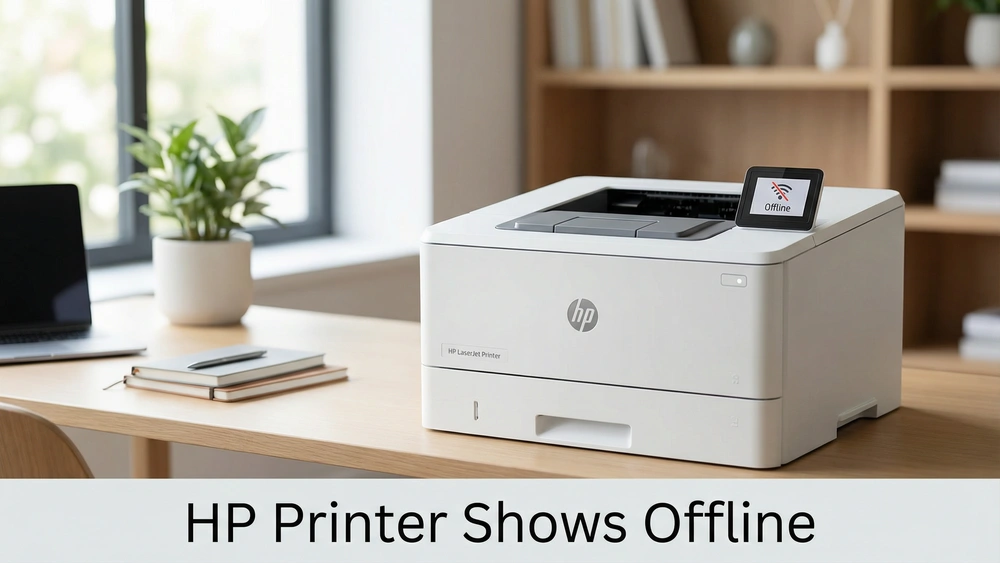
Advanced Troubleshooting for When Your HP Printer Shows Offline
If the basic steps haven’t resolved the issue, it’s time to delve into more advanced solutions. These often involve checking specific operating system settings or network configurations that can cause your HP printer shows offline message to persist. Therefore, a systematic approach is key.
1. Resolve an Offline Printer (Windows Specific)
Windows operating systems have several settings that can impact printer status. Addressing these can often bring your HP printer back online as per the info in this Microsoft Support Guide on Troubleshooting offline printer problems in Windows.
a. Set as Default Printer and Check “Use Printer Offline” Setting
Windows might mistakenly believe your printer is offline. Check these settings:
- 1. Open Printer Settings: In Windows, search for Printers & scanners.
- 2. Manage your HP printer: Select your HP printer, then Manage.
- 3. Set as default: Ensure Let Windows manage my default printer is unchecked. Click Set as default if needed.
- 4. Check print queue: Open the print queue, click Printer in the menu, and ensure Use Printer Offline is unchecked.
b. Restart the Print Spooler Service
The Print Spooler manages print jobs. If stuck, your HP printer shows offline. Restarting it clears pending jobs and refreshes communication.
- 1. Open Services: Press Windows Key + R, type services.msc, and Enter.
- 2. Locate Print Spooler: Find Print Spooler.
- 3. Restart the service: Right-click Print Spooler and select Restart (or Stop then Start).
After restarting, try printing. This often resolves issues where print jobs are stuck.
c. Create a New Printer TCP/IP Port (Windows)
If your network-connected HP printer frequently goes offline due to changing IP addresses, creating a static TCP/IP port provides a stable connection, as per this HP Support guide on how to Configure IP network printer settings.
- 1. Find printer’s IP address: Print a Network Configuration Report from your printer’s control panel or find it in the HP Smart app.
- 2. Open Printer Properties: In Windows, go to Printers & scanners, select your HP printer, then Printer properties.
- 3. Add a new port: Go to Ports tab, click Add Port…, choose Standard TCP/IP Port, and New Port….
- 4. Enter IP address: In the wizard, enter the IP address. Follow prompts to complete port creation and select the new port in the Ports tab, then Apply.
This ensures your computer always finds your HP printer at a specific network address, preventing dynamic IP issues.
2. Resolve an Offline Printer (macOS Specific)
macOS users facing an HP printer shows offline message can resolve issues by resetting the printing system or checking for software updates or even swapping from 2.4ghz to 5ghz as confirmed in this HP support forum question on “The printer is offline”.
a. Reset the Printing System
Resetting the printing system removes all printers and their settings, providing a fresh start for persistent offline issues.
- 1. Open System Settings: Apple menu > System Settings (or System Preferences).
- 2. Printers & Scanners: Click Printers & Scanners.
- 3. Reset Printing System: Control-click (or right-click) in the printer list, then choose Reset Printing System…. Confirm.
- 4. Re-add HP printer: Click Add Printer, Scanner, or Fax… and follow prompts.
b. Check for Software Updates
Outdated printer software or macOS can cause compatibility issues. Keep both updated.
- 1. Update macOS: Apple menu > System Settings > General > Software Update.
- 2. HP driver updates: Visit the official HP support website for your printer model to download the latest drivers.
Ensuring current software helps maintain optimal compatibility and reduces offline occurrences.
Network and Environmental Factors Affecting HP Printer Status
External network and environmental factors significantly influence whether your HP printer shows offline. Understanding these aids in diagnosing persistent issues.
1. Router and Wi-Fi Signal Stability
Unstable Wi-Fi signals or router issues can cause your printer to lose connection. To improve stability:
- Minimize Interference: Reposition router/printer away from obstructions/electronics.
- Update Router Firmware: Install router firmware updates.
- Address Channel Congestion: Change router”s Wi-Fi channel if in a densely populated area.
2. Power Management Settings
Aggressive power-saving settings can cause your printer to enter a deep sleep mode, appearing offline.
- Adjust Printer Sleep Settings: Modify power-saving settings on printer”s control panel or EWS.
- Disable USB Power Management (Windows): In Device Manager, disable Allow the computer to turn off this device to save power for USB Root Hubs.
3. IP Address Conflicts and Static IP Assignment
Dynamic IP addresses can cause your computer to lose track of your printer. Assigning a static IP provides a robust solution, as per the instructions on this HP Support guide on How to Assign a Static IP Address to a Network Printer.
How to assign a Static IP (Advanced):
- 1. Find Printer IP: Obtain IP from Network Configuration Report or HP Smart app.
- 2. Access EWS: Type printer’s IP into a web browser.
- 3. Configure Manual IP: Navigate to Network settings, select Manual IP or Static IP, and enter IP, Subnet Mask, and Default Gateway. (For a visual guide, see the video on “How to Assign a Static IP Address” below.)
- 4. Apply and Restart: Save, restart printer, and re-add to computer if needed.
Assigning a static IP ensures consistent network addressing, reducing offline issues.

Prevention and Long-Term Stability: Keeping Your HP Printer Online
To prevent your HP printer shows offline from recurring, proactive measures are key for long-term stability.
1. Regular Driver and Firmware Updates
Keeping drivers and firmware updated is crucial for optimal performance and compatibility.
- Printer Drivers: Periodically check the official HP support website for the latest drivers.
- Printer Firmware: Update firmware via the HP Smart app, EWS, or HP”s website to enhance network connectivity.
2. Optimize Network Environment
A stable network is vital for reliable wireless printing. Minimize offline occurrences by:
- Dedicated IP Address: Assign a static IP to prevent conflicts.
- Router Placement: Position your router centrally, away from interference.
- Network Band Consistency: Connect your printer to the 2.4GHz Wi-Fi band for better range.
- Quality Cables: Use high-quality, shielded cables for wired connections.
3. Proper Printer Shutdown and Maintenance
Ensure printer readiness by:
- Using the Power Button: Always use the printer’s power button for proper shutdown.
- Regular Cleaning: Keep your printer clean.
- Avoiding Overloading Print Queues: Send large print jobs in smaller batches.
Final Thoughts
Resolving an offline HP printer often involves a systematic approach, starting with simple restarts and progressing to more advanced network configurations.
By understanding the common causes and applying the troubleshooting steps outlined in this guide, you can quickly restore your printer’s functionality and maintain long-term printing stability.
Don’t let an offline printer disrupt your workflow; empower yourself with these solutions. By consistently applying these preventative measures, you can significantly reduce the likelihood of encountering the frustrating “HP printer shows offline” message, ensuring a more reliable and seamless printing experience.
Frequently Asked Questions (FAQ)
Q1: Why does my HP printer keep going offline intermittently?
A1: Intermittent offline issues are often due to unstable Wi-Fi connections, IP address changes (especially if your router assigns dynamic IPs), or aggressive power-saving settings on either your printer or computer. Ensuring a strong Wi-Fi signal, assigning a static IP to your printer, and adjusting power management settings can significantly improve stability.
Q2: What is the Print Spooler, and why is restarting it important?
A2: The Print Spooler is a Windows service that manages all print jobs sent to your printer. If it becomes stuck or corrupted, it can prevent print jobs from reaching your printer, making it appear offline. Restarting the Print Spooler clears its queue and refreshes the service, often resolving communication issues between your computer and printer.
Q3: Can an outdated printer driver cause my HP printer to show offline?
A3: Yes, absolutely. Outdated or corrupted printer drivers can lead to communication errors between your operating system and the printer, causing it to appear offline. Regularly updating your printer drivers from the official HP website ensures compatibility and can prevent many common printing problems.
Q4: Is it better to connect my HP printer via USB, Wi-Fi, or Ethernet?
A4: The best connection method depends on your needs. USB offers a direct, stable connection for a single computer. Wi-Fi provides convenience and allows multiple devices to print wirelessly, but can be susceptible to signal issues. Ethernet offers the most stable and fastest network connection, ideal for shared printers in an office environment. If your HP printer shows offline frequently on Wi-Fi, consider a wired connection for greater reliability.
How To Fix Your HP Printer When It Shows Offline
This guide provides a step-by-step process to troubleshoot and resolve the common issue of an HP printer appearing offline. By following these instructions, you can often quickly restore your printer’s functionality.
Estimated Total Time: 10-15 minutes
Supplies:
- Your HP Printer
- Computer or Mobile Device
- Router (if using a wireless printer)
Tools:
- None (basic troubleshooting)
Step 1: Power Cycle Your HP Printer
Description: Completely turn off and then restart your HP printer to clear any temporary errors or communication glitches.
- 1. Turn off the printer: Locate the power button on your HP printer and press it. If the printer does not power down, disconnect the power cord directly from the back of the printer and from the wall outlet.
- 2. Wait: Allow at least 10-15 seconds for the printer to fully discharge any residual power.
- 3. Reconnect and power on: Plug the power cord back into the wall outlet and then into the printer. Press the power button to turn the printer back on. Wait for the printer to fully initialize and connect to the network (if applicable).
Step 2: Restart Your Computer or Mobile Device
Description: Restart the device you are trying to print from to refresh its connection to the printer and clear any software conflicts.
- 1. Close all applications: Save any open work and close all running programs on your computer or mobile device.
- 2. Perform a standard restart: Go to your operating system’s start menu (Windows) or power options (macOS/mobile) and select the restart option. Allow the device to fully shut down and boot back up.
Step 3: Restart Your Wireless Router (If Applicable)
Description: If your HP printer is connected wirelessly, restarting your router can resolve network-related issues, such as IP address conflicts or unstable Wi-Fi signals.
- 1. Unplug the router: Locate your wireless router and disconnect its power cable from the electrical outlet.
- 2. Wait: Wait for approximately 10-15 seconds.
- 3. Plug in and wait: Reconnect the power cable to the router. Allow several minutes for the router to fully power on and re-establish its internet and Wi-Fi connections. Ensure all indicator lights are stable before proceeding.
Step 4: Verify Printer Status and Test Printing
Description: After restarting all devices, confirm that your HP printer is now online and attempt a test print.
- 1. Check printer status: On your computer or mobile device, open your printer settings (e.g., Printers & scanners in Windows, Printers & Scanners in macOS). Verify that your HP printer now shows an “Online” or “Ready” status.
- 2. Print a test page: Attempt to print a simple document or a test page. If the document prints successfully, your HP printer is back online.
If your HP printer shows offline after these steps, proceed to more advanced troubleshooting methods outlined in the main article above, such as checking physical connections, using the HP Smart app, or re-adding the printer to your system.
Finally be sure to check out our Tech Troubleshooting FAQ or our Printer Troubleshooting Tips pages for even more general tips that cover a wide range of technical problems and solutions.