It’s incredibly frustrating when you’re eager to set up your new HP printer, only to be met with the persistent message: “HP printer unable to register to account.”
This common issue often arises during the initial setup process with the HP Smart app, especially with new printers.
When it does it leaves you unable to access essential features like printing from your mobile device or managing Instant Ink subscriptions.
We understand how annoying this can be, but rest assured, this guide is designed to help you navigate these challenges with clear, actionable steps.
HP Printer Unable To Register To Account Article At A Glance
The solution to your HP printer registration woes is often simpler than you think.
This comprehensive guide will walk you through the precise steps to overcome registration failures, ensuring your printer connects seamlessly to your HP account.
Quick Fix: HP Printer Unable To Register To Account
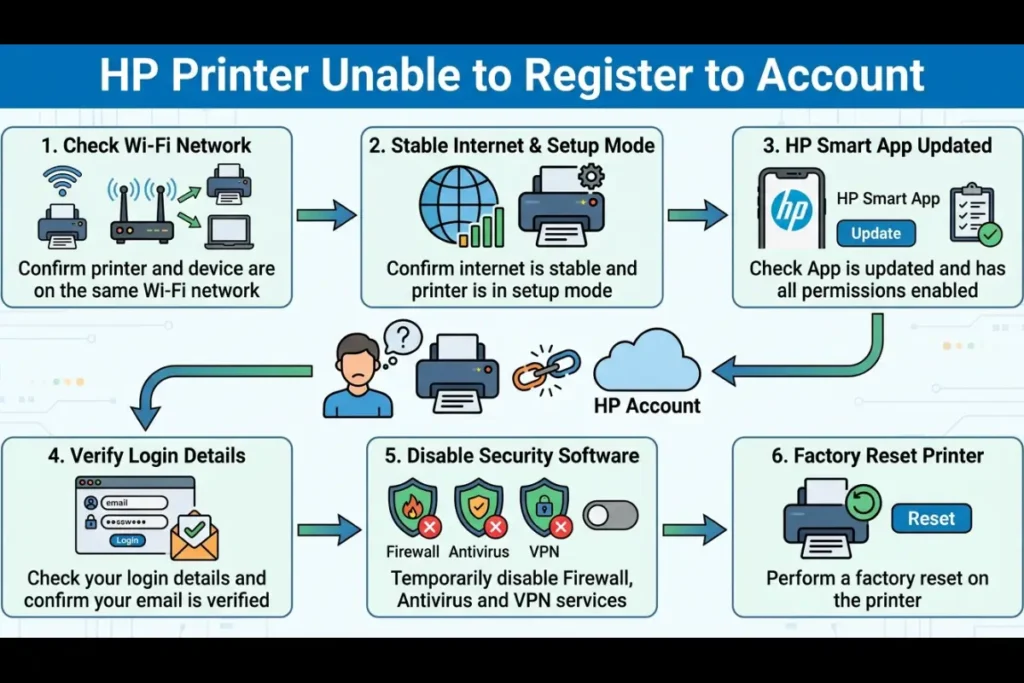
If your HP printer won’t register to your account, run through these essentials first – most issues are resolved in minutes:
1. Check the Basics
- Make sure your printer and device are on the same Wi-Fi network
- Confirm your internet connection is stable
- Ensure your printer is in setup mode (blinking blue light on many models)
2. Fix the HP Smart App
- Update the app to the latest version
- Enable all permissions (Wi-Fi, Bluetooth, location)
- Clear cache or reinstall if it’s acting buggy
3. Verify Your Account
- Double-check your login details
- Make sure your email is verified
- Use a standard HP account (not HP+ unless needed)
4. Remove Network Blocks
- Temporarily disable:
- Firewall / antivirus
- VPN services
- Set your network to Private (Windows)
5. Try an Alternative Method
- Register your printer directly via the HP website using the serial number
- Then return to the app
6. Check for Ownership Conflicts
- If the printer is second-hand, it may already be registered
- Perform a factory reset
- Contact HP support if the issue persists
7. Consider Less Common Causes
- Region restrictions (HP+ / Instant Ink not available everywhere)
- Router settings like AP isolation blocking device communication
Still Not Working?
If you still have that annoying “HP Printer Unable to Register to Account” issue, then you will have to work through the full guide below for step-by-step troubleshooting, deeper explanations, and less common/edge-case fixes.
The rest of this article walks through each solution in detail so you can pinpoint the exact cause and get your printer fully connected.
Before You Begin: Prerequisites For HP Account Registration
Before diving into troubleshooting, ensure you have the foundational elements in place for a smooth HP printer registration.
Many issues stem from overlooked prerequisites, which almost certainly is the cause of your “HP Printer Unable To Register To Account” error.
First, a stable internet connection is paramount for both your HP printer and the device running the HP Smart app.
Without a reliable connection, communication with HP servers will fail.
Second, confirm that the HP Smart app is installed and updated to its latest version from official app stores like the Microsoft Store, Apple App Store, or Google Play.
An outdated app can cause compatibility problems.
Third, you’ll need a valid HP account. If you don’t have one, you can easily create an HP account on the HP website.
Finally, for mobile device setups, ensure Bluetooth and location services are enabled for proper printer discovery, and verify your printer is in setup mode (often indicated by a blue blinking light) or already connected to your Wi-Fi network.
Which HP Account Do You Need?
Understanding the different types of HP accounts is crucial, as confusion here can lead to registration issues.
Primarily, there are two main types: the standard HP Account and the HP+ Account.
The standard HP Account is a free, essential service that allows you to register your HP printer, manage your devices through the HP Smart app, and access basic support.
Most home users will only ever need this standard account to get their printer up and running and utilize its core functionalities.
It’s the gateway to connecting your printer to HP’s ecosystem.
On the other hand, an HP+ Account is an optional, subscription-based service that offers additional benefits, such as Instant Ink delivery and advanced printing features.
It’s important to note that an HP+ Account requires you to first have a standard HP Account.
If you’re not planning to subscribe to HP+ or Instant Ink, focusing solely on creating and using a standard HP Account is sufficient for printer registration.
Attempting to register for HP+ when you only need a basic account can sometimes complicate the process, so ensure you’re signing up for the correct service based on your needs.
Common Causes Of An HP Printer Unable To Register To Account
When your HP printer is unable to register to account, several underlying issues could be at play.
Understanding these common culprits can significantly speed up your troubleshooting process.
One frequent cause of HP printer registration failure is an outdated or corrupted HP Smart app.
Software glitches or old versions can prevent proper communication with your printer and HP servers.
Similarly, firewall, antivirus, or VPN software can inadvertently block the necessary network connections, leading to registration timeouts or errors.
These security measures, while important, sometimes misidentify legitimate HP processes as threats.
Another common problem is incorrect account credentials or an unverified HP account.
If you’ve recently changed your password or haven’t clicked the verification link in your email, the system won’t recognize your login.
In some cases, the printer might already be registered to a previous owner, especially if it’s a refurbished or second-hand device.
HP’s system prevents multiple registrations for the same printer, causing your attempt to fail.
Furthermore, region restrictions can impact HP+ or certain service availability, meaning if you’re in a country where a specific service isn’t offered, registration for that service will fail.
Lastly, app permissions not granted (such as camera, local network, Bluetooth, or location) on your mobile device, or network configuration issues like AP isolation or public network settings, can hinder the HP Smart app’s ability to discover and connect to your printer.
HP Smart App Troubleshooting
When your HP printer is unable to register to account via the HP Smart app, the app itself is often the first place to look for solutions.
Start by ensuring the app is up-to-date. Check for app updates in your device’s official app store (Microsoft Store, Apple App Store, or Google Play).
Developers frequently release updates to fix bugs and improve compatibility, which could resolve your registration issue.
Next, verify app permissions.
On mobile devices, the HP Smart app requires access to local network, Bluetooth, and location services to discover and communicate with your printer.
On desktop, ensure that the HP Smart app has necessary firewall exceptions.
Without these permissions, the app cannot function correctly.
If updating and permissions don’t resolve the problem, consider clearing the app’s cached data.
On mobile, you can typically clear app cache and data through your device’s app settings.
For desktop versions, you might need to reset the app via system settings.
This can resolve issues caused by corrupted temporary files.
As a last resort, uninstall and reinstall the HP Smart app from its official source. This ensures you have a clean, fresh installation.
For Windows users, it’s also crucial to ensure your Wi-Fi network is set to “Private Network” rather than “Public.”
Public network settings often have stricter security protocols that can block printer discovery and registration.
Firewall and Network Security Troubleshooting
Network security settings are a common reason why an HP printer is unable to register to account.
Firewalls, antivirus software, and VPNs are designed to protect your system, but they can sometimes be overly aggressive.
This can block legitimate communication between your HP printer, the HP Smart app, and HP servers.
To diagnose if this is the cause, try temporarily disabling your antivirus and firewall software to test the connection.
If registration succeeds after disabling them, you’ve found your culprit.
In this case, you’ll need to add HP Smart executables to your firewall’s allow list or create specific rules to permit its network activity.
Consult your security software’s documentation for instructions on how to do this.
Similarly, if you are using a VPN, disable it during the registration process.
VPNs route your internet traffic through different servers, which can interfere with the printer’s ability to locate and communicate with HP’s registration services, especially if the VPN server is in a different region.
Beyond your computer’s security software, your router’s settings can also play a role.
Check your router settings to disable AP isolation if it’s enabled.
AP isolation prevents devices on your local network from communicating with each other, which is necessary for the HP Smart app to find your printer.
For macOS users, ensure you grant HP Smart “Local Network” permission in System Settings > Privacy & Security, as this is a common oversight that prevents the app from discovering your printer on the network.
Printer Already Registered to Another Account
One of the more perplexing reasons an HP printer is unable to register to account is when the printer has already been associated with another HP account.
This often happens with refurbished printers, open-box returns, or if the printer was previously owned.
You can often identify this issue if the HP Smart app displays a message like “Printer already registered to another user” or similar.
HP’s system is designed to prevent a single printer from being registered to multiple accounts simultaneously, which can lead to your registration attempts failing.
If you suspect your printer is already registered, there are a couple of paths to resolution.
The first step is to perform a factory reset on the printer.
This process varies by model, but it typically clears all previous settings, including any account associations.
Refer to your printer’s manual or the HP Support website for specific instructions on how to factory reset your model.
Be aware that a factory reset will erase all custom settings and network configurations, so you’ll need to set them up again.
If a factory reset doesn’t resolve the issue, or if the printer still shows as registered, you may need to contact HP Support directly.
They can often help deregister the printer from the previous owner’s account, though you will likely need to provide proof of purchase to verify ownership.
Region and Service Availability
Sometimes, an HP printer is unable to register to account due to geographical restrictions or service availability.
This is particularly relevant for services like HP+ and Instant Ink, which are not universally available in all countries.
If you are attempting to register for one of these services and consistently encounter failures, it’s crucial to check if these offerings are supported in your region.
HP has a FAQ page detailing the region availability for HP+ and Instant Ink (you just need to scroll down the page to find it).
Visiting this page can quickly clarify whether your location is a factor in your registration difficulties.
Furthermore, certain printer models might be designed with specific regional services in mind.
If your printer model requires HP+ for full functionality, and that service is not available where you are, it could impede the registration process.
Always cross-reference your printer’s requirements with the services offered in your country.
This step can save considerable troubleshooting time by ruling out a common, yet often overlooked, cause of registration failure.
If you find that a required service is unavailable in your region, you may need to consider alternative printer models or adjust your expectations regarding certain features.
Browser-Based Registration Alternative
If you continue to experience issues with your HP printer unable to register to account through the HP Smart app, a browser-based registration method can often serve as a reliable alternative.
This approach bypasses potential app-specific glitches and allows you to register your printer directly through HP’s website.
Here’s how to do it:
- Open a web browser on your computer or mobile device and navigate to the official HP Support website. This is your starting point for online registration.
- Sign in with your HP account credentials. If you don’t have an account, you can create one on the HP website before proceeding. Ensure you use the same account you intend to associate with your printer.
- Once logged in, navigate to “My Dashboard” or look for an option like “Register a Product.” The exact wording might vary slightly depending on the website’s current layout, but these sections are typically where device management and registration options are located.
- You will then be prompted to enter your printer’s serial number. This crucial identifier is usually found on a sticker on the back of your printer, underneath the printer, or inside the cartridge access door. Make sure to enter it accurately.
- Complete the registration online. Follow any on-screen prompts to finalize the process. After successful online registration, you can then return to the HP Smart app. The app should now recognize your printer as registered, allowing you to proceed with printing and other functions.
This last method is particularly useful if you suspect the HP Smart app itself is the primary source of your registration difficulties, offering a direct line to HP’s registration services.
Less Common Causes Of An HP Printer Unable To Register To Account
When Standard Troubleshooting Isn’t Enough
Even after trying the common fixes, you might still find your HP printer unable to register to account due to less common scenarios.
These “edge cases” require a slightly different approach.
For instance, you might encounter a situation where the printer displays “Setup incomplete” but the HP Smart app simply cannot find it.
This often points to a deeper network communication issue or a printer firmware problem.
In such instances, a full network reset (router and printer) followed by a firmware update (if available via USB or a different setup method) might be necessary.
Another common edge case is when registration fails on a mobile device but works perfectly on a desktop, or vice versa.
This suggests a device-specific issue, possibly related to app permissions, operating system settings, or network adapter configurations.
Thoroughly checking permissions and network profiles on the problematic device is key.
If you’re waiting for an account verification email that never arrives, always check your spam or junk folders first.
If it’s not there, try resending the verification email from your HP account portal.
Sometimes, a printer purchased as an open-box return might have an unknown registration status.
In these situations, a factory reset is almost always the first step, followed by contacting HP Support if the issue persists.
Finally, if you’ve previously registered a different printer and are now struggling to add a new one, ensure you’re managing your devices correctly within your HP account dashboard, and that the old printer isn’t causing conflicts or reaching a device limit.
Prevention Tips for Smooth HP Printer Registration
Preventing registration issues is always easier than troubleshooting them.
By following a few best practices, you can significantly reduce the chances of your HP printer being unable to register to account in the future.
Firstly, always install the HP Smart app from official app stores (Microsoft Store, Apple App Store, Google Play).
Downloading from unofficial sources can lead to corrupted installations or security risks.
Secondly, make it a habit to keep your HP Smart app updated.
Regular updates often include bug fixes and performance improvements that can prevent common registration glitches.
Thirdly, document your HP account credentials securely.
Forgetting your username or password is a common cause of registration delays.
Use a password manager or keep a secure record.
If you plan to sell or give away your HP printer, remember to deregister it from your HP account beforehand.
This prevents the next owner from encountering registration conflicts.
Lastly, during the initial setup and registration process, it’s a good idea to temporarily disable any VPN software and pause your antivirus or firewall if you encounter issues.
Once the printer is successfully registered, you can re-enable them, ensuring you add necessary exceptions for the HP Smart app.
Final Thoughts On HP Printer Unable To Register To Account
Encountering an “HP printer unable to register to account” message can be a frustrating hurdle, but it’s rarely an insurmountable one.
By systematically working through the troubleshooting steps outlined in this guide – from verifying app permissions and network settings to considering browser-based registration or addressing previous ownership issues – you can pinpoint and resolve the root cause.
Remember, patience and a methodical approach are your best tools.
With these solutions, you should be able to successfully register your HP printer and unlock its full potential, ensuring a smooth and efficient printing experience.
Frequently Asked Questions About An HP Printer Unable To Register To Account
Why does HP Smart say “printer not found” during registration?
This usually indicates a network communication issue.
Ensure both your printer and the device running HP Smart are on the same Wi-Fi network.
Check for firewall or antivirus interference, and verify that the HP Smart app has necessary network permissions.
Sometimes, simply restarting your printer, router, and device can resolve temporary glitches.
How do I know if my printer is already registered to someone else?
The HP Smart app might display a message like “Printer already registered to another user” during your registration attempt.
If you suspect this, performing a factory reset on the printer is the first step.
If the issue persists, you may need to contact HP Support with proof of purchase to have the printer released from the previous account.
Can I use my HP printer without creating an account?
While you can often print basic documents without an HP account, creating one is necessary to unlock full functionality, especially for features like the HP Smart app, Instant Ink, and cloud printing services.
Registration also simplifies troubleshooting and warranty support.
What permissions does HP Smart need to register my printer?
On mobile devices, HP Smart typically requires access to local network, Bluetooth, and location services to discover and connect to your printer.
On desktop, it needs to be allowed through your firewall.
Without these permissions, the app cannot properly communicate with your printer or HP servers.
How do I reset my HP account password if I forgot it?
You can reset your HP account password by visiting the HP account login page and clicking on the “Forgot password” or “Forgot your username?” link.
You will typically be prompted to enter your email address, and a password reset link will be sent to you.
Does a VPN cause HP printer registration to fail?
Yes, a VPN can often interfere with HP printer registration.
VPNs route your internet traffic through different servers, which can disrupt the direct communication required between your printer, the HP Smart app, and HP’s registration servers.
It’s recommended to temporarily disable your VPN during the registration process.
How To: Troubleshoot An HP Printer Unable To Register To Account
This step-by-step guide will help you troubleshoot HP printer registration issues and resolve common problems when your HP printer is unable to register to your account.
Total Time: Approximately 15-30 minutes, depending on the issue.
Supplies: None required.
Tools:
- Computer, smartphone, or tablet with internet access
- HP Smart app installed from official app store
- HP account credentials
- Access to the printer’s control panel and serial number
Steps:
- Verify Network Connection:
Ensure both your HP printer and the device running the HP Smart app are connected to the same, stable Wi-Fi network. Restart your router if necessary. - Update HP Smart App:
Check for and install any available updates for the HP Smart app from your device’s official app store. - Check App Permissions:
Confirm that the HP Smart app has all necessary permissions enabled (e.g., local network, Bluetooth, location on mobile; firewall exceptions on desktop). - Disable Security Software (Temporarily):
If issues persist, temporarily disable your computer’s firewall, antivirus, or VPN to see if they are blocking the connection. Remember to re-enable them afterward and add exceptions for HP Smart. - Clear App Cache/Reinstall:
Clear the HP Smart app’s cache and data, or uninstall and reinstall the app for a fresh start. - Attempt Browser-Based Registration:
If the app still fails, try registering your printer directly through the HP Support website using your printer’s serial number. - Factory Reset Printer:
If the printer was previously owned or is showing as already registered, perform a factory reset on the printer to clear old data. Consult your printer’s manual for specific instructions. - Contact HP Support:
If all else fails, gather your printer’s serial number and proof of purchase, and contact HP Support for personalized assistance.
Finally be sure to check out our Tech Troubleshooting FAQ or our Printer Troubleshooting Tips pages for even more general tips that cover a wide range of technical problems and solutions.
(If after reading the above article you still have an “HP Printer Unable to Register to Account” issue, then you might find a much less obvious solution on the above tech pages!)