In this comprehensive guide, we’ll explore the common culprits behind the “HP printer USB not recognized” issue and provide a clear, step-by-step approach to resolving it.
In a Hurry? Here’s the Quick Fix
If your computer isn’t detecting your HP printer, the problem often lies with a faulty USB connection, outdated drivers, or incorrect system settings.
Start by checking your USB cable and ports, then move on to restarting your devices and updating the printer drivers through Windows Device Manager.
This article is for anyone struggling to get their HP printer working via a USB connection.
Common Causes of an HP Printer USB Not Recognized Error
Understanding why your HP printer’s USB connection is not being recognized is the first step toward fixing it. In most cases, the issue can be traced back to a few common culprits.
By systematically checking each one, you can quickly identify and resolve the problem.
These issues can range from the very simple, like a loose cable, to more complex software conflicts within your operating system.
Faulty USB Cables and Ports
A surprisingly common cause is a simple hardware issue. The USB cable itself might be damaged, or the USB port on either your computer or printer could be faulty.
Over time, cables can wear out from being bent and moved, and the internal wires can break. Similarly, USB ports can become loose from frequent use or accumulate dust and debris that prevent a solid connection.
Trying a different, known-working USB cable or plugging into a different USB port on your computer is often the quickest way to rule this out. Don’t forget to check the port on the printer as well; a gentle wiggle of the cable can sometimes reveal a loose connection.
Outdated or Corrupt Printer Drivers
Printer drivers are the essential software that allows your computer’s operating system to communicate with your printer. If these drivers are outdated, corrupted, or were not installed correctly in the first place, your computer may fail to recognize the printer.
This is a frequent issue, especially after a major Windows update, which can sometimes introduce incompatibilities or overwrite existing driver files, leading to driver conflicts.
An incomplete driver installation can also be a source of this problem, leaving your system unable to properly identify the printer hardware.
Windows Configuration and Power Management
Windows has several settings that can interfere with USB device recognition, often in an attempt to save power. For instance, the “USB selective suspend” feature is designed to cut power to USB devices that are not in active use.
While this is useful for laptops running on battery, it can sometimes mistakenly turn off the power to your printer’s USB port, making it seem as though it’s disconnected.
Similarly, incorrect power management settings for the USB Root Hubs in the Device Manager can prevent the computer from properly communicating with the printer, causing the dreaded “HP printer USB not recognized” error.
Basic Troubleshooting for HP Printer USB Not Recognized
Before diving into more advanced solutions, it’s always best to start with the basics. These simple steps can often resolve the “HP printer USB not recognized” issue without much effort, saving you time and frustration.
- Check the Physical Connection: First and foremost, ensure the USB cable is securely plugged into both the printer and the computer. It’s easy for a cable to become slightly dislodged. Try a different USB port on your computer to rule out a faulty port. If you have another USB cable, test it to see if the original cable is the problem. For more details, you can refer to HP’s official guide on how to Fix an Unrecognized USB Device.
- Restart Your Devices: A simple restart can often clear up temporary software glitches that may be preventing your printer from being recognized. Turn off your computer and your printer completely. Unplug the printer from the power source, wait for about a minute to allow any residual power to dissipate, then plug it back in and turn everything back on.
- Run the Windows Troubleshooter: Windows has a built-in troubleshooter that can automatically detect and fix common printer problems. You can access it by going to Settings > System > Troubleshoot > Other troubleshooters and running the Printer troubleshooter. This tool will scan your system for common issues and attempt to resolve them automatically. Microsoft provides further guidance on fixing printer connection and printing problems in Windows.
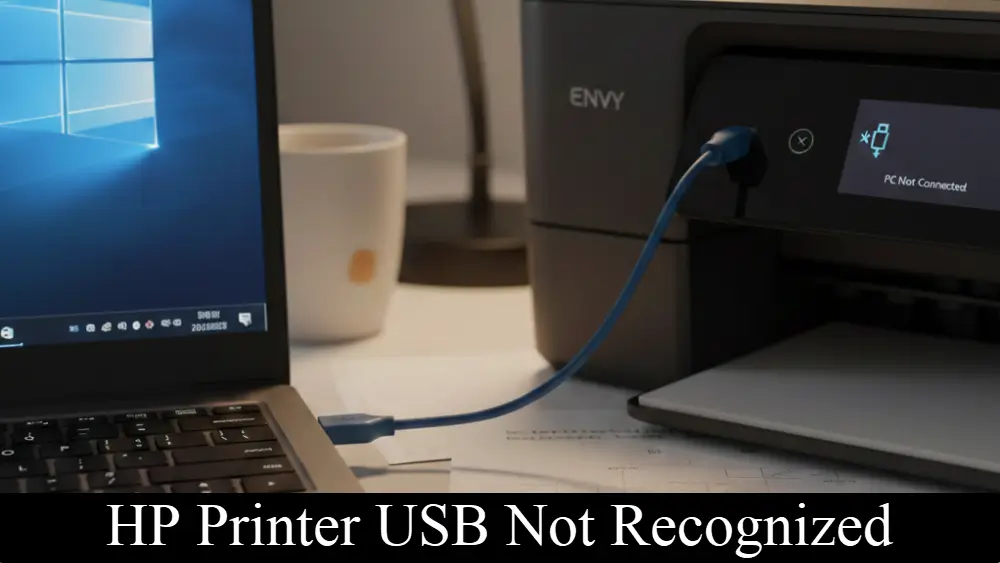
Advanced Troubleshooting for an HP Printer USB Not Recognized Problem
If the basic steps didn’t solve the problem, it’s time to move on to more advanced troubleshooting.
These methods involve checking your system’s settings and drivers to resolve the underlying cause of the “HP printer USB not recognized” error.
These steps require a bit more technical comfort but are highly effective.
Reinstalling the Printer Drivers
Outdated or corrupt drivers are a primary cause of this issue. A clean reinstallation can create a fresh and stable connection between your computer and printer.
- Uninstall the Printer: Go to Settings > Bluetooth & devices > Printers & scanners, select your HP printer, and click Remove.
- Remove the Driver from Device Manager:
- Press the Windows key + X and select Device Manager. Look for your HP printer, which may be listed under “Printers,” “Print queues,” or even “Unknown devices” with a yellow exclamation mark.
- Right-click on the printer and select Uninstall device. Make sure to check the box that says “Delete the driver software for this device.” This is a crucial step to ensure a clean reinstallation.
- Reinstall the Driver: Disconnect the printer’s USB cable from the computer, then restart your computer. Once it has rebooted, reconnect the USB cable. Windows should automatically detect the printer and install the necessary drivers. If it doesn’t, you can download the latest drivers from the official HP Support website.
Disabling USB Selective Suspend
This power-saving feature can sometimes be too aggressive, cutting power to your printer’s USB port when it shouldn’t.
- Open the Control Panel and go to Hardware and Sound > Power Options.
- Click on Change plan settings next to your currently selected power plan.
- Click on Change advanced power settings to open a new window.
- In the list, find and expand USB settings and then expand USB selective suspend setting.
- Set it to Disabled from the dropdown menu and click OK to save the changes.
Checking USB Root Hub Power Management
Similar to the selective suspend feature, Windows might be individually turning off your USB ports to save power, which can cause your HP printer to become unrecognized.
- Open Device Manager by pressing the Windows key + X and selecting it from the menu.
- Expand the Universal Serial Bus controllers section to see a list of all your USB hubs.
- Right-click on the first USB Root Hub in the list and select Properties.
- Go to the Power Management tab and uncheck the box that says “Allow the computer to turn off this device to save power.”
- Click OK and repeat this process for all other USB Root Hubs listed in the Device Manager.
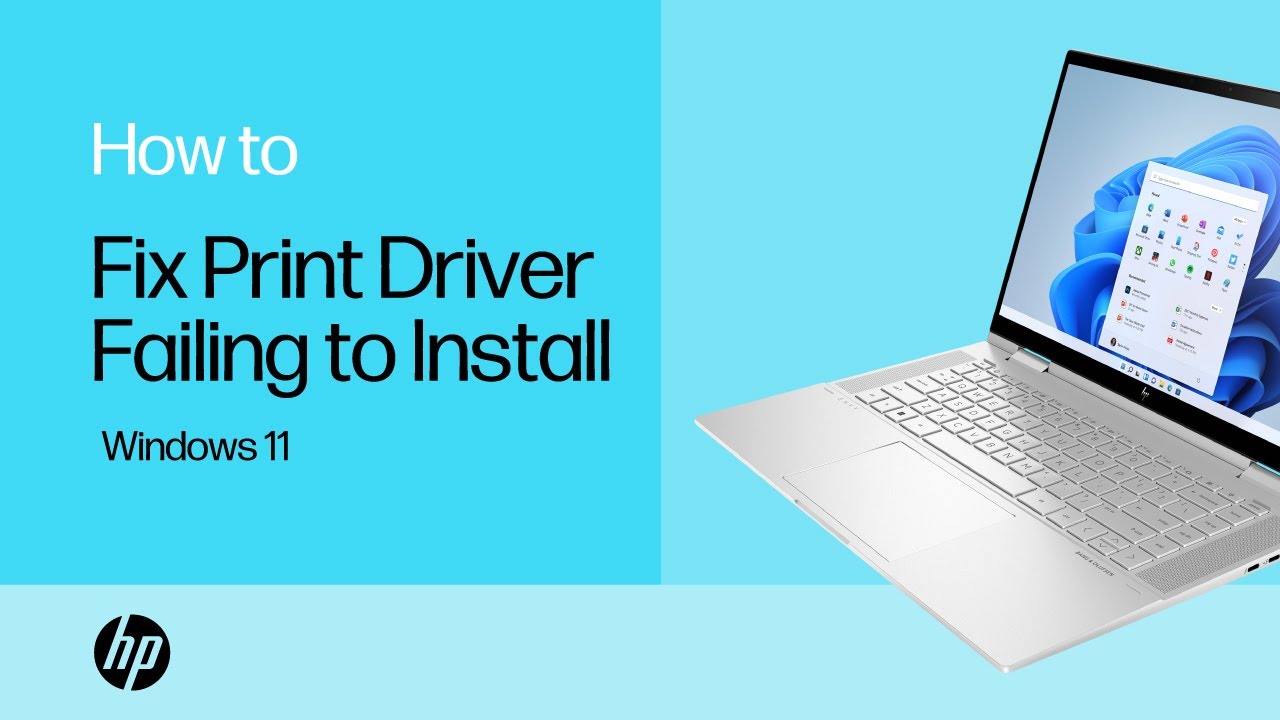
For a visual guide on how to perform some of the most likely troubleshooting steps you can take to solve your issue, you can also watch this helpful video (hopefully also embedded below) on how to fix a Windows 11 print driver failing to install.
Final thoughts on HP Printer USB Not Recognized
Dealing with an “HP printer USB not recognized” error can be a significant roadblock, but with a systematic approach, it’s usually a solvable problem.
By working through the steps outlined in this guide – from basic hardware checks to more advanced driver and power management adjustments – you can identify and fix the root cause of the issue.
Remember to be patient and methodical in your troubleshooting, as skipping a step could mean missing the solution. As a preventative measure, it’s always a good idea to keep your printer drivers and Windows updated to ensure smooth and reliable operation in the future.
For more detailed information on troubleshooting USB connections, you can also refer to the official support guides from Microsoft and other manufacturers like Dell.
Frequently Asked Questions
Why is my computer not recognizing my HP printer’s USB?
This can happen for several reasons, including a faulty USB cable or port, outdated or corrupt printer drivers, or incorrect power management settings in Windows. Start by checking the physical connection and then move on to software-based solutions like updating your drivers.
How do I update my HP printer drivers?
You can update your drivers through the Windows Device Manager. Right-click on your printer, select “Update driver,” and choose “Search automatically for drivers.” Alternatively, you can download the latest drivers directly from the HP Support website.
Can a Windows update cause my printer to stop being recognized?
Yes, sometimes a Windows update can cause driver conflicts or change settings that affect your printer’s connectivity. If the problem started after an update, reinstalling your printer drivers is often the best solution.
How to Reinstall Your HP Printer Driver
Here’s a step-by-step guide to reinstalling your HP printer driver to fix the ‘USB not recognized’ error:
Time required: 10 minutes
Tools:
- USB Cable
Supplies:
- Computer with Windows
- HP Printer
Steps:
- Uninstall the Printer: Begin by navigating to Settings > Bluetooth & devices > Printers & scanners. Locate your HP printer in the list, select it, and then click the Remove button to uninstall it from your system.
- Remove the Driver from Device Manager: Next, press the Windows key + X on your keyboard and choose Device Manager from the menu that appears. Within Device Manager, expand the sections where your HP printer might be listed (e.g., “Printers,” “Print queues,” or “Unknown devices”). Right-click on your printer’s entry and select Uninstall device. Crucially, ensure you check the box that says “Delete the driver software for this device” to completely remove any potentially corrupt driver files.
- Reinstall the Driver: Finally, disconnect the printer’s USB cable from your computer. Restart your computer. Once your computer has fully rebooted, reconnect the USB cable to a different port if possible. Windows should automatically detect the printer and begin installing the necessary drivers. If Windows does not automatically install the drivers, you can always download the latest official drivers directly from the HP Support website.
Finally be sure to check out our Tech Troubleshooting FAQ or our Printer Troubleshooting Tips pages for even more general tips that cover a wide range of technical problems and solutions.
(If after reading the above article you still have a “HP Printer USB Not Recognized” problem, then you might find a much less obvious solution on the above tech page!)