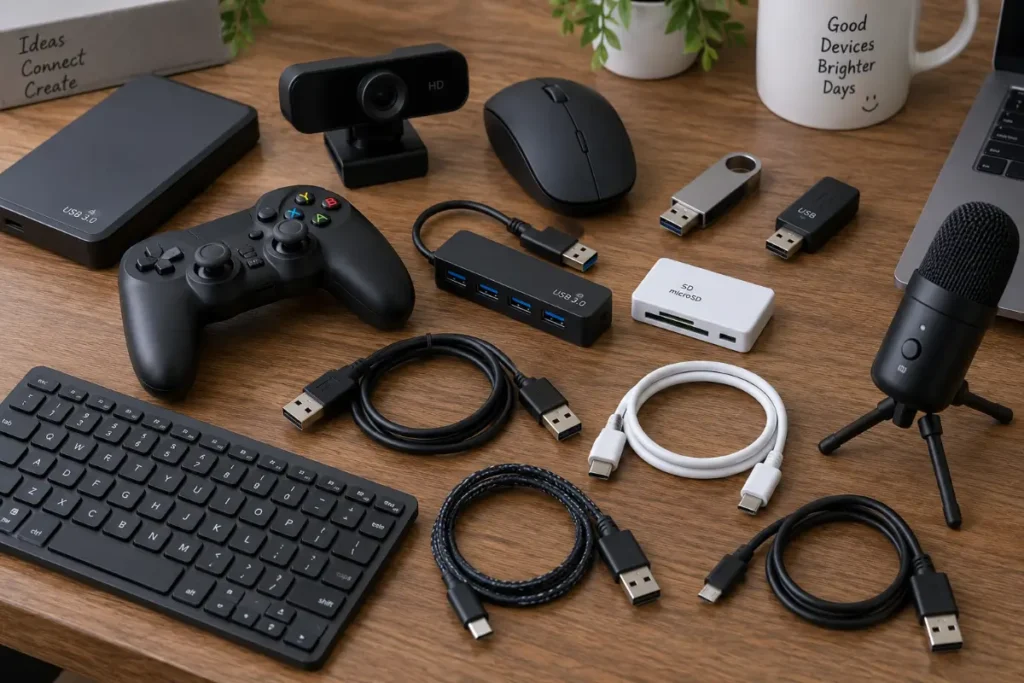
It’s a familiar and frustrating moment for any computer user: you plug in a flash drive, external hard drive, or another peripheral, only to be met with a cryptic message from Windows: “USB device not recognized.“
The sound of a connection might play, but the device remains stubbornly absent from File Explorer.
This common issue can bring your workflow to a halt, leaving you wondering if your device – or your computer – is broken.
Rest assured, you’re not alone, and the solution is often simpler than you think.
This guide cuts through the confusion, providing straightforward, effective solutions that address the real-world causes of this problem.
We’ll get your hardware connected and working correctly by tackling everything from simple driver fixes to hidden power settings.
Why Does My PC Say “USB Device Not Recognized”?
Understanding why this error occurs is the first step toward fixing it.
The problem isn’t a single issue but a symptom that can point to several different root causes.
A successful USB connection relies on a chain of components working in harmony: the physical port on your computer, the device’s cable, the device itself, and the software drivers that allow them to communicate.
When any link in this chain breaks, you get the dreaded error message.
Faulty or Outdated Drivers: The Digital Handshake
Think of a driver as a translator.
It allows your Windows operating system to understand and interact with the hardware you plug in.
If this translator is outdated, corrupted, or simply the wrong one for the device, the conversation breaks down before it can even start.
Windows might know something is connected, but it has no idea what it is or how to use it.
This is one of the most common culprits behind the usb device not recognized error.
While modern operating systems are good at automatically finding and installing drivers, they don’t always get it right, especially with older or more obscure hardware.
Insufficient Power: When the USB Port Can’t Keep Up
Some USB devices are thirstier for power than others.
External hard drives, high-end webcams, and gaming peripherals often require more electricity than a standard USB port is designed to supply.
This issue is frequently seen on laptops running on battery or when using unpowered USB hubs that split a single port’s power among multiple devices.
As noted by connectivity experts at Newnex, even the length and quality of your USB cable can lead to a voltage drop, starving the device of the power it needs to function correctly.
The result is a device that fails to initialise properly, triggering an error.
Windows Power Management Quirks: The “USB Selective Suspend” Problem
To conserve energy, especially on laptops, Windows employs a feature called “USB Selective Suspend.”
This function cleverly puts USB ports into a low-power state when it thinks they aren’t being used.
While efficient, it can sometimes be overzealous, shutting down a port that you are actively trying to use.
When you connect a device to a suspended port, it may fail to wake up correctly, leading Windows to believe the device has malfunctioned.
Microsoft’s own support forums often point to this feature as a source of unexpected USB problems.
Physical Damage or Connection Issues: The Simplest Cause of a usb device not recognized error
Never underestimate the simple, physical causes.
A loose USB port, a frayed cable, or dirt in the connector can all prevent a stable connection.
The internal wiring of a USB cable can be surprisingly delicate, and repeated bending or stress can cause breaks that are not visible from the outside.
Likewise, the USB device itself could be damaged.
If the device has been dropped or subjected to a power surge, its internal electronics may have failed, making it impossible for any computer to recognize it.
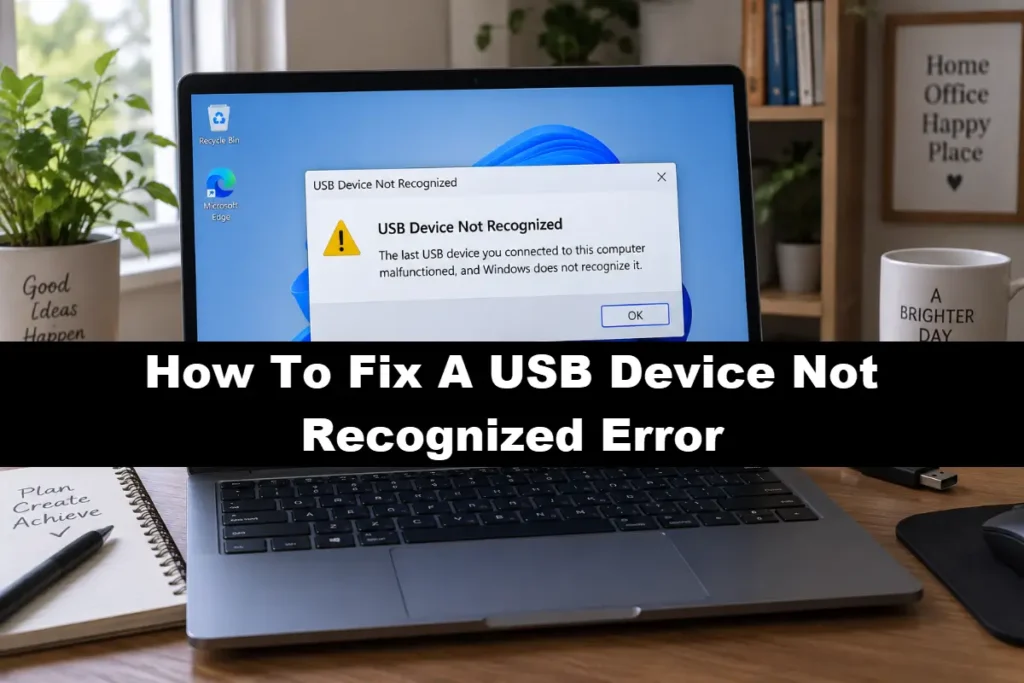
Your First Steps: Quick Fixes For The USB Device Not Recognized Error
Before diving into complex settings, always start with the simplest potential fixes.
These steps resolve a surprising number of USB issues and take only a few minutes to perform.
The Classic Reboot and Reconnect
It’s the oldest trick in the IT book for a reason: it works.
A simple restart can clear up a host of temporary software glitches and driver conflicts.
- Unplug the problematic USB device.
- Restart your computer completely (Start Menu > Power > Restart).
- Once Windows has fully loaded, plug the device back in.
Try to use a different USB port if the first one still doesn’t work.
Test on Another Computer and Port
This is the most crucial diagnostic step.
It isolates the problem to either your computer or the USB device itself.
If the device works perfectly on another machine, you know the issue lies with your original computer’s settings or hardware.
If the device still isn’t recognized on a different computer, then the device itself is almost certainly the problem.
As recommended by hardware specialists at StarTech.com, this is a fundamental test to rule out device failure.
Inspect the Cable and Device
Take a close look at your equipment.
Is the USB cable frayed or bent at sharp angles?
Is the connector on the device loose?
Use a can of compressed air to gently clean out the USB port on your computer and the connector on the device to remove any dust or debris that could be interfering with the connection.
Diving Deeper: Intermediate Troubleshooting for the usb device not recognized error
If the quick fixes didn’t solve the problem, it’s time to look at your Windows settings.
These methods involve using built-in Windows tools to address driver and power-related issues.
Reinstalling USB Controllers via Device Manager
This process forces Windows to re-evaluate and reinstall the fundamental drivers that control all your USB ports.
It’s like a factory reset for your USB system.
- Press the Windows key + R to open the Run dialog.
- Type devmgmt.msc and press Enter to open the Device Manager.
- Scroll down and expand the “Universal Serial Bus controllers” section.
- Right-click on each entry that says “USB Root Hub” and select “Uninstall device.”
- Do the same for any entries listed as “Unknown USB Device.”
- Once you have uninstalled them, restart your computer.
Windows will automatically detect and reinstall the controllers, often resolving the conflict.
For a visual walkthrough of this and other methods, this YouTube video on fixing a USB Device Not Recognized error provides clear, step-by-step instructions (and is hopefully also embedded below!):
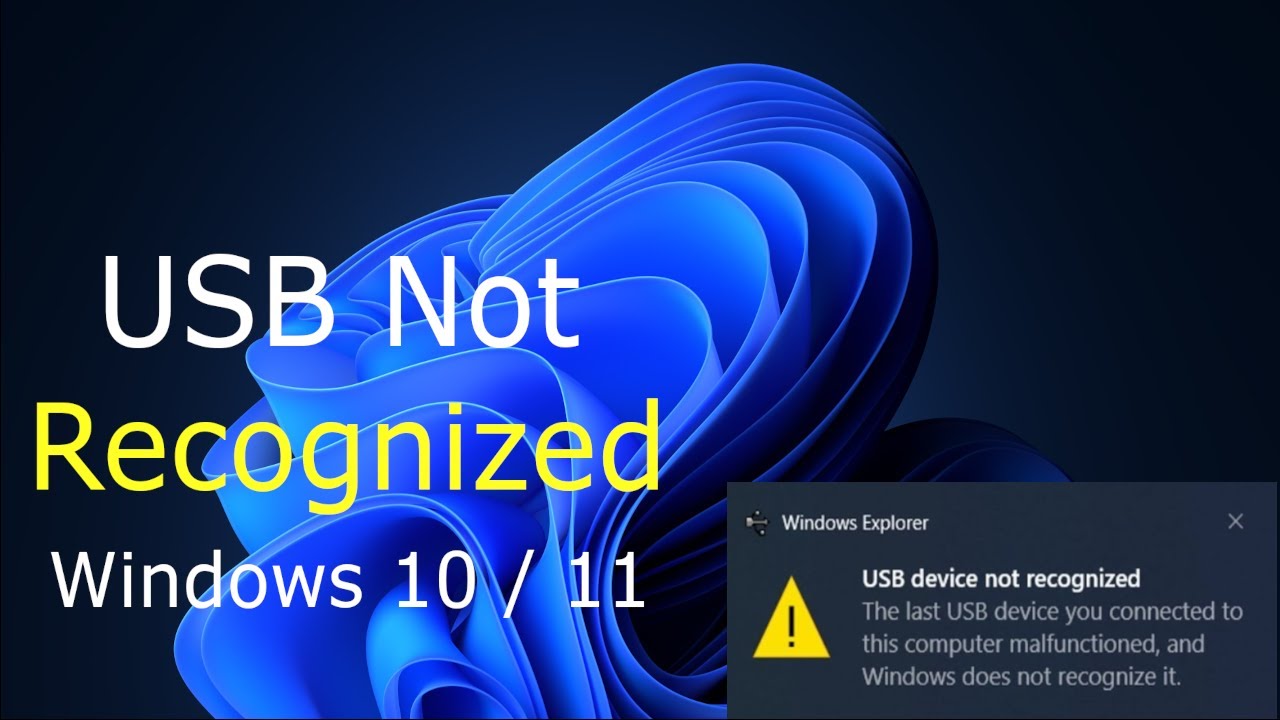
How to Fix a “USB device not recognized” error by Updating Drivers
Sometimes, the issue is with the specific driver for your device, not the general USB controllers.
- In Device Manager, look for your device.
It might be under “Other devices” with a yellow exclamation mark, or it could be listed incorrectly under another category. - Right-click the problematic device and select “Update driver.”
- Choose “Search automatically for drivers.”
Windows will scan its database and the internet for a suitable driver. - If that fails, visit the device manufacturer’s website and look for a “Downloads” or “Support” section to find the official driver for your model.
Disabling USB Selective Suspend
If you suspect an overactive power-saving feature is the culprit, you can disable it.
- Go to Settings > System > Power & sleep.
- Click on “Additional power settings.”
- Next to your selected power plan, click “Change plan settings.”
- Click “Change advanced power settings.”
- In the new window, find and expand “USB settings,” then expand “USB selective suspend setting.”
- Change the setting to “Disabled” and click OK.
Advanced Solutions For A Stubborn “USB Device Not Recognized” Error
If you’re still facing the error, it’s time for more advanced tactics.
These involve changing deeper system settings and should be performed carefully.
Turning Off Windows Fast Startup
Fast Startup is a feature that helps your PC start up faster after a shutdown.
However, it can sometimes interfere with hardware initialisation.
Disabling it forces a full, clean shutdown and startup.
- Navigate to the same “Power Options” window used in the previous step.
- On the left, click “Choose what the power buttons do.”
- Click “Change settings that are currently unavailable.”
- Uncheck the box for “Turn on fast startup (recommended)” and click “Save changes.”
- Restart your computer and test the device again.
Dealing with a “Power Surge on the USB Port”
Sometimes the error message is more specific, warning of a “Power surge on the USB port.”
This means the device tried to draw more power than the port could provide, causing the port to shut down to protect itself.
According to Dell’s support documentation, the first step is to disconnect all USB peripherals and use the on-screen reset button if available.
If the error persists with a specific device, the device itself may be faulty or simply too power-hungry.
The best solution in this case is to use a powered USB hub.
This is an external hub that plugs into the wall, providing its own dedicated power source to each connected device.
Editing the Windows Registry (With Caution)
This is a last-resort measure for advanced users only.
Incorrectly editing the registry can cause serious system instability.
Before proceeding, always back up your registry.
The goal is to remove old, obsolete driver entries that may be causing conflicts.
- Open Device Manager, find the problematic device, right-click, and go to Properties.
- In the Details tab, select “Device instance path” from the dropdown and copy the value.
- Type regedit in the Start menu search bar to open the Registry Editor.
- Navigate to HKEY_LOCAL_MACHINE\SYSTEM\CurrentControlSet\Enum\USB.
- Find the key that matches the device instance path you copied and delete it.
- Restart your computer and plug the device back in to force a completely fresh installation.
Prevention is Better Than Cure: Avoiding Future USB Issues
- Safely Eject Hardware:
Always use the “Safely Remove Hardware and Eject Media” icon in the system tray before unplugging storage devices.
This prevents data corruption. - Invest in Quality Cables and Hubs:
Don’t cheap out on cables.
A well-made, shielded cable can prevent a world of connectivity headaches.
If you use multiple USB devices, a powered hub is a worthwhile investment. - Keep Windows Updated:
Regular Windows updates often include improvements and fixes for USB drivers and controllers. - Handle with Care:
Treat your USB devices and ports gently.
Avoid yanking cables out or putting stress on the connectors.
Final Thoughts On USB Device Not Recognized Errors
The “usb device not recognized” error is a roadblock, but it’s rarely a dead end.
By working through these solutions methodically – from the simplest physical checks to the more complex software tweaks – you can diagnose and resolve the vast majority of USB connectivity issues.
The key is to be patient and systematic.
By understanding the potential causes, you empower yourself to find the right fix and get your hardware communicating seamlessly with your computer once again.
Frequently Asked Questions
Q: Why does my computer say USB device not recognized but it works on another computer?
A: This almost always points to a driver or software issue on the first computer.
The problem isn’t with your USB device.
Start by reinstalling the USB controllers in Device Manager and disabling the USB Selective Suspend feature on the problematic PC.
Q: Can a faulty power supply cause USB problems?
A: Yes, absolutely.
If your computer’s main power supply unit (PSU) is failing or underpowered, it may struggle to provide stable voltage to the motherboard and its USB ports.
This can lead to intermittent errors or devices not being recognized, especially high-power ones.
Q: What does it mean when the device is listed as “Unknown USB Device (Device Descriptor Request Failed)”?
A: This specific error means Windows successfully detected a device was plugged in but failed to get the basic descriptive information (the “descriptor”) that identifies what the device is.
This is often caused by a driver conflict, a hardware failure in the device itself, or a power-related issue preventing the device from fully initialising.
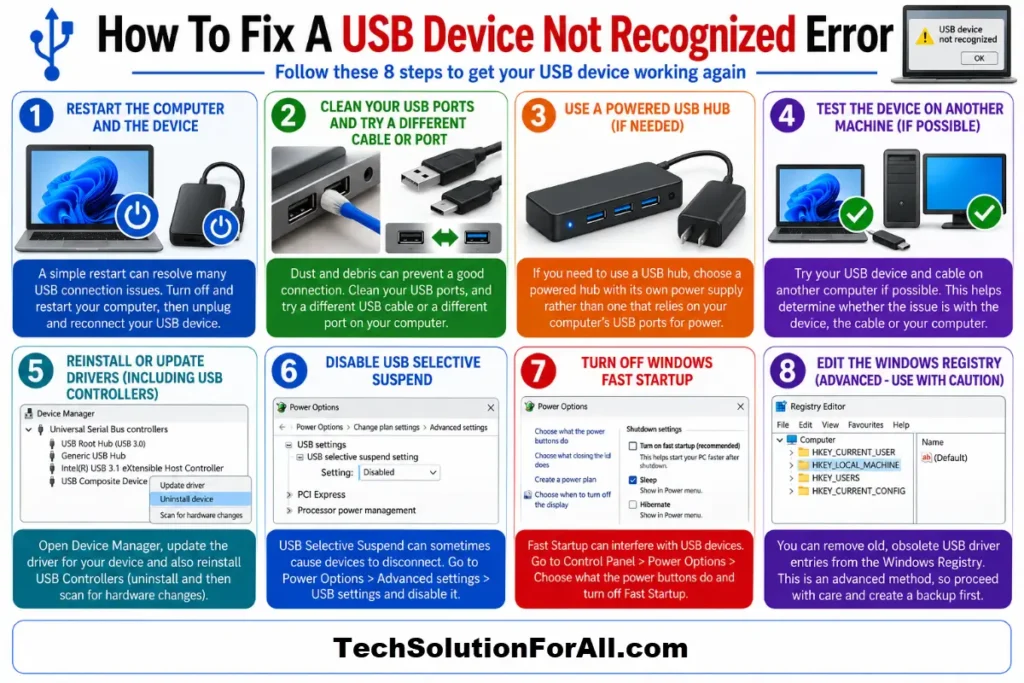
How To Fix A USB Device Not Recognized Error
Here is a step-by-step guide to resolving the most common causes of the “usb device not recognized” error.
Step 1: Perform Basic Checks
Before diving into system settings, rule out the simple issues.
Restart your computer and test the USB device in a different port.
Also, test the device on a completely different computer to determine if the fault lies with the device or your PC.
Step 2: Update and Reinstall Drivers
Open the Device Manager and look for any “Unknown USB Device.”
Right-click it, select “Update driver,” and let Windows search automatically.
If that fails, right-click and choose “Uninstall device,” then restart your computer to force a fresh driver installation.
Step 3: Adjust Power Management Settings
Go to your advanced power plan settings and disable the “USB selective suspend setting.”
This prevents Windows from shutting down USB ports to save power, which can cause recognition issues.
Step 4: Run the Hardware Troubleshooter
Use the built-in Windows Hardware and Devices troubleshooter.
It can automatically detect and fix common problems with USB ports and connected devices.
Finally be sure to check out our Tech Troubleshooting FAQ or our Printer Troubleshooting Tips pages for even more general tips that cover a wide range of technical problems and solutions.
(If after reading the above article you still have a “USB Device Not Recognized Error”, then you might find a much less obvious solution on the above tech pages!)