Nothing brings productivity to a grinding halt quite like a printer not connecting to WiFi.
You have a critical document to print, but your computer insists the printer is offline.
You’ve checked the power, you’ve added paper, yet the problem persists, creating a frustrating and invisible barrier.
It’s a remarkably common issue, but rest assured, the solution is usually well within your reach and doesn’t require a degree in network engineering.
We focus on the real-world fixes that work, from simple restarts to network setting adjustments that ensure a stable connection.
Follow these steps, and you’ll be back to printing in minutes.
Common Causes For A Printer Not Connecting To WiFi
Understanding why your printer has dropped its connection is the first step toward a lasting fix.
While the technology can seem complex, the reasons are often straightforward.
From a simple communication glitch to a misconfigured setting, let’s explore the most common culprits you’re likely to encounter.
1. Temporary Network and Device Glitches
The most frequent cause is also the simplest: a temporary glitch in the communication between your printer, router, and computer.
Like any electronic device, printers and routers can enter a confused state where their software gets stuck.
This can happen after a power flicker, a router update, or for no apparent reason at all.
A simple restart is often all that’s needed to clear these temporary errors and re-establish a clean connection.
2. Incorrect WiFi Network or Password
It sounds basic, but it happens all the time.
You may have recently changed your WiFi password or upgraded your router, and your printer is still trying to use the old credentials.
Similarly, many modern routers broadcast two different networks (or “bands”): a 2.4 GHz band and a 5 GHz band.
While the 5 GHz band is faster, most printers are only designed to work on the 2.4 GHz band.
If your computer is on the 5 GHz network and your printer is on the 2.4 GHz one, they may struggle to communicate depending on your router’s settings.
3. Weak WiFi Signal or Physical Obstructions
Printers, for various reasons, often have less powerful WiFi antennas than devices like laptops or smartphones.
If your printer is located far from your router, the signal might be too weak to maintain a stable connection.
The signal can also be disrupted by physical barriers.
Thick walls (especially concrete or brick), metal shelving, large appliances like refrigerators, and even microwave ovens can interfere with and weaken WiFi signals, causing your printer to drop offline intermittently.
4. Outdated Printer Drivers or Firmware
Your printer relies on two types of software to function: drivers and firmware.
Drivers are installed on your computer and act as a translator, allowing your operating system (like Windows or macOS) to communicate with your printer.
Firmware is the software that runs on the printer itself, controlling its core functions.
If either of these is outdated, it can lead to compatibility issues, bugs, and connection problems, especially after you update your computer’s operating system.
Diagnosing The “Printer Not Connecting To WiFi” Error
Before jumping into fixes, a quick diagnosis can point you in the right direction.
These checks will help you confirm the nature of the problem.
Check the Printer’s Network Status
Most wireless printers have a status light – often indicated by a small WiFi icon or an antenna symbol.
- A solid blue or green light typically means the printer is successfully connected to your WiFi network.
If you see this, the problem is likely between your computer and the printer, not the printer and the router. - A blinking or amber light usually indicates a problem with the connection.
The printer is either trying to connect, has failed to connect, or has lost its connection. - No light could mean the wireless radio is turned off or the printer is not powered on.
Print a Network Configuration Report
This is one of the most powerful diagnostic tools at your disposal.
A Network Configuration Report (sometimes called a Network Configuration Page or Wireless Test Report) is a document your printer generates that contains vital details about its network status. It will show you:
- The network name (SSID) it’s connected to.
- Its IP address on the network.
- The signal strength.
- Any detected errors.
Consult your printer’s manual (or search online) for instructions on how to print this report for your printer model.
It often involves pressing a specific combination of buttons on the printer’s control panel.
Reviewing this report can instantly tell you if the printer is on the wrong network or has a “self-test failed” error.
Step-by-Step Fixes For A Printer Not Connecting To WiFi
Now that you have a better idea of the potential causes, let’s walk through the solutions when your printer won’t connect in a logical order, starting with the easiest and most effective fixes.
Fix 1: The Universal Power Cycle Refresh
This is not just a cliché; it’s the most effective first step for a reason.
Restarting your devices clears out temporary memory and forces them to re-establish all network connections from scratch, resolving countless minor software glitches.
- Turn off your printer using its power button.
- Turn off your computer.
- Unplug your wireless router from the power outlet.
Wait a full 60 seconds.
This is crucial for allowing the internal components to fully discharge and reset. - Plug the router back in and wait for all its status lights to return to their normal state (this can take a few minutes).
- Turn your printer back on.
- Turn your computer back on.
- Try printing a test page.
More often than not, this simple sequence will solve the problem.
Fix 2: Verify Network Details and Band Selection
If the restart didn’t work, the next step is to ensure your printer is trying to connect to the right place with the right credentials.
- Run the Wireless Setup Wizard:
Access your printer’s settings menu (usually via its small screen) and find the network setup or wireless setup wizard.
This will scan for available networks.
Select your home WiFi network (SSID) and carefully re-enter the password. - Check the 2.4 GHz Band:
As mentioned, most printers require the 2.4 GHz network.
If your router uses the same name for both its 2.4 GHz and 5 GHz bands, your printer might be struggling.
You can try temporarily disabling the 5 GHz band in your router’s settings, connect the printer, and then re-enable it.
For a more permanent solution, you can give the two bands different names (e.g., “MyNetwork” and “MyNetwork_5GHz”) in your router settings to ensure the printer connects only to the 2.4 GHz band.
Fix 3: Address a Weak WiFi Signal
If your printer is in a distant corner of your home, a weak signal could be the culprit.
You don’t necessarily need to rearrange your entire office to fix this.
- Move the Printer Closer:
As a test, temporarily move the printer into the same room as your router.
If it connects and prints reliably, you’ve found the problem. - Minimise Obstructions:
If you can’t move the printer permanently, try to ensure there’s a clear line of sight to the router.
Move any large metal objects or electronics away from the printer and the router. - Consider a WiFi Extender:
If moving the devices isn’t an option, a WiFi range extender can be an affordable and effective way to boost the signal in the area where your printer is located.
Fix 4: Reinstall the Printer on Your Computer
Sometimes the printer is connected to the network just fine, but your computer has lost track of it.
This often manifests as the printer showing as “Offline” in your settings, even when its wireless light is solid blue.
Removing and re-adding it forces your computer to find it again on the network.
- On Windows:
Go to Settings > Bluetooth & devices > Printers & scanners.
Select your printer, click Remove, and confirm.
Then, click the Add device button and follow the prompts to let Windows rediscover the printer. - On macOS:
Go to System Settings > Printers & Scanners.
Select your printer, click the Remove Printer (-) button, and confirm.
Then, click the Add Printer, Scanner, or Fax… button to add it back.
Fix 5: Update Your Printer’s Drivers and Firmware
Keeping your software current is essential for a stable connection.
Manufacturers regularly release updates to fix bugs and improve compatibility.
- Find Your Printer’s Model Number:
This is usually printed on the front or top of the printer. - Visit the Manufacturer’s Support Website:
Go to the official support page for your brand (e.g., HP, Canon, Epson, Brother). - Search for Your Model:
Find the “Drivers” or “Software & Downloads” section and enter your model number. - Download and Install:
Download the latest “Full Feature Software and Driver” package for your operating system.
Running this installer will not only update the drivers but often includes firmware update utilities and other helpful diagnostic tools.
Authoritative guides from sources like PCMag often highlight this as a key step for resolving stubborn issues.
For a visual walkthrough of some basic fixes for a printer not connecting to WiFi, this YouTube video from HP provides a helpful overview of the general troubleshooting process that should apply to all brands of printer and router (and is hopefully also embedded below!)
Advanced Troubleshooting For A Printer Not Connecting To WiFi
If you’ve tried all the steps above and your printer is still offline, it’s time to investigate some less common but powerful fixes.
Advanced Fix 1: Check Your Firewall or Antivirus Software
Security software is designed to block unauthorised network traffic, and sometimes it can be a little too aggressive, mistakenly blocking communication with your printer.
- Temporarily Disable the Firewall:
As a diagnostic step, temporarily disable your firewall and see if you can print.
If you can, you’ve found the source of the problem.
Remember to re-enable it immediately afterward. - Create an Exception:
Rather than leaving your firewall off, you should add an exception for your printer.
This involves going into your security software’s settings and allowing traffic to and from your printer’s IP address (which you can find on the Network Configuration Report).
You may also need to ensure that “File and Printer Sharing” is allowed.
The process varies by software, but Microsoft’s official support site provides guidance for the built-in Windows Defender Firewall.
Advanced Fix 2: Reset the Printer’s Network Settings
This is a more drastic step than simply re-running the setup wizard.
A network reset will wipe all wireless settings from your printer, including saved networks, passwords, and any custom IP address configurations.
It returns the printer to its factory default network state, which can clear out deep-seated configuration errors.
- How to Reset:
The method varies by model.
On many touchscreen printers, you can find it under a menu like Setup > Network > Restore Network Settings.
For printers without a screen, it usually involves pressing and holding a combination of buttons (often the Wireless and Cancel buttons together for several seconds).
Consult your printer’s official support documentation, like this troubleshooting guide from HP, for the exact procedure for your model. - After the Reset:
Once reset, the printer will be in “setup mode.”
You will need to use the manufacturer’s software (like HP Smart) or the wireless setup wizard on the printer itself to reconnect it to your WiFi network from scratch.
Advanced Fix 3: Assign a Static IP Address
By default, your router assigns a temporary (dynamic) IP address to devices when they connect.
Occasionally, the router can lose track of this assignment or try to give the same address to another device, causing your printer to become unreachable.
Assigning a static IP address tells your router to reserve a specific address just for your printer, making the connection far more reliable.
This is an advanced step that typically involves accessing your router’s administration settings.
You will need your printer’s MAC address (found on the Network Configuration Report) and will need to configure a DHCP reservation within your router’s settings page.
While highly effective, this process is recommended for users comfortable with changing network settings.
Final Thoughts On A Printer Not Connecting To WiFi
A printer that won’t connect to WiFi is a significant source of frustration, but it is almost always a solvable problem.
By working through these fixes methodically – from the simple reboot to the more advanced network checks – you can diagnose and resolve the underlying issue.
The key is to be patient and approach the problem step-by-step.
Once you re-establish that connection, you can get back to what matters: getting your work done.
Frequently Asked Questions On A Printer Not Connecting To WiFi
Q: Why does my printer keep disconnecting from WiFi?
A: Intermittent disconnections are often caused by a weak WiFi signal, network channel congestion, or a router that periodically reassigns the printer’s IP address.
Moving the printer closer to the router, changing your router’s WiFi channel, or assigning a static IP address can provide a more stable, long-term connection.
Q: Can I connect my printer to a 5 GHz WiFi network?
A: Most wireless printers are only compatible with the 2.4 GHz WiFi band.
This band offers a longer range, which is better for devices that don’t move, like printers.
If your router has both 2.4 GHz and 5 GHz bands, you must ensure the printer is connected to the 2.4 GHz network.
Q: My printer says it’s connected, but my computer says it’s offline. What’s wrong?
A: This is a common communication error between the printer and the computer.
The best fix is to remove the printer from your computer’s list of devices and then add it again.
This forces your computer to rediscover the printer on the network with its current connection status.
Q: Do I need to update my printer’s drivers?
A: Yes, absolutely.
Outdated drivers can cause a wide range of issues, including connectivity problems, especially after an operating system update.
Regularly checking for and installing the latest drivers from your printer manufacturer’s website is a crucial part of maintenance.
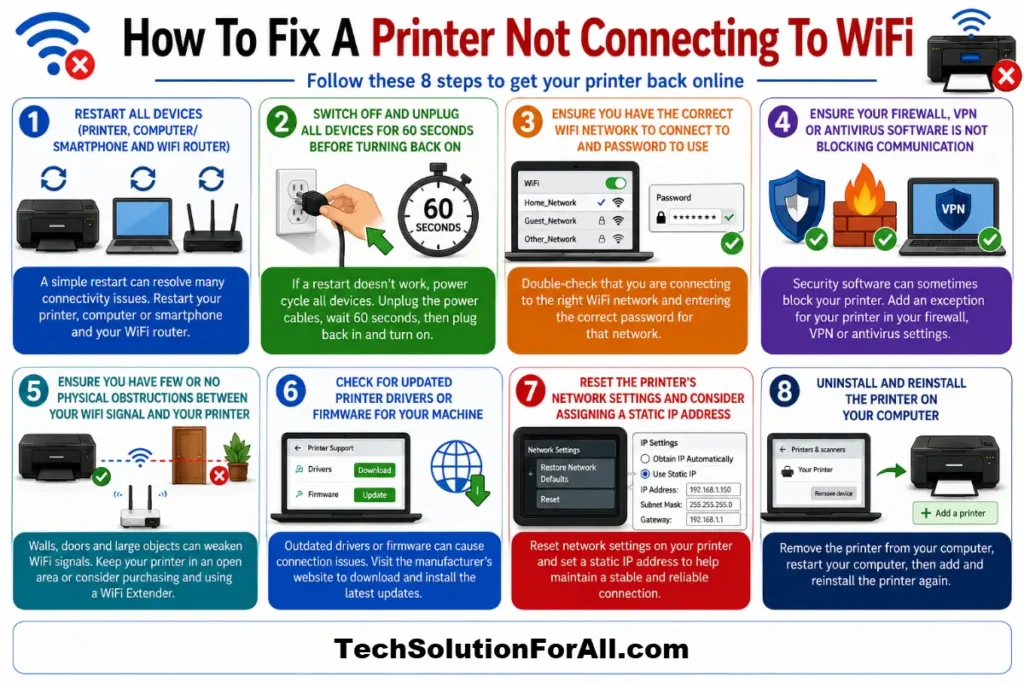
How To Fix A Printer Not Connecting To WiFi
Here is a step-by-step summary to get your printer back online.
Time required: 15 minutes
Tools: Wireless Router, Computer or mobile device, Wireless Printer
Materials: None required
- Step 1: Power Cycle All Devices
Turn off your printer, computer, and unplug your router from power for 60 seconds.
Plug the router back in, wait for it to fully restart, then turn on your printer and computer.
This resolves most temporary glitches. - Step 2: Verify Network Connection
Use your printer’s control panel to run the wireless setup wizard.
Ensure you are connecting to the correct WiFi network (SSID) and that you enter the password correctly.
Confirm you are using the 2.4 GHz band, as most printers do not support 5 GHz. - Step 3: Check WiFi Signal Strength
Check the wireless signal indicator on your printer.
If it is weak, try moving the printer closer to your WiFi router.
Remove any physical obstructions like metal shelves or other large electronics that could be causing interference. - Step 4: Re-Add the Printer on Your Computer
If the printer shows as ‘Offline’ on your computer, navigate to your system’s printer settings.
Remove the printer from the list of devices, then use the ‘Add Printer’ function to allow your computer to rediscover it on the network. - Step 5: Update Drivers and Firmware
Visit your printer manufacturer’s official website, search for your printer model, and download the latest driver and firmware updates.
Installing these updates can fix known bugs and improve compatibility with your operating system.
Finally be sure to check out our Tech Troubleshooting FAQ or our Printer Troubleshooting Tips pages for even more general tips that cover a wide range of technical problems and solutions.
(If after reading the above article you still have a problem with a “Printer Not Connecting To WiFi”, then you might find a much less obvious solution on the above tech pages!)