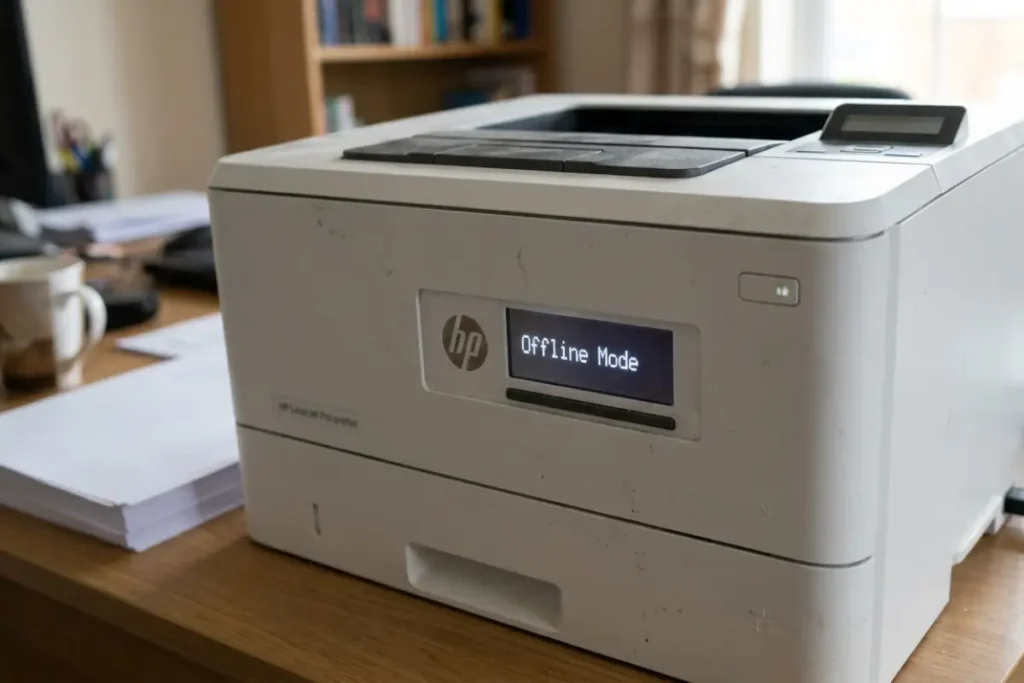
When your HP printer is stuck in offline mode, it means your computer cannot communicate with the printer, even though it is powered on.
This is a common issue that can happen with both wired and wireless HP printers.
Understanding the cause is key to fixing it effectively.
Offline status can occur due to network or connection issues.
For wireless printers, unstable WiFi signals, router problems, or incorrect IP addresses can block communication.
For USB or wired connections, loose cables or faulty ports can trigger the offline mode.
Software issues are another frequent cause.
Outdated or corrupted printer drivers, recent operating system updates, or misconfigured settings can prevent the printer from being recognised by your computer.
Sometimes, the print queue or the Windows Print Spooler service malfunctions, causing print jobs to freeze and making the printer appear offline.
Here is a summary of common causes:
- Unstable WiFi or network connection
- Loose or faulty USB/Ethernet cable
- Outdated or corrupted printer driver
- Printer not set as default device
- Print queue or spooler issues
Recognising the cause allows you to target the right solution and avoid unnecessary troubleshooting.
Basic Fixes for HP Printer Stuck in Offline Mode
Start with these simple steps that resolve most offline issues:
- Check Printer and Connection
Ensure the printer is turned on and connected to your computer or network.
For WiFi printers, check signal strength and reconnect if needed.
For wired printers, ensure cables are securely connected. - Set Printer as Default
Go to “Settings > Devices > Printers & Scanners” (Windows) or “System Preferences > Printers & Scanners” (Mac) and set your HP printer as the default device. - Restart Printer and Computer
Power cycle both the printer and your computer.
Wait at least 30 seconds before turning them back on to clear temporary glitches. - Clear Print Queue
Open the print queue and cancel all pending jobs.
A stuck job often forces the printer offline. - Check Printer Status
On Windows, right-click the printer and ensure “Use Printer Offline” is unchecked.
On Mac, make sure the printer is online and selected for printing.
Advanced Solutions for Persistent Offline Issues
If basic fixes don’t work, try these advanced solutions:
- Update or Reinstall Drivers
Outdated or corrupt drivers can prevent proper communication.
Download the latest HP driver for your printer model from the HP website and install it. - Assign a Static IP Address (Wireless Printers)
A dynamic IP address can change, causing the printer to disconnect.
Assign a static IP in the printer’s control panel or through your router to maintain stable communication. - Restart Print Spooler Service (Windows)
Press Windows + R, type services.msc, locate “Print Spooler”, right-click, and select “Restart”.
This clears stuck print jobs and resolves offline issues. - Temporarily Disable Firewall or Antivirus
Sometimes security software blocks printer communication.
Disable the firewall temporarily to test connectivity, then re-enable it.
Here’s a quick troubleshooting table:
| Issue | Fix |
| WiFi/network instability | Reconnect printer, move closer to router, check network |
| Loose cable (USB/Ethernet) | Secure connections or try a different port |
| Printer not default | Set printer as default in settings |
| Stuck print jobs | Clear print queue |
| Driver issues | Update or reinstall HP drivers |
| IP address conflicts | Assign static IP |
| Print spooler error | Restart spooler service |
Preventing HP Printer Offline Problems
To reduce the chances of your HP printer going offline, follow these preventive measures:
- Keep printer firmware and drivers up to date.
- Use a reliable WiFi network or stable wired connection.
- Assign a static IP for network printers.
- Set the printer as default and avoid switching devices frequently.
- Restart the printer periodically to maintain connectivity.
- Regularly clear print queues to prevent stuck jobs.
Following these practices ensures your HP printer remains online, reduces printing interruptions, and maintains smooth performance for both home and office environments.