Facing an Epson printer cannot communicate with computer error? This guide will help you fix the problem with easy-to-follow troubleshooting steps.
It can be incredibly frustrating when you need to print an important document, only to be met with a message that your Epson printer cannot communicate with your computer.
This common issue can stem from a variety of causes, ranging from simple connection problems to more complex software conflicts.
However, there’s no need to worry when you experience an Epson printer communication error.
In most cases, you can resolve this problem yourself with a bit of systematic troubleshooting.
This article is designed to walk you through the diagnostic process, helping you identify the root cause and apply the correct fix, so you can get your printer back online and operational without delay.
Epson Printer Cannot Communicate With Computer Article Quick Summary
The Problem: Your computer is unable to establish a connection with your Epson printer, preventing you from printing.
The Solution: This guide provides a comprehensive set of troubleshooting steps, starting with basic checks of cables and connections, moving on to software-based solutions like updating drivers and clearing the print queue, and finally covering advanced network and hardware diagnostics.
By following these steps, you can systematically eliminate potential causes and restore communication between your devices.
Who Is This For? This article is for any Epson printer user who is experiencing communication errors and wants to resolve the issue without needing to call for technical support.
Common Causes of an Epson Printer Communication Error
Understanding why you have an Epson printer cannot communicate with computer problem is the first step toward fixing it.
In many situations, the cause is surprisingly simple and easy to resolve.
Before diving into more advanced solutions, it’s important to rule out these common culprits.
Because of this, we will start with the most frequent issues that interrupt the connection between your devices.
Cause 1: Faulty or Loose Cable Connections
A primary reason for communication failure is a problem with the physical connection.
A USB cable that is not plugged in securely at both ends – the printer and the computer – is a frequent offender.
Over time, these connections can become loose, or the cable itself might be damaged or faulty, directly causing that dreaded Epson printer cannot communicate with computer issue.
According to Epson’s own troubleshooting guide, an insecure or incorrect interface cable is a top reason for printing problems.
For USB connections, it is also important to use a cable that meets the correct specifications, such as USB 2.0, to ensure reliable data transfer.
Cause 2: Outdated or Corrupt Printer Drivers
Printer drivers are essential pieces of software that allow your computer’s operating system to communicate with your Epson printer.
If these drivers are outdated, corrupted, or incompatible with your operating system, the communication link will fail.
Microsoft’s support resources confirm that outdated or incompatible drivers are a common source of printer communication issues (under their “Step 3: Update or Reinstall printer drivers” info).
This can happen after a major operating system update or if the driver files have been accidentally altered or deleted.
Therefore, ensuring your drivers are current is a critical troubleshooting step.
Cause 3: Wireless Network and Connectivity Issues
For wireless Epson printers, network-related problems are a major cause of communication errors.
If your printer and computer are not connected to the same Wi-Fi network, they won’t be able to find each other.
Additionally, an unstable Wi-Fi signal, incorrect network password, or a router configuration issue can all prevent a stable connection.
Sometimes, the printer may obtain an IP address from the router that the computer cannot reach, leading to a frustrating breakdown in communication.
Restarting the router and printer can often resolve these temporary network glitches.
Basic Troubleshooting When Your Epson Printer Cannot Communicate With Computer
Now that we have covered the common causes, let’s move on to the solutions.
Starting with the simplest fixes is always the best approach, as it can save you a significant amount of time and effort.
These initial steps resolve a high percentage of communication problems.
Step 1: Check All Physical Connections
First, carefully inspect the USB cable connecting your printer to your computer.
Unplug it from both devices and then plug it back in firmly. Make sure the connection is snug and secure.
If you have a spare USB cable, try using it to rule out a faulty cable.
If your printer is connected to a USB hub, try connecting it directly to a USB port on your computer instead.
For a deeper dive into resolving USB connection issues, Brother provides a helpful guide that, while for a different brand, offers universally applicable advice.
Step 2: Restart Your Devices
The classic advice to “turn it off and on again” is surprisingly effective.
A simple restart can clear temporary glitches in both your computer and your printer that may be causing the communication error.
Follow this sequence for the best results:
- Turn off your Epson printer and unplug it from the power outlet.
- Shut down your computer completely.
- If you have a wireless printer, restart your router as well.
- Wait for about a minute to allow all devices to fully power down.
- Plug your printer back in and turn it on.
- Turn your computer back on.
Once everything has restarted, try printing a test page to see if the issue is resolved.
Step 3: Run the Windows Troubleshooter
Windows includes a built-in troubleshooter designed to automatically diagnose and fix common printer problems.
This tool can be a quick and easy way to identify the issue.
To run it:
- Go to Settings > Update & Security > Troubleshoot.
- Click on “Additional troubleshooters”.
- Select “Printer” and then click “Run the troubleshooter”.
Follow the on-screen instructions and let Windows attempt to find and fix the problem.
This process can often reset the print spooler service and identify driver conflicts.
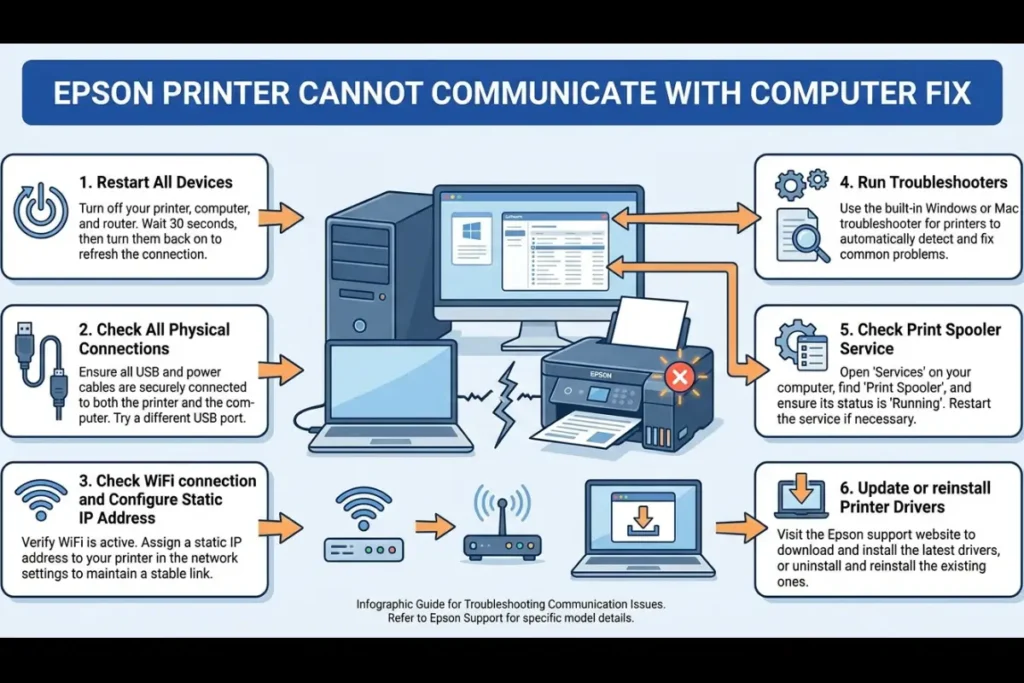
Advanced Troubleshooting for an Epson Printer Communication Error
If the basic steps did not solve the problem, it is time to move on to more advanced troubleshooting.
These methods involve software adjustments and a more in-depth look at your system’s configuration.
In this case, you may need to reinstall drivers or manually configure network settings.
Advanced Scenario 1: Reinstalling Printer Drivers
As mentioned, a corrupt or outdated driver is a very common cause.
A clean reinstallation ensures that you have the latest, most compatible software for your device.
For a visual guide, you can watch this helpful YouTube tutorial on downloading and installing Epson printer drivers (which is also embedded below hopefully!)
To reinstall your drivers:
- Uninstall the existing Epson software:
Go to Settings > Apps > Apps & features. Find your Epson printer software in the list, select it, and click “Uninstall”. - Remove the printer from your devices:
Go to Settings > Devices > Printers & scanners. Select your Epson printer and click “Remove device”. - Download the latest drivers:
Visit the official Epson Support page. Search for your specific printer model to find and download the latest “Drivers and Utilities Combo Package”. - Install the new drivers:
Run the downloaded installer and follow the on-screen instructions carefully. Restart your computer after the installation is complete.
Advanced Scenario 2: Checking the Print Spooler Service
The Print Spooler is a Windows service that manages print jobs.
If this service stops working correctly, it can cause your Epson printer to not communicate with your computer.
To check and restart it:
- Press the Windows key + R to open the Run dialog.
- Type services.msc and press Enter.
- In the Services window, scroll down and find “Print Spooler”.
- Right-click on “Print Spooler” and select “Restart”. If the service is stopped, select “Start”.
- Double-click on “Print Spooler” and ensure the “Startup type” is set to “Automatic”.
Advanced Scenario 3: Manually Configuring a Static IP Address
For wireless printers, the issue can sometimes be a dynamic IP address that changes, causing your computer to lose track of the printer.
Assigning a static (unchanging) IP address can create a more stable connection.
To do this, you will first need to find your printer’s current IP address from its network settings menu.
Then, you will need to log in to your router’s administration page and use its settings to reserve that IP address for your printer.
The exact steps vary by router model, so you may need to consult your router’s manual.
Final thoughts on Epson Printer Cannot Communicate With Computer
Resolving an Epson printer cannot communicate with computer issue often comes down to a process of elimination.
By working through the steps outlined in this guide – from checking physical cables to reinstalling drivers and verifying network settings – you can systematically identify and fix the root cause of the problem.
Remember to be patient and methodical in your approach. In the vast majority of cases, one of these solutions will restore the connection and get you back to printing.
As a preventative measure, regularly updating your printer drivers and ensuring a stable network environment can help you avoid these frustrating communication errors in the future.
Frequently Asked Questions About The “Epson Printer Cannot Communicate With Computer” Error
Why does my computer say it can’t communicate with my Epson printer?
This error message typically appears when the connection between your computer and printer is broken.
Common causes include a loose or faulty USB cable, outdated or corrupt printer drivers, Wi-Fi connectivity problems for wireless models, or an issue with the Windows Print Spooler service.
Essentially, your computer is sending a print command but is not receiving a response from the printer.
How do I get my computer to recognize my Epson printer?
First, ensure the printer is powered on and all cables are securely connected.
Restarting both your computer and printer can often solve the problem.
If that doesn’t work, try running the built-in Windows printer troubleshooter.
The most reliable method is often to uninstall all existing Epson software and then reinstall the latest drivers directly from the official Epson support website.
Can a firewall block communication with my printer?
Yes, a firewall (either the Windows Defender Firewall or one from a third-party antivirus program) can sometimes mistakenly block the communication ports that your printer uses.
If you suspect this is the case, you can temporarily disable your firewall to see if the printer connects.
If it does, you will need to add an exception in your firewall’s settings to allow the Epson printer software to communicate freely.
How to Reinstall Your Epson Printer Driver
Reinstalling your Epson printer driver is one of the most effective ways to resolve communication errors.
This process completely removes any corrupted or outdated software and replaces it with a fresh installation.
The entire process typically takes about 15 minutes and requires a computer running Windows, your Epson printer, and an internet connection to download the latest drivers.
Step 1: Uninstall Existing Software
Navigate to Settings > Apps > Apps & features. Locate any software related to your Epson printer, select it, and click the “Uninstall” button. Follow the prompts to remove the software completely from your system.
Step 2: Remove the Printer Device
Go to Settings > Devices > Printers & scanners. Select your Epson printer from the list and click the “Remove device” button. Confirm the removal when prompted.
Step 3: Download Latest Drivers
Open a web browser and go to the official Epson Support website. Use the search bar to find your specific printer model. Download the recommended “Drivers and Utilities Combo Package Installer” for your operating system.
Step 4: Install New Drivers
Disconnect the printer’s USB cable from the computer. Run the downloaded installer file. Follow the on-screen instructions carefully, and only reconnect the USB cable when the installer prompts you to do so.
Step 5: Restart and Test
After the installation is complete, restart your computer. Once restarted, print a test page to confirm that the printer is now communicating correctly with your computer.
Finally be sure to check out our Tech Troubleshooting FAQ or our Printer Troubleshooting Tips pages for even more general tips that cover a wide range of technical problems and solutions.
(If after reading the above article you still have an “Epson Printer Cannot Communicate With Computer” error, then you might find a much less obvious solution on the above tech pages!)