That sinking feeling when you have discovered your wifi not working and the internet has suddenly cut out is a uniquely modern frustration.
One moment you’re streaming, working, or browsing, and the next, you’re staring at a loading icon that never resolves.
When the loss of your connection brings your digital life to a halt, it can feel both confusing and overwhelming.
The good news is that most wifi problems are surprisingly easy to fix yourself, without needing to call for technical support.
This guide is your express lane back online, starting with a simple 60-second restart that fixes most issues.
We’ll walk you through every step, from the most basic checks to advanced network tweaks, ensuring you find the right solution without the technical jargon.
Why Is My Wifi Not Working? Common Causes Explained
Understanding why your wifi connection fails is the first step toward a lasting fix.
Most of the time, the culprit is something simple rather than a catastrophic hardware failure.
Before you start worrying about expensive repairs, let’s explore the most common reasons your wifi not working might be giving you trouble.
The Simple Restart – Your First and Best Fix for WiFi Not Working Errors
It sounds almost too simple to be true, but restarting your equipment is the single most effective troubleshooting step.
Electronic devices, including routers and modems, are essentially small computers.
They run software that can occasionally encounter glitches, memory leaks, or minor errors that accumulate over time.
A restart, also known as a power cycle, clears the device’s temporary memory and allows it to start fresh, resolving these underlying software hiccups.
It’s the go-to solution for a reason – it works most of the time.
Router and Modem – The Heart of Your Network
Your router and modem are the gatekeepers of your internet connection.
The modem communicates with your Internet Service Provider (ISP), while the router creates the wireless network in your home.
Sometimes, the issue isn’t with your device but with the signal coming into your home.
An ISP outage, loose cables, or a malfunctioning modem can all lead to a loss of connection.
Similarly, an overheating or failing router can stop broadcasting a signal, leaving all your devices disconnected.
Physical Obstructions and Interference
Wifi signals are radio waves, and they can be weakened or blocked by physical objects.
Walls (especially those made of concrete or brick), large metal appliances like refrigerators, and even fish tanks can significantly degrade your wifi signal.
Interference from other electronic devices is another major cause of wifi problems.
Microwave ovens, cordless phones, and Bluetooth devices operate on the same 2.4 GHz frequency as many wifi networks, creating a “noisy” environment that can disrupt your connection.
Even your neighbour’s wifi network can interfere with yours if they are on the same channel.
Outdated Drivers or Firmware
Your computer’s network adapter and your router both rely on software to function.
The network adapter driver on your computer allows it to communicate with the wifi network, while the router’s firmware controls its operations.
If this software is outdated, it can lead to compatibility issues, poor performance, and connection drops.
Manufacturers regularly release updates to fix bugs, patch security vulnerabilities, and improve performance.
If you’re experiencing persistent issues with your wifi not working, outdated software could be the cause.
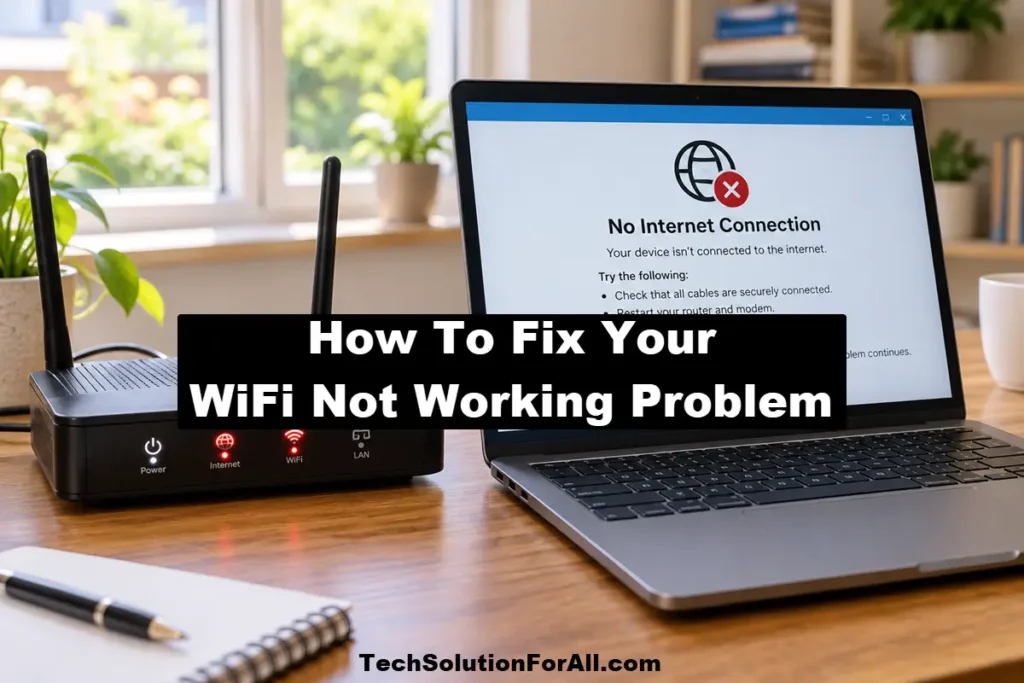
Step-By-Step Guide To Fixing Your Wifi Connection
Now that you understand the common causes, it’s time to work through the solutions.
Follow these steps in order, as they are organised from the simplest and most likely fixes to the more involved ones.
Don’t skip a step, even if you think it won’t work – you might be surprised.
Step 1 – The Power Cycle Restart
This is the classic “turn it off and on again” for a reason.
It resolves the vast majority of home networking issues.
- Unplug your modem and your router from the power outlet.
Don’t just turn them off with a power button – physically disconnect the power cords. - Wait for at least 60 seconds.
This gives the devices enough time to fully power down, clear their memory, and reset their internal components. - Plug the modem back in first.
Wait for its lights to stabilise.
You should see a power light, a receive/downstream light, a send/upstream light, and an online/internet light.
These should all be solid (usually green or blue) before you proceed. - Plug your router back in.
Wait for its lights to stabilise.
You should see a power light and a blinking light indicating wifi activity. - Try to connect to the wifi network.
In most cases, your connection will be restored.
Step 2 – Check Your Router and Device Lights
Indicator lights on your modem and router are a quick diagnostic tool.
While they vary by manufacturer, they generally follow a common pattern:
- Power Light:
Should be solid green or blue.
If it’s off or red, the device isn’t receiving power. - Internet/WAN/Globe Light:
Should be solid or blinking green/blue.
If it’s off, red, or orange, your router isn’t receiving an internet signal from the modem.
This points to a problem with your modem or an ISP outage. - Wifi Light:
Should be blinking green or blue.
If it’s off, your router isn’t broadcasting a wifi signal.
Check your device’s manual for a specific guide to its lights.
If the lights indicate a problem with the signal coming into your home, you may need to contact your ISP.
Step 3 – Isolate the Cause of the WiFi Not Working Problem
Is the wifi down for every device, or just one?
If only one device can’t connect, the problem is likely with that specific device, not your network.
If multiple devices are offline, the issue is with your router or internet service.
- One Device:
Try restarting the problematic device.
If that doesn’t work, try toggling its wifi off and on. - All Devices:
The problem lies with your router or modem.
This is when you should check for local outages with your ISP.
You can also try connecting a computer directly to the router using an Ethernet cable.
If you can get online with a wired connection, you know the internet is working, and the problem is specifically with the wifi signal itself.
Step 4 – Forget the Network and Reconnect
Sometimes, the saved network profile on your device can become corrupted.
Forgetting the network and reconnecting forces your device to establish a fresh connection.
- On Windows:
Go to Settings > Network & Internet > Wi-Fi > Manage known networks.
Select your network and click Forget. - On macOS:
Go to System Preferences > Network.
Select Wi-Fi, click Advanced, find your network in the list, and click the minus (-) button to remove it. - On iOS/Android:
Go to your wifi settings, tap on your network, and select Forget This Network.
After forgetting the network, search for available networks and reconnect by entering your password.
Step 5 – Reposition Your Router
If your signal is weak or dropping frequently, your router’s location could be the problem.
For the best signal, your router should be in a central, elevated location, away from walls and obstructions.
- Avoid:
Kitchens (microwaves), basements (concrete walls), and closets. - Ideal:
On a shelf in a central room, with its antennas pointing vertically.
Moving your router just a few feet can make a significant difference in signal strength and stability.
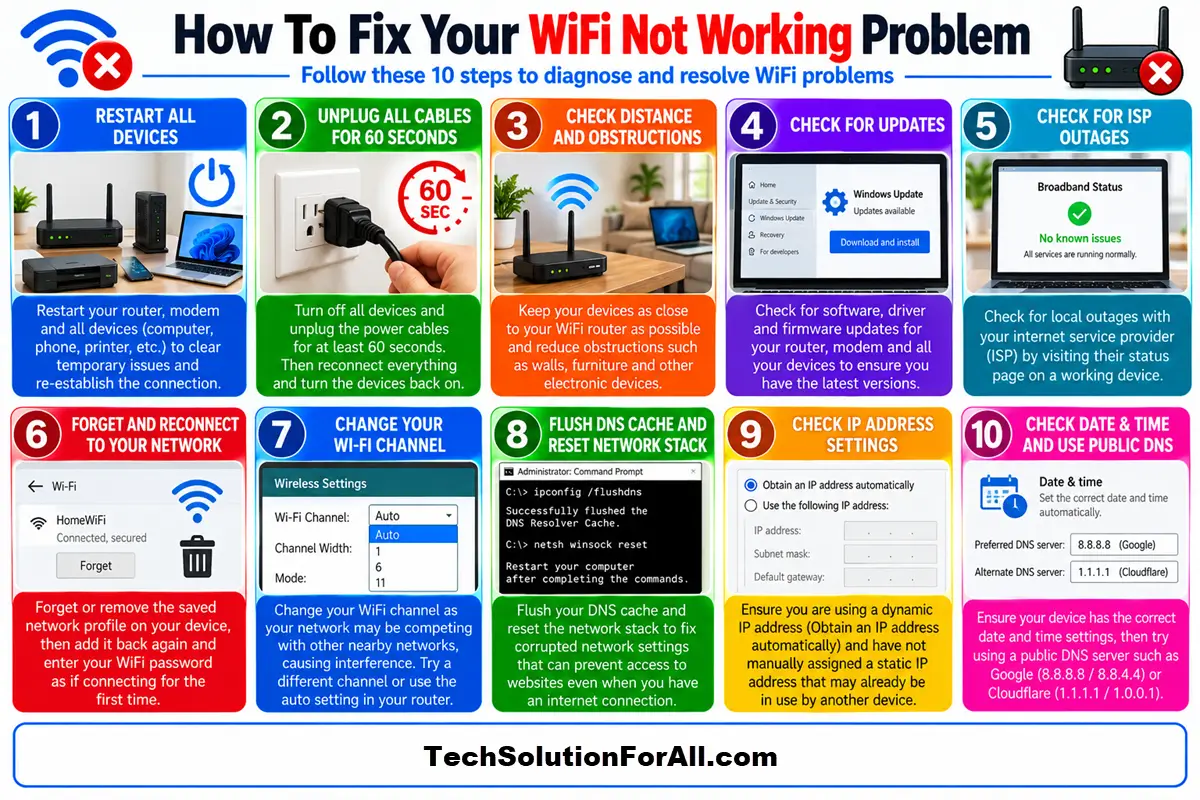
Advanced Troubleshooting For When Wifi Not Working Issues Persist
If you’ve tried all the basic steps and your wifi not working issue persists, it’s time to dig a little deeper.
These advanced steps require a bit more technical comfort, but they can solve more stubborn connectivity problems.
Updating Your Network Adapter Drivers
An outdated or corrupt network driver on your computer can cause a wide range of wifi issues.
Manufacturers release driver updates to fix bugs and improve performance.
Microsoft provides a comprehensive guide on how to fix Wi-Fi connection issues in Windows, which includes detailed steps on updating your drivers.
- Identify your network adapter:
In Windows, open Device Manager, expand the Network adapters section, and find your wireless adapter. - Check for updates:
Right-click the adapter and select Update driver.
You can have Windows search automatically or you can manually install a driver you’ve downloaded from the manufacturer’s website (e.g., Intel, Realtek, or your laptop manufacturer like Dell or HP).
Changing Your Wi-Fi Channel
If you live in a crowded area like an apartment building, your wifi network might be competing with dozens of others, causing interference.
Most routers are set to automatically select a channel, but sometimes they pick a congested one.
Manually changing the channel can move your network to a clearer frequency.
- Log in to your router:
Open a web browser and enter your router’s IP address (commonly 192.168.1.1 or 192.168.0.1).
You’ll need your router’s admin username and password. - Find the wireless settings:
Look for a section called Wireless, Wi-Fi, or WLAN. - Change the channel:
For the 2.4 GHz band, channels 1, 6, and 11 are the best choices as they don’t overlap.
For the 5 GHz band, you have more options and less interference.
Try a few different channels to see which provides the most stable connection.
As a best practice, using a tool to analyze the wifi spectrum can help you find the least congested channel, as advised by experts at Intel.
Flushing Your DNS Cache and Resetting Network Stack
The Domain Name System (DNS) is like the internet’s phonebook, translating website names (like google.com) into IP addresses.
Your computer stores a local cache of these lookups.
If this cache becomes corrupt, it can prevent you from accessing websites even with a working internet connection.
Flushing the DNS clears this cache.
For a more thorough reset, you can also reset Winsock and the TCP/IP stack.
This can resolve issues caused by corrupted network settings.
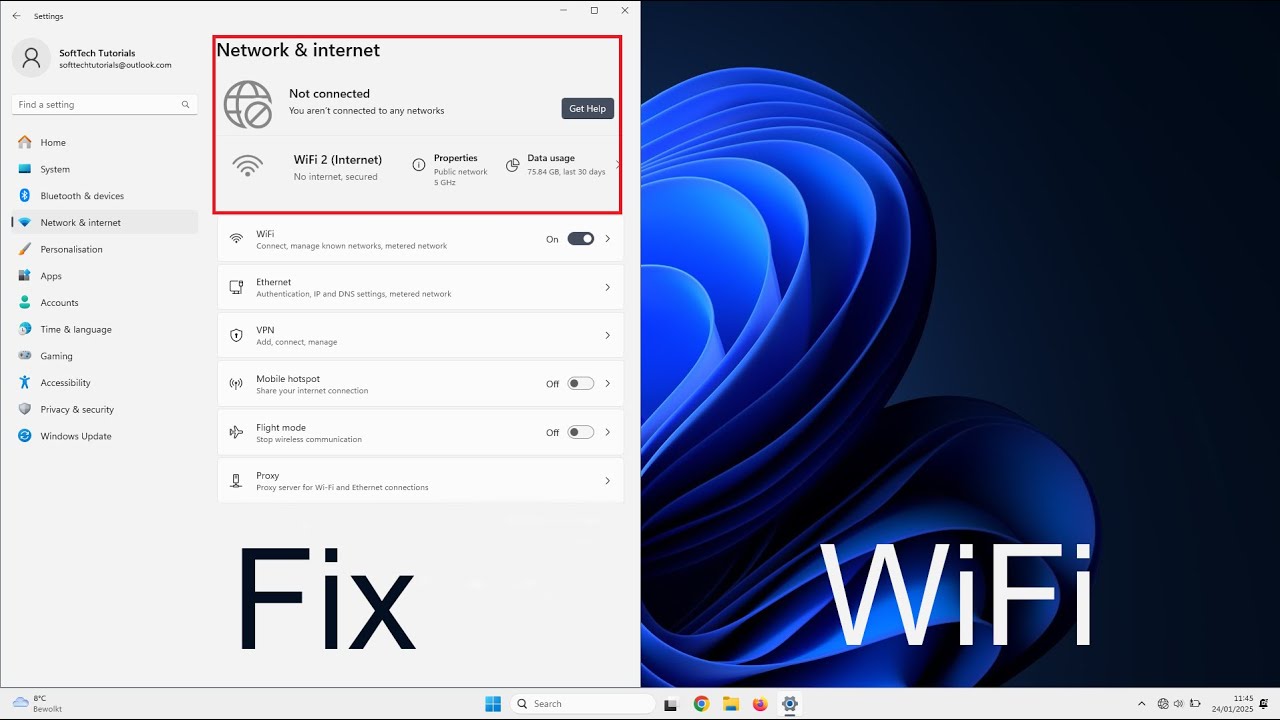
This helpful YouTube video on how to fix your wifi not working walks through many helpful steps of the process on Windows (and is hopefully also embedded below):
Checking for IP Address Conflicts
An IP address conflict occurs when two devices on the same network are assigned the same IP address.
This confuses your router, and it will often result in one or both devices being unable to connect to the internet.
This usually happens when a router’s DHCP server (which automatically assigns IP addresses) malfunctions or if you have manually assigned a static IP address that is already in use.
Restarting your router and all connected devices will usually resolve this by forcing them to request new IP addresses.
Less Common Causes Of Wifi Not Working And Edge Cases
Sometimes, the cause of your wifi woes is something unexpected.
If you’ve exhausted the common fixes, it might be time to consider these less frequent but equally frustrating issues.
Incorrect Date and Time Settings
This may seem unrelated, but if your device’s date and time are incorrect, it can cause problems with secure connections.
When you connect to a secure website (HTTPS), your device checks the website’s security certificate to ensure it’s valid.
These certificates have expiration dates.
If your device’s clock is wrong, it may incorrectly think a valid certificate has expired, leading to connection errors.
Wi-Fi Security Certificate Errors
In corporate or campus environments, you might connect to a WPA2-Enterprise network that requires a security certificate.
If this certificate is not installed, is expired, or is not trusted by your device, you won’t be able to connect.
You may see an error message about the certificate not being trusted.
Resolving this usually involves contacting the network administrator to obtain and install the correct certificate.
The “Connected, No Internet” Mystery
This is one of the most confusing wifi problems.
Your device shows you’re connected to the wifi network with a strong signal, but you can’t load any websites.
This almost always points to a DNS issue or a problem between your modem and your ISP.
You can try changing your device’s DNS servers to a public provider like Google (8.8.8.8 and 8.8.4.4) or Cloudflare (1.1.1.1 and 1.0.0.1) to see if that resolves the issue.
If not, the problem is likely outside your home network, and a call to your ISP is in order.
A detailed guide from BroadbandNow offers further insight into this specific problem.
How To Prevent Future Wifi Not Working Issues
Fixing your wifi is great, but preventing problems from happening in the first place is even better.
A few simple maintenance habits can keep your network running smoothly.
Keep Your Firmware Updated
Just like your computer and smartphone, your router needs software updates.
Router manufacturers release firmware updates to improve performance, patch security holes, and fix bugs.
Most modern routers can automatically check for and install updates, but it’s a good idea to log in to your router’s admin panel every few months to make sure its firmware is current.
Secure Your Network
An unsecured wifi network is an open invitation for neighbours to use your bandwidth, which can slow down your connection.
Worse, it can expose your personal information to malicious actors.
Always use WPA2 or WPA3 security with a strong, unique password.
Consider a Mesh Network for Better Coverage to prevent future “WiFi Not Working” Occurrences
If you have a large home or one with lots of walls and obstructions, a single router may not be enough to provide reliable coverage everywhere.
A mesh wifi system uses multiple nodes placed around your home to create a single, seamless network that eliminates dead zones and ensures a strong signal in every room.
Final Thoughts On A WiFi Not Working Problem
Dealing with a situation where you find your wifi not working is undoubtedly a hassle, but it’s rarely an unsolvable problem.
By working through these troubleshooting steps methodically, from the simple restart to the more advanced network tweaks, you can diagnose and fix the vast majority of issues on your own.
Remember to be patient and approach the problem logically.
More often than not, a stable, reliable internet connection is just a few clicks – or a power cycle – away.
Frequently Asked Questions About Wifi Not Working
Why does my wifi say “Connected, no internet”?
This common issue usually means your device is successfully connected to your router, but the router itself has no connection to the internet.
This can be caused by an outage from your Internet Service Provider (ISP), a problem with your modem, or a DNS error.
The first step is always to restart your modem and router.
If the problem persists, the issue is likely with your ISP.
How often should I restart my router?
For most people, you only need to restart your router when you experience a problem.
However, if you find your connection frequently becomes slow or unstable, a scheduled weekly reboot can be a good preventative measure.
This helps to clear the router’s memory and prevent minor software glitches from accumulating.
Can my neighbour’s wifi interfere with mine?
Yes, this is a very common cause of wifi problems, especially in apartments or densely populated areas.
Multiple wifi networks operating on the same channel create interference, which can slow down your connection or cause it to drop.
Changing your router’s wifi channel to a less crowded one (typically 1, 6, or 11 for the 2.4GHz band) can often solve this.
Does a more expensive router guarantee better wifi?
Not always, but a more expensive router typically comes with more advanced technology, such as better processors, more antennas, and support for newer wifi standards like Wi-Fi 6 (802.11ax).
These features can provide faster speeds, better range, and a more stable connection, especially in homes with many connected devices or significant physical obstructions.
How To Fix Your Wifi Connection
This guide provides a step-by-step process to fix your wifi when it’s not working.
These steps will help you diagnose and resolve the most common issues in about 15 minutes.
Time Required: 15 minutes
Tools:
- Router
- Modem
- Computer or Smartphone
Materials:
- None required
Steps:
- Power Cycle Your Network:
Unplug both your modem and your router from the power source.
Wait for a full 60 seconds.
Plug the modem back in first and wait for all its indicator lights to become stable (usually solid green or blue).
Then, plug your router back in and wait for it to fully boot up. - Check the Indicator Lights:
Look at the lights on your modem and router.
A solid green or blue light for Power, Internet (or a globe icon), and Wi-Fi is a good sign.
If the Internet/WAN light is red, orange, or off, your ISP may be having an outage. - Isolate the Problem:
Try to connect to the wifi with a different device, like your phone.
If other devices can connect, the problem is with the original device.
If no devices can connect, the problem is with your network (the router or modem). - Forget and Reconnect to the Network:
On the device that can’t connect, go into the wifi settings and find the option to “Forget” your network.
This will erase the saved connection details.
Then, scan for networks again and reconnect by entering your password. - Check Your Router’s Position:
Make sure your router is not hidden in a cabinet, behind the TV, or on the floor.
For the best signal, it should be in a central, open, and elevated location, away from thick walls (especially concrete) and large metal appliances like refrigerators.
Finally be sure to check out our Tech Troubleshooting FAQ or our Printer Troubleshooting Tips pages for even more general tips that cover a wide range of technical problems and solutions.
(If after reading the above article you still, then you might find a much less obvious solution on the above tech pages!)