One common source of seemingly endless frustrations, are the inevitable problems you get when you attempt a wireless printer setup.
Which is a real shame because a brand-new wireless printer should be a convenience, not a hassle.
You follow the instructions, do everything right, but your computer still can’t find the printer, or the connection keeps dropping.
That blinking Wi-Fi light can quickly become a symbol of a productivity roadblock.
We understand how maddening a failed wireless printer setup can be, especially when you have an important document to print.
We will walk you through diagnosing the root cause of your connection issues and provide clear, step-by-step instructions to get your printer working reliably.
You are in the right place to solve this problem for good.
Understanding Why Your Wireless Printer Setup Is Failing
Before diving into fixes, it helps to understand what’s causing the problem.
Most wireless printer setup issues stem from a few common culprits.
By identifying the source of the failure, you can apply the right solution and prevent it from happening again.
1. Incorrect Network Configuration
One of the most frequent reasons for a failed wireless printer setup is a simple network mismatch.
Your printer needs to be on the exact same Wi-Fi network as the device you’re printing from.
This sounds obvious, but it’s easy to make a mistake.
- Wrong Password:
A single typo in the Wi-Fi password is all it takes to block the connection.
Always double-check the password you enter on the printer’s control panel. - Guest Networks:
Many routers offer a “guest” network for visitors.
These are often isolated from the main network for security reasons, which means your printer won’t be visible to your computer if one of them is on the guest network. - 2.4 GHz vs. 5 GHz Bands:
Modern routers often broadcast two Wi-Fi bands: 2.4 GHz and 5 GHz.
The 2.4 GHz band has a longer range but is more susceptible to interference, while the 5 GHz band is faster but has a shorter range.
Some older printers only support the 2.4 GHz band.
If your computer is on the 5 GHz band and your printer is on the 2.4 GHz band (or vice versa), they may not be able to communicate.
As a best practice, ensure both devices are on the same band, or check your router settings to ensure the bands are not isolated from each other.
2. Signal Strength and Interference
Your printer’s ability to maintain a stable connection depends on a strong, clear Wi-Fi signal.
Physical obstructions and other electronic devices can weaken or interfere with the signal, leading to a frustratingly unreliable wireless printer setup.
- Distance from Router:
The farther your printer is from your router, the weaker the signal will be.
If your printer is at the edge of your Wi-Fi range, it may connect intermittently or not at all. - Physical Barriers:
Walls (especially concrete or brick), floors, and large metal objects like refrigerators can significantly block Wi-Fi signals. - Electronic Interference:
Other devices that use radio frequencies, such as microwaves, cordless phones, and even some Bluetooth speakers, can interfere with your Wi-Fi signal.
Try to keep these devices away from your printer and router.
3. Outdated Drivers and Firmware
Printer drivers are the software on your computer that allows it to communicate with your printer.
Firmware is the software that runs on the printer itself.
If either of these is outdated, it can cause a host of problems, including a failed wireless printer setup.
- Corrupted Drivers:
Printer drivers can become corrupted over time, leading to communication errors.
Reinstalling the latest drivers from the manufacturer’s website can often resolve these issues. - Firmware Bugs:
Manufacturers regularly release firmware updates to fix bugs and improve performance.
An outdated firmware version might have a known issue that prevents a stable wireless connection.
You can usually find firmware updates on the printer manufacturer’s support page, such as those provided by HP or Brother.
4. IP Address Conflicts
Every device on your network, including your printer, is assigned a unique IP address.
An IP address conflict occurs when two devices on the same network are assigned the same IP address.
This can cause one or both devices to lose their network connection.
- Dynamic vs. Static IP:
Most routers use DHCP (Dynamic Host Configuration Protocol) to automatically assign IP addresses to devices.
While convenient, this can sometimes lead to conflicts.
Assigning a static IP address to your printer can prevent this from happening.
Step-By-Step Fixes For Your Wireless Printer Setup
Now that you have a better understanding of the potential causes, let’s walk through the solutions.
Start with the simplest fixes and work your way up to the more advanced troubleshooting steps.
Basic Troubleshooting for Your Wireless Printer Setup
These initial steps resolve a surprising number of wireless printer setup problems and are always a good place to start.
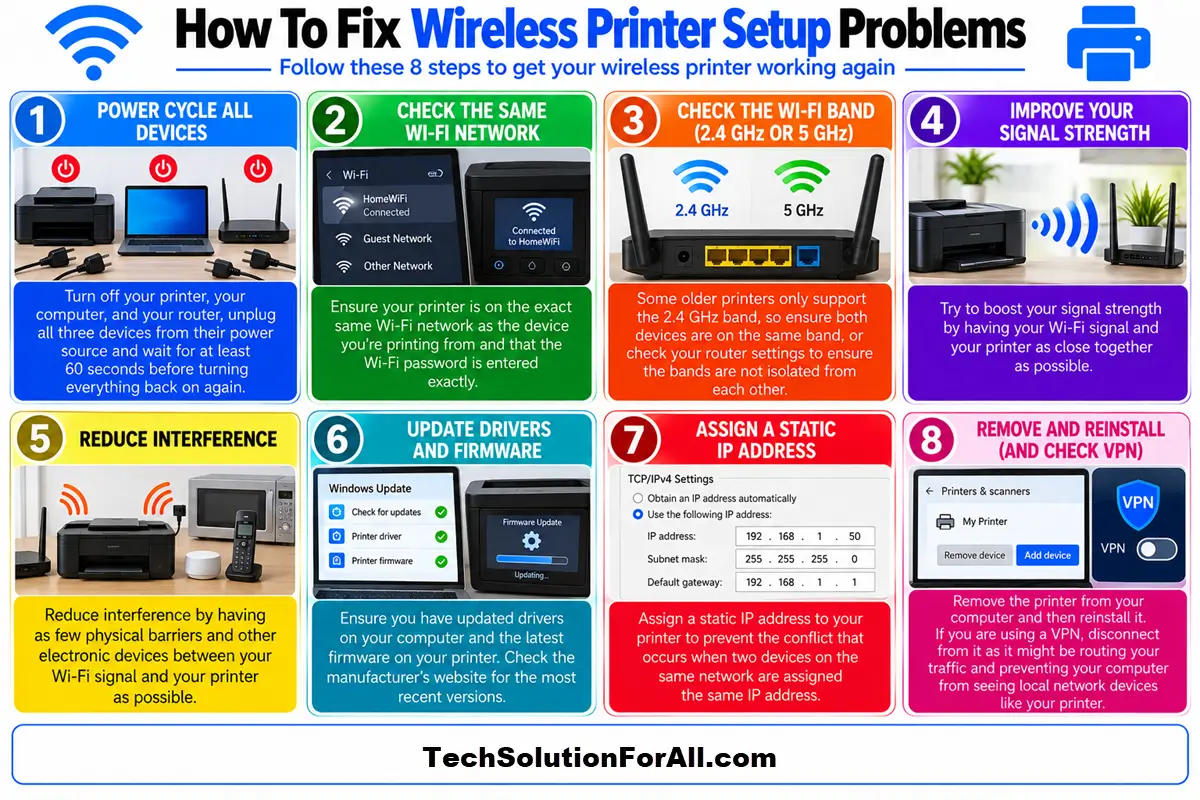
1. The Classic Reboot
It’s a cliché for a reason: turning it off and on again works.
A simple reboot can clear temporary glitches in both your printer and your router.
- Power Down:
Turn off your printer, your computer, and your router. - Wait:
Unplug all three devices from their power source and wait for at least 60 seconds.
This allows their internal components to fully reset. - Power Up in Order:
Plug in and turn on your router first.
Wait for all its status lights to become stable (usually 1-2 minutes).
Then, turn on your printer and wait for it to connect to the Wi-Fi network.
Finally, turn on your computer.
Why this works:
This process, often called a power cycle, clears out the temporary memory (RAM) on each device, where glitches and minor errors can accumulate.
It forces the devices to re-establish a fresh connection from scratch.
2. Check Your Network Connection
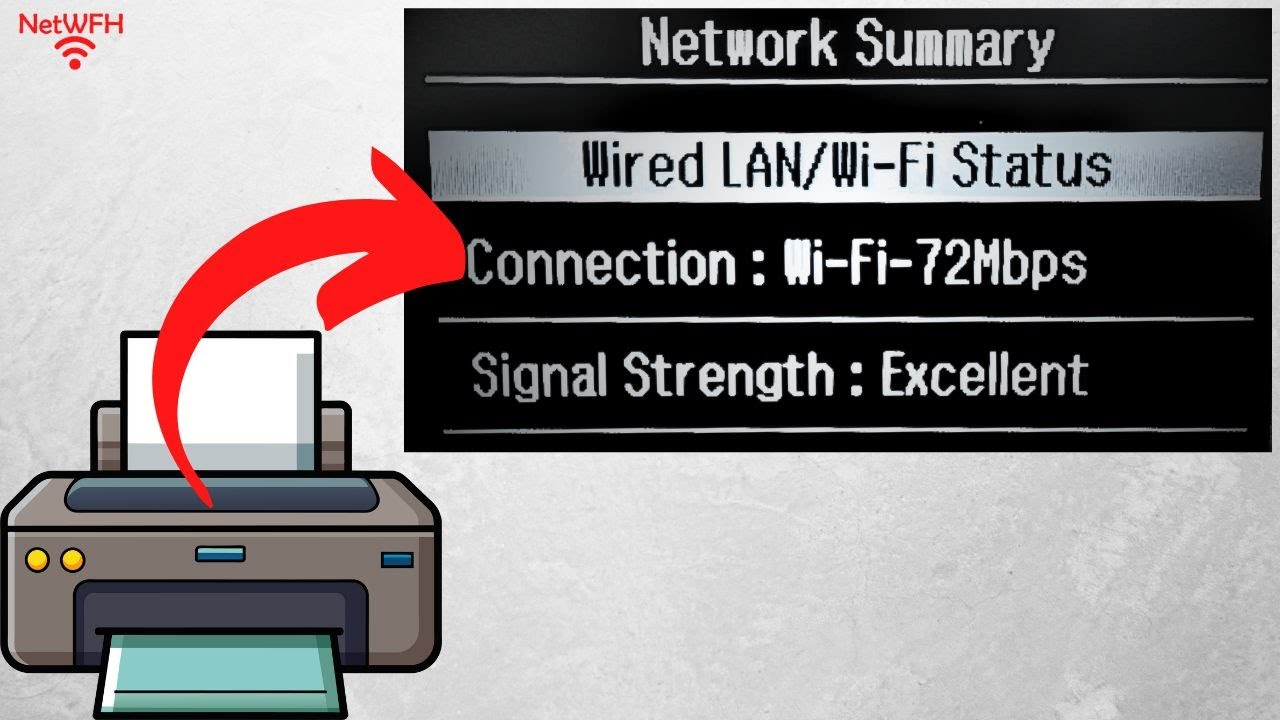
Confirm that your printer is connected to the correct Wi-Fi network.
You can usually find this information on the printer’s built-in display.
- Verify Network Name (SSID):
Ensure the network name displayed on your printer matches the one your computer is connected to. - Run a Network Test:
Most wireless printers have a built-in function to print a network configuration report.
This report will show you the printer’s connection status, IP address, and signal strength.
If the signal is weak, try moving the printer closer to the router.
3. Reinstall the Printer on Your Computer
Sometimes, the connection issue lies with how your computer sees the printer.
Removing and reinstalling the printer can force your operating system to create a fresh connection profile.
- On Windows:
Go to Settings > Bluetooth & devices > Printers & scanners.
Select your printer, click Remove, and then confirm.
After it’s removed, click Add device and follow the on-screen instructions to add it back. - On macOS:
Go to System Settings > Printers & Scanners.
Select your printer, click the – (minus) button, and confirm.
Then, click the + (plus) button to add it again.
Why this works:
This process deletes the old, potentially corrupted printer profile from your computer and creates a new one, resolving any software-level communication errors.
Advanced Troubleshooting For A Stable Wireless Printer Setup
If the basic fixes didn’t work, it’s time to dig a little deeper.
These steps involve checking drivers, firmware, and network settings.
1. Update Your Printer’s Drivers and Firmware
Outdated software is a common cause of persistent connectivity issues.
Visit your printer manufacturer’s website and download the latest drivers and firmware for your specific model.
The Microsoft Support page also offers excellent guidance on this.
2. Check Your Router’s Settings
Your router’s settings can have a big impact on your wireless printer setup.
Log in to your router’s administrative interface (usually by typing its IP address into a web browser) and check the following:
- Band Steering:
Some routers try to “steer” devices to what they think is the best band (2.4 GHz or 5 GHz).
This can sometimes cause problems for printers.
Try giving the 2.4 GHz and 5 GHz bands different names (e.g., “MyNetwork_2.4” and “MyNetwork_5”) and manually connect your printer to the 2.4 GHz band. - Firewall:
Your router’s firewall might be blocking the ports that your printer needs to communicate.
Check your printer’s documentation for the required ports and ensure they are not blocked.
3. Assign a Static IP Address
To eliminate IP address conflicts, you can assign a static IP address to your printer.
This ensures that its address never changes.
- Find Your Printer’s MAC Address:
This is a unique hardware identifier.
You can usually find it on the network configuration report. - Log in to Your Router:
Go to the DHCP or LAN settings section. - Create a DHCP Reservation:
Look for an option to reserve an IP address.
You’ll need to enter the printer’s MAC address and the IP address you want to assign to it.
Choose an IP address that is outside the router’s normal DHCP range to avoid conflicts.
Less Common Causes Of Wireless Printer Setup Issues And What to Do
Sometimes, the problem is less common.
Here are a few edge cases to consider:
- ARM-based PCs:
Some newer PCs with ARM processors may have trouble with manufacturer-provided installers.
In this case, try adding the printer directly through your operating system’s settings. - VPNs:
If you are using a VPN, it might be routing your traffic in a way that prevents your computer from seeing local network devices like your printer.
Try disconnecting from the VPN and see if that resolves the issue.
For a visual walkthrough of wireless printer setup options, this YouTube video provides some excellent tips (and is hopefully also embedded below):
Prevention: How To Ensure A Reliable Wireless Printer Setup In The Future
Once you’ve fixed the problem, you’ll want to make sure it doesn’t happen again.
Here are a few tips for a more stable wireless printer setup:
- Optimal Placement:
Keep your printer within a reasonable distance of your router, with as few obstructions as possible. - Regular Updates:
Periodically check for and install driver and firmware updates. - Consider a Wired Connection:
If reliability is your top priority, a wired Ethernet connection to your router will always be more stable than Wi-Fi.
Many wireless printers still have an Ethernet port for this purpose.
Final Thoughts On Wireless Printer Setup Problems
A successful wireless printer setup is achievable, even if it feels like a battle.
By systematically working through these troubleshooting steps, you can identify and resolve the root cause of the problem.
Remember to be patient and methodical.
The key is to understand that the issue is usually a simple breakdown in communication between your devices, and with a little effort, you can get them talking again.
Frequently Asked Questions About Wireless Printer Setup Issues
Why does my printer say it’s offline when it’s connected to Wi-Fi?
This common issue often happens when your computer’s record of the printer’s status is out of sync.
A simple reboot of both your computer and printer can often fix this.
If not, reinstalling the printer drivers will force your computer to re-establish the connection and update its status.
Can I connect my wireless printer without a Wi-Fi password?
Some printers support Wi-Fi Protected Setup (WPS), which allows you to connect to a router by pressing a button on both devices.
However, this method is generally considered less secure than using a password.
It’s always best to secure your Wi-Fi network with a strong password.
Do I need to install software to use my wireless printer?
Most modern operating systems can automatically detect and install basic drivers for your printer.
However, for full functionality, including scanning and maintenance tools, it’s highly recommended to install the full software suite from the manufacturer’s website.
How To Fix Your Wireless Printer Connection
Description: A step-by-step guide to resolving common wireless printer connection issues.
Total Time: 15 Minutes
Supply:
- None required
Tools:
- Computer
- Wireless Printer
- Wi-Fi Router
Steps:
- Restart All Devices:
Power off your computer, printer, and router.
Wait 60 seconds, then power them back on in this order: router, printer, computer. - Check Network Settings:
On your printer’s display, verify it is connected to the same Wi-Fi network (SSID) as your computer. - Run Printer Troubleshooter:
Use the built-in troubleshooter on your Windows or macOS computer to automatically diagnose and fix problems. - Update Printer Drivers:
Visit your printer manufacturer’s website and download and install the latest drivers for your model. - Move Printer Closer to Router:
If the connection is unstable, move the printer closer to your Wi-Fi router to ensure a strong signal.
Finally be sure to check out our Tech Troubleshooting FAQ or our Printer Troubleshooting Tips pages for even more general tips that cover a wide range of technical problems and solutions.
(If after reading the above article you still have a “Wireless Printer Setup” problem, then you might find a much less obvious solution on the above tech pages!)