Few things are more frustrating than being interrupted by a sudden, confusing Windows error code.
Whether it’s a stark blue screen, a failed update, or an application that refuses to launch, these cryptic messages can bring your productivity to a halt.
It’s easy to feel helpless when faced with a string of numbers and technical jargon, but you’re not alone, and the solution is often within reach.
This resource moves beyond generic advice, offering practical diagnostic steps and clear fixes for the specific problems you’re facing.
We’ll show you not just what to do, but why it works, turning frustration into a manageable solution.
What Is A Windows Error Code, Really?
A Windows error code is your computer’s way of telling you something has gone wrong.
Think of it as a specific reference number for a problem.
While they look intimidating, these codes are actually diagnostic tools.
Each number, whether it’s a 0x hexadecimal code or a STOP code on a blue screen, points to a particular fault.
Microsoft has a vast database of these codes, and understanding them is the first step toward a solution.
They aren’t just random numbers; they are clues that lead directly to the source of the problem, from a simple file access issue to critical hardware failure.
Microsoft maintains comprehensive documentation of system error codes that can help you understand what each number means.
Common Causes Behind A Windows Error Code
Error codes don’t appear out of nowhere.
They are symptoms of an underlying issue.
While the specific causes are vast, most problems can be traced back to a few common culprits.
1. Corrupted System Files
Windows relies on a complex web of system files to function correctly.
If one of these files becomes damaged, deleted, or overwritten – perhaps during an improper shutdown or due to malware – it can trigger a wide range of errors.
The infamous “Missing DLL” error is a classic example of this problem in action.
2. Faulty Drivers
Drivers are the software that allows Windows to communicate with your hardware (like your graphics card, printer, or webcam).
If a driver is outdated, incorrectly installed, or becomes corrupted, the hardware can’t function as expected.
This often results in a Blue Screen of Death (BSOD) or a specific device-related Windows error code in Device Manager.
3. Hardware Malfunctions
Sometimes, the problem isn’t with the software but with the physical components of your computer.
Failing RAM, a dying hard drive, or an overheating processor can all generate critical error codes.
These are often the most serious issues and can lead to data loss if not addressed promptly.
4. Software Conflicts and Malware
Installing new software can sometimes create conflicts with existing programs or with Windows itself.
Similarly, viruses and other malware can wreak havoc on your system by deleting files, corrupting the registry, and consuming resources.
An unexpected Windows error code after installing a new application is a strong indicator of a software conflict.
5. Insufficient Disk Space
When your hard drive is nearly full, Windows struggles to perform essential operations like creating temporary files, installing updates, or running applications.
This can trigger errors related to file operations or update failures.
Maintaining at least 15-20% free space on your system drive is crucial for smooth operation.
6. Registry Corruption
The Windows Registry is a database that stores critical configuration information.
Over time, it can become cluttered with obsolete entries or corrupted by improper software uninstallation, power outages, or malware.
Registry issues can manifest as application crashes, startup problems, or seemingly random error codes.
While manual registry editing is risky, built-in tools can help repair common registry issues.
Your First Steps: Basic Troubleshooting For Any Error
Before diving into complex fixes, a few simple steps can resolve a surprising number of issues.
Always start here.
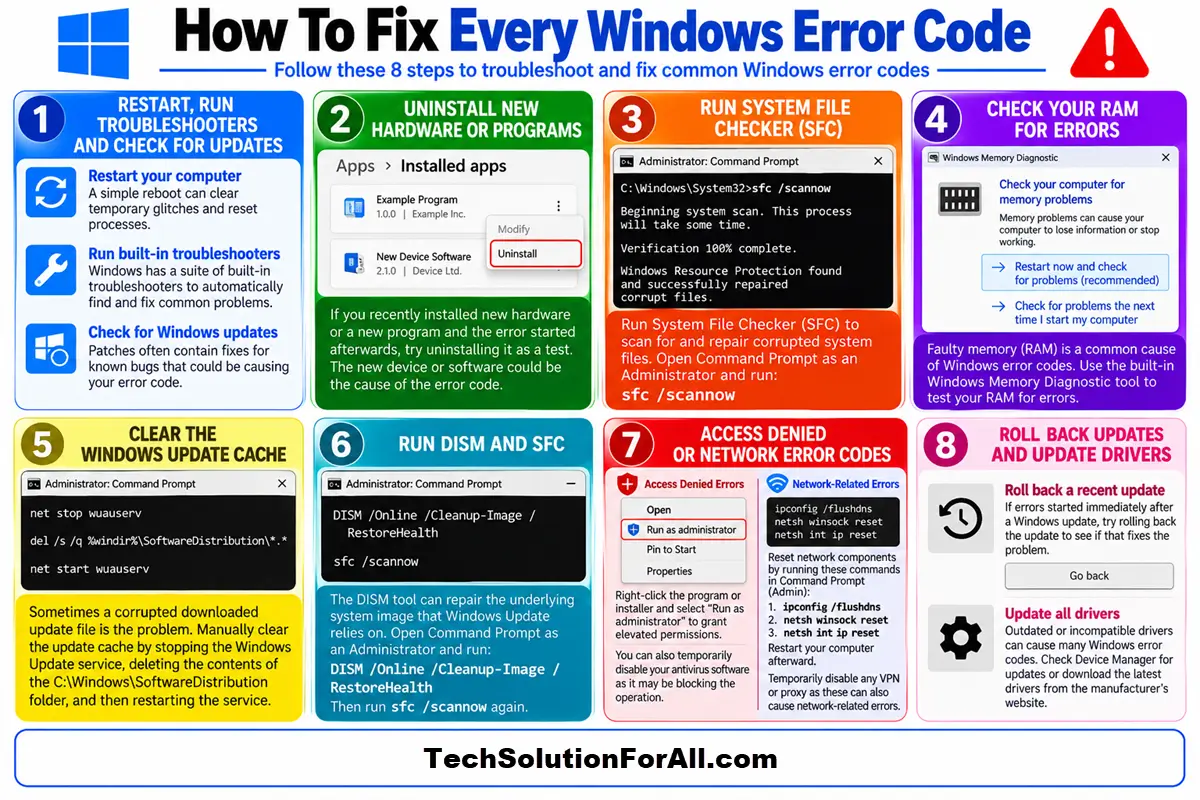
- Restart Your Computer:
It’s the oldest trick in the book for a reason.
A simple reboot can clear temporary glitches and reset processes that may have run into a problem. - Run Built-in Troubleshooters:
Windows has a suite of built-in troubleshooters designed to automatically find and fix common problems.
Navigate to Settings > Update & Security > Troubleshoot > Additional troubleshooters and run the tool that best matches your issue (e.g., Windows Update, Blue Screen, or Network Adapter). - Check for Windows Updates:
An outdated system can be a source of many errors.
Ensure your system is fully updated by going to Settings > Update & Security > Windows Update and clicking Check for updates.
Patches often contain fixes for known bugs that could be causing your Windows error code.
Advanced Guide To Fixing A Specific Windows Error Code
When basic steps don’t work, it’s time to get more specific.
Here’s how to tackle some of the most common and frustrating error categories.
The Blue Screen of Death (BSOD)
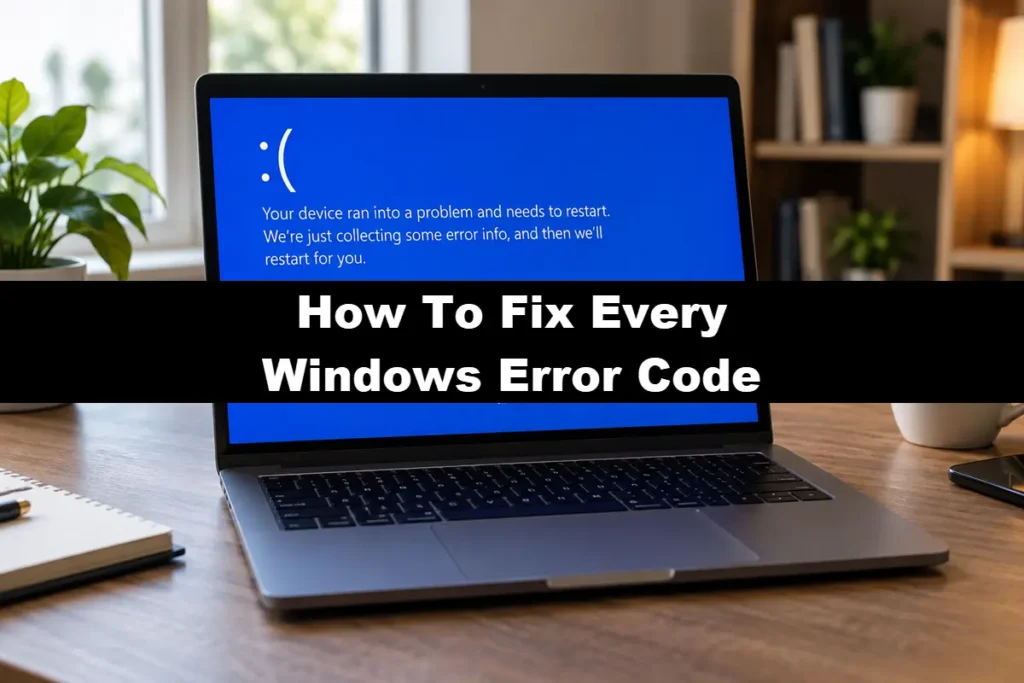
The Blue Screen of Death is perhaps the most feared Windows error code.
It appears when the system encounters a critical fault it cannot recover from.
The key is not to panic but to look for the STOP code, usually displayed in all caps (e.g., CRITICAL_PROCESS_DIED).
- Identify the STOP Code:
Write down the error name.
This is your primary clue. - Consider Recent Changes:
Did you just install new hardware or a new program?
If so, try uninstalling it. - Update Drivers:
Outdated drivers are a leading cause of BSODs.
Use Device Manager to check for driver updates, especially for your graphics card and storage controllers. - Run System File Checker (SFC):
This tool scans for and repairs corrupted system files.
Open Command Prompt as an Administrator and run the command sfc /scannow. - Check Your RAM:
Faulty memory is another common culprit.
You can use the built-in Windows Memory Diagnostic tool to test your RAM for errors.
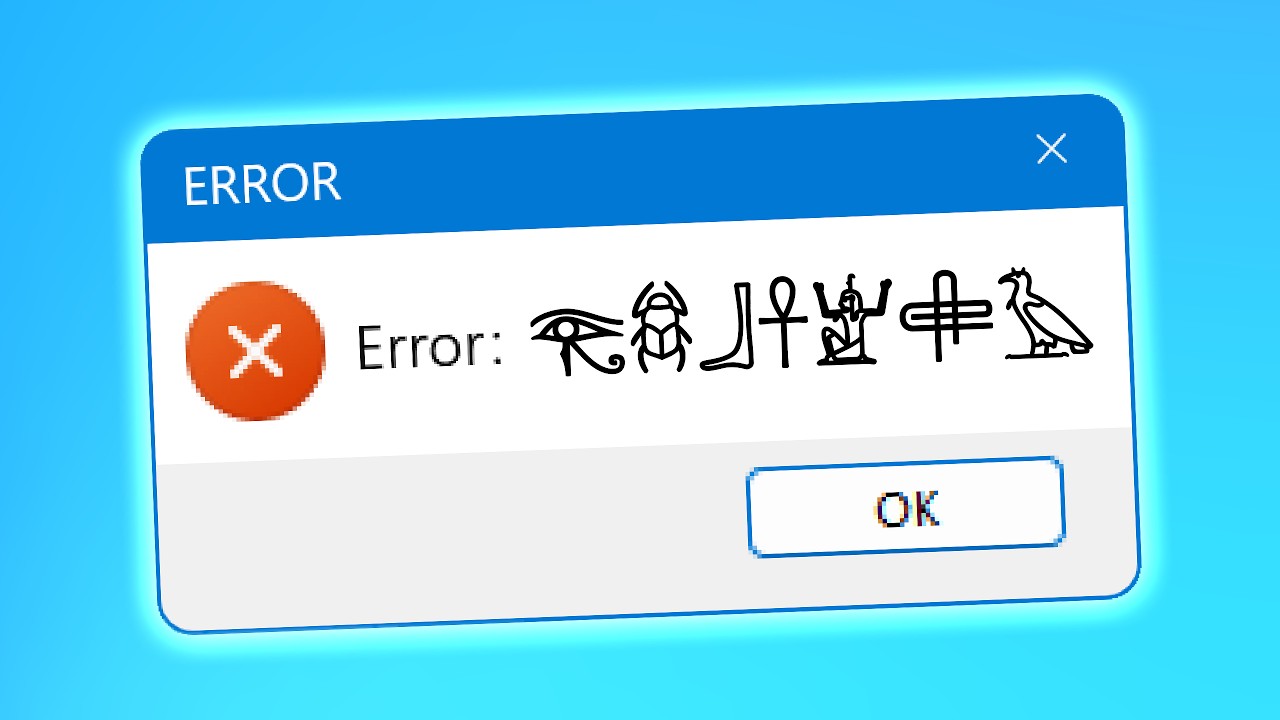
For a deeper dive into what these cryptic screens are trying to tell you, this YouTube video on Weird Windows Error Codes offers a great explanation (and is hopefully embedded below!):
If however the above video was too technical for you then there is a much simpler one you might want to watch.
This YouTube video explains what some of the more common PC Error Codes mean (and is hopefully embedded below too!):
Fixing a Windows Update Error Code
Errors like 0x80070002 or 0x80246017 are common when Windows Update fails.
These usually point to missing files or problems with the update service itself.
- Run the Windows Update Troubleshooter:
This is the most effective first step.
It can automatically reset the update components. - Clear the Update Cache:
Sometimes, a corrupted downloaded update file is the problem.
You can manually clear the cache by stopping the Windows Update service (wuauserv), deleting the contents of the C:\Windows\SoftwareDistribution folder, and then restarting the service. - Run DISM and SFC:
The Deployment Image Servicing and Management (DISM) tool can repair the underlying system image that Windows Update relies on.
Open Command Prompt as an Administrator and run DISM /Online /Cleanup-Image /RestoreHealth before running sfc /scannow again.
Dealing with a Missing DLL Error
A “Missing DLL” error occurs when a program can’t find a specific Dynamic Link Library (DLL) file it needs to run.
These files contain code that multiple programs can share.
- Reinstall the Program:
The easiest and safest fix is to simply reinstall the application that’s showing the error.
The installation process should restore the missing DLL file. - Run System File Checker:
The sfc /scannow command can also restore any missing or corrupted system DLLs. - Update Related Software:
Sometimes, the DLL is part of a shared library like the Microsoft Visual C++ Redistributable.
Installing the latest version of these packages from Microsoft Support can resolve the issue.
Resolving Access Denied Errors (0x80070005)
The 0x80070005 error indicates that Windows or an application doesn’t have the necessary permissions to access a file, folder, or registry key.
This is particularly common during updates or when trying to modify system files.
- Run as Administrator:
Right-click the program or installer and select “Run as administrator.”
This grants elevated permissions that may be required. - Check File Permissions:
Navigate to the problematic file or folder, right-click it, select Properties > Security, and ensure your user account has full control. - Disable Antivirus Temporarily:
Sometimes, overzealous security software can block legitimate operations.
Temporarily disable your antivirus and try the operation again.
Remember to re-enable it afterward.
Fixing Network-Related Error Codes
Errors like 0x80072EFD indicate network connectivity problems that prevent Windows from reaching Microsoft’s servers.
These can occur during updates or when using cloud-based services.
- Check Your Internet Connection:
Ensure you have a stable connection by opening a web browser and visiting a few websites. - Reset Network Components:
Open Command Prompt as Administrator and run these commands in sequence: ipconfig /flushdns, netsh winsock reset, and netsh int ip reset.
Restart your computer afterward. - Temporarily Disable VPN or Proxy:
If you’re using a VPN or proxy server, it might be interfering with Windows services.
Disable it temporarily to see if the error resolves.
Less Common Causes: Errors After Major Windows Updates
Occasionally, a major Windows feature update can introduce compatibility issues with existing drivers or software.
If you start experiencing errors immediately after an update, you have a few options.
- Roll Back the Update:
Go to Settings > Update & Security > Recovery and look for the option to go back to the previous version of Windows.
This option is available for a limited time after the update. - Update All Drivers:
After a major update, ensure all your drivers are updated to versions compatible with the new Windows build.
Visit your hardware manufacturer’s website for the latest drivers. - Check Known Issues:
Microsoft maintains a list of known issues for each Windows version.
Search for your specific error code along with your Windows version number to see if it’s a documented problem with a pending fix.
Prevention Is Better Than A Cure
Fixing errors is one thing, but preventing them is even better.
A little regular maintenance goes a long way.
- Keep Everything Updated:
Regularly update Windows, your drivers, and your applications.
Enable automatic updates where possible to ensure you don’t miss critical security patches and bug fixes.
Outdated software is one of the leading causes of system instability. - Use Reliable Antivirus Software:
Protect your system from malware that can cause widespread damage.
Windows Defender provides solid baseline protection, but consider a reputable third-party solution for enhanced security.
Schedule regular full system scans, especially if you download files frequently. - Back Up Your Data:
In case of a critical hardware failure, having a recent backup of your important files is essential.
You can use File History or a third-party cloud backup service.
Follow the 3-2-1 backup rule: keep three copies of your data, on two different types of media, with one copy stored offsite. - Shut Down Properly:
Always use the shutdown option from the Start Menu.
Forcing your computer to shut down by holding the power button can lead to file corruption.
If your system becomes unresponsive regularly, investigate the underlying cause rather than relying on forced shutdowns. - Monitor Disk Health:
Use tools like CrystalDiskInfo to monitor your hard drive’s health.
Early warning signs of drive failure can give you time to back up data and replace the drive before catastrophic failure occurs. - Clean Up Regularly:
Use Disk Cleanup to remove temporary files, old Windows installations, and other unnecessary data.
This frees up space and can prevent errors related to insufficient disk space. - Create a System Restore Point:
Before making major changes like installing new drivers or software, create a restore point.
This gives you a safety net to roll back to if something goes wrong.
Final Thoughts On Windows Error Codes
Encountering a windows error code can be a daunting experience, but it’s a solvable one.
By approaching the problem systematically – starting with simple checks and moving to more specific fixes based on the code provided – you can diagnose and resolve most issues yourself.
Remember that every error is a clue.
With a calm approach and the right knowledge, you can turn a moment of panic into an opportunity to learn more about your system and keep it running smoothly for years to come.
Frequently Asked Questions About Windows Error Codes
What is the most common Windows error code?
While it varies, the Blue Screen of Death (BSOD) is arguably the most well-known critical error.
Among update errors, codes like 0x80070005 (Access Denied) and 0x80070002 (File Not Found) appear frequently, often pointing to permission issues or corrupted update files.
Can a windows error code be a sign of a virus?
Yes, absolutely.
Malware can cause a wide variety of errors by deleting or corrupting system files, interfering with drivers, or hijacking system processes.
If you experience a sudden onset of different errors, especially alongside other symptoms like slow performance or pop-ups, a malware scan is highly recommended.
Is it safe to download DLL files from the internet?
No, you should avoid downloading individual DLL files from third-party websites.
These sites are often not reputable, and the files they host can be outdated, infected with malware, or simply the wrong version for your system.
The safest way to restore a missing DLL is by reinstalling the associated program or by running system repair tools like SFC and DISM.
How To Fix A Windows Error Code With System File Checker
Use the built-in System File Checker (SFC) tool to scan for and repair corrupted system files, a common cause of many Windows errors.
Time required: 15 minutes
Tools:
- Windows PC
Materials:
- None required
Steps:
- Open Command Prompt as Administrator:
Click the Start button, type cmd, right-click on “Command Prompt,” and select “Run as administrator.” - Run the SFC Command:
In the black command prompt window, type sfc /scannow and press Enter. - Wait for the Scan:
The tool will now scan your system files.
This process can take several minutes.
Do not close the window while it is running. - Review the Results:
Once complete, SFC will report whether it found and fixed any problems.
It might say it found no integrity violations, successfully repaired files, or was unable to fix some files. - Restart Your Computer:
After the scan is finished, restart your computer to ensure all changes take effect.
Finally be sure to check out our Tech Troubleshooting FAQ or our Printer Troubleshooting Tips pages for even more general tips that cover a wide range of technical problems and solutions.
(If after reading the above article you still have an issue with a “Windows Error Code” of some kind, then you might find a much less obvious solution on the above tech pages!)