When you’re dealing with an Epson printer USB connection not working, it can bring your productivity to a halt.
The good news is that in most cases, this is a solvable problem.
Whether it’s a faulty cable, a driver conflict, or a simple settings issue, we have the solutions to get you back up and running.
In This Guide: A Quick Look
This article is for anyone struggling to connect their Epson printer to a computer using a USB cable.
We will cover everything from the most common causes of USB connection failures to advanced troubleshooting steps.
By following our guide, you will learn how to systematically identify and fix the root cause of the problem, saving you time and frustration.
Common Causes Of An Epson Printer USB Connection Not Working
Before diving into more complex solutions, it’s important to understand the common culprits behind USB connection issues.
Often, the problem is simpler than you might think.
Let’s explore some of the most frequent reasons for a failed connection.
1. Faulty or Loose USB Cable
A primary cause of connection failure is the USB cable itself.
A loose connection at either the printer or computer port can prevent communication.
Additionally, USB cables can become damaged internally over time, even if they appear fine on the outside.
This wear and tear can lead to intermittent signal loss that the computer interprets as a disconnection.
A quick and easy first step is to ensure the cable is securely plugged into both devices.
If that doesn’t work, trying a different, known-good USB cable is a crucial diagnostic step, as recommended in Epson’s official documentation – where they confirm that the cables themselves can sometimes be the source of USB problems.
2. USB Hub Interference
While USB hubs are convenient for expanding the number of available ports, they can sometimes interfere with device communication, especially with devices like printers that require a stable data stream.
Some hubs do not provide sufficient or consistent power to the printer, leading to dropouts.
For best results, Epson recommends connecting the printer directly to one of your computer’s built-in USB ports.
If you must use a hub, ensure it is a powered hub (one with its own power adapter) and connect the printer to a first-tier hub (one that is connected directly to the computer) rather than a daisy-chained one.
3. Incorrect Printer Driver Installation
Your printer requires specific software, known as a driver, to communicate with your computer.
If the driver is not installed correctly, or if the installation was interrupted by a system update or a premature cancellation, your computer won’t be able to recognize the printer.
This is a very common reason for an Epson printer USB connection not working.
According to Microsoft’s official guidance, uninstalling and then reinstalling your printer is a fundamental troubleshooting step because it clears out corrupted files and ensures a clean installation.
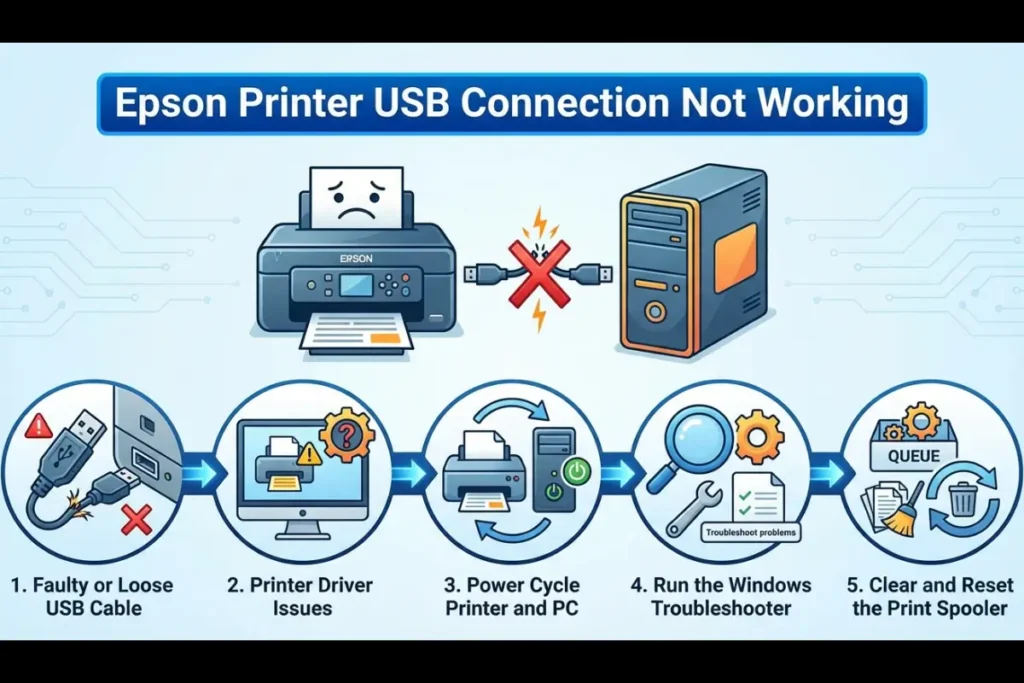
Basic Troubleshooting Steps To Fix Your USB Connection
Now that we’ve covered the common causes, let’s walk through the initial steps you should take to resolve the issue.
These solutions are straightforward and often resolve the problem without needing to delve into more advanced settings.
- Power Cycle Your Devices:
Turn off both your computer and your Epson printer. Unplug the printer from the power outlet, wait for about a minute, and then plug it back in.
Turn both devices back on. This simple reboot can often clear temporary glitches. - Check All Physical Connections:
Disconnect and reconnect the USB cable from both the printer and the computer to ensure a firm connection.
If you have another USB port available on your computer, try plugging the cable into it to rule out a faulty port. - Run the Windows Troubleshooter:
If you are using a Windows PC, the built-in troubleshooter is an excellent tool.
You can access it by going to Settings > Update & Security > Troubleshoot > Printer.
The troubleshooter will automatically scan for and attempt to fix common problems.
Advanced Troubleshooting For An Epson Printer USB Connection Not Working
If the basic steps didn’t solve your problem, it’s time to move on to more advanced diagnostics.
These steps involve checking software, drivers, and system settings that could be interfering with the USB connection.
1. Verify and Reinstall the Printer Driver
A corrupted or outdated driver is a frequent cause of connectivity issues.
You can check the status of your printer driver in the Windows Device Manager.
- Press the Windows key + X and select Device Manager.
- Look for a category named Printers or Print queues. If you see your Epson printer listed with a yellow exclamation mark, it indicates a driver problem.
- You may also find your printer listed under Other devices as an “Unknown device,” which also points to a driver issue.
To resolve this, you should perform a clean reinstallation of the printer software.
First, disconnect the printer’s USB cable from the computer.
Then, navigate to Settings > Apps > Apps & features and uninstall all software related to your Epson printer.
For a truly clean removal, check the Device Manager again and if your printer still appears (even as an unknown device), right-click and select ‘Uninstall device,’ making sure to check the box that says ‘Delete the driver software for this device.’
After restarting your computer, visit the official Epson support website to download and install the latest driver package for your specific model
Only reconnect the USB cable when the installation software prompts you to do so.
2. Check the PC Connection Setting on Your Printer
Some Epson printers have a specific setting that must be enabled to allow a USB connection.
This is especially true for models with a built-in display screen.
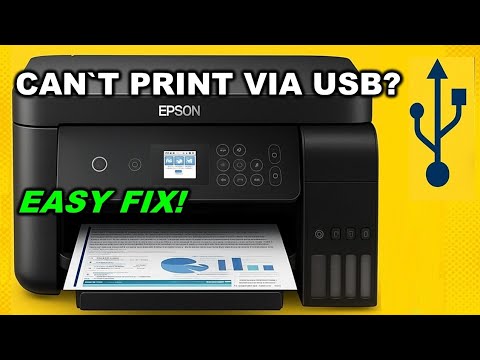
As demonstrated in a helpful YouTube tutorial, you may need to navigate your printer’s on-screen menu to enable the connection.
For a clear visual guide on how to do this, you can watch this video on how to enable the PC connection via USB on an Epson printer (which is also embedded below hopefully!)
The typical path is:
Settings > Printer Setup > PC Connection via USB > Enable
After enabling this setting, you will likely need to restart the printer for the change to take effect.
This feature often exists as a security or power-saving measure, preventing the USB port from being constantly active.
By manually enabling it, you are explicitly telling the printer to listen for a computer connection.
3. Clear and Reset the Print Spooler
The Print Spooler is a Windows service that manages the queue of print jobs being sent to the printer.
If this service encounters an error or a print job gets stuck, it can prevent any further communication with the printer, making it seem like it’s disconnected.
Resetting it clears the jammed queue and restarts the service.
- Press the Windows key + R, type services.msc, and press Enter.
- Scroll down and find the Print Spooler service.
- Right-click on it and select Stop.
- While the service is stopped, navigate to C:\Windows\System32\spool\PRINTERS in File Explorer and delete all files in this folder. This will clear any pending print jobs.
- Go back to the Services window, right-click on Print Spooler, and select Start.
Final Thoughts On Epson Printer USB Connection Not Working
Dealing with an Epson printer USB connection not working can certainly be a test of patience, but by working through these troubleshooting steps methodically, you stand a very high chance of resolving the issue.
Start with the simple physical checks and move on to the more advanced software and driver solutions.
Remember that the problem often lies with the communication link between the printer and the computer, which can be restored by ensuring all connections are secure and the correct software is in place.
With a little persistence, you’ll be back to printing in no time.
Frequently Asked Questions
Q: Why is my computer not detecting my Epson printer via USB?
A: This can happen for several reasons, including a faulty USB cable, incorrect driver installation, or a disabled USB connection setting on the printer itself.
Start by checking the physical cable and connection ports, then move on to reinstalling the printer driver and verifying the printer’s internal settings.
Q: Do I need a special USB cable for my Epson printer?
A: Most Epson printers use a standard USB 2.0 A-to-B cable. You do not need a special or proprietary cable.
However, it is important to use a high-quality cable that is not damaged to ensure a reliable connection.
Q: Can a Windows update cause my Epson printer to stop working?
A: Yes, occasionally a Windows update can cause driver conflicts or change settings that affect your printer’s connectivity.
If the problem started after a recent update, try reinstalling the printer driver or using the Windows printer troubleshooter to resolve the conflict.
How To Fix An Epson Printer USB Connection
A step-by-step guide to troubleshooting and fixing a non-working USB connection on an Epson printer.
Estimated Time: 15 minutes
Supplies:
- Epson Printer
- Computer (Windows or Mac)
Tools:
- USB A-to-B Cable
Steps:
- Check Physical Connections
Ensure the USB cable is securely connected to both the printer and the computer. Try a different USB port on the computer and consider testing with a different USB cable to rule out a faulty cable or port. - Power Cycle Devices
Turn off the printer and the computer. Unplug the printer from its power source, wait for one minute, then plug it back in. Turn both devices back on. - Reinstall Printer Driver
Uninstall all existing Epson printer software from your computer. Download the latest official driver from the Epson support website for your printer model and install it. - Enable PC Connection via USB
On Epson printers with a display screen, navigate to Settings > Printer Setup > PC Connection via USB and ensure it is set to “Enable”. Restart the printer after making the change. - Reset the Print Spooler (Windows)
Stop the Print Spooler service, clear the contents of the C:\Windows\System32\spool\PRINTERS folder, and then restart the service.
Finally be sure to check out our Tech Troubleshooting FAQ or our Printer Troubleshooting Tips pages for even more general tips that cover a wide range of technical problems and solutions.
(If after reading the above article you still have an “Epson Printer USB Connection Not Working” issue, then you might find a much less obvious solution on the above tech pages!)