A Windows update stuck on your screen is a familiar scene for many Windows users.
You start the update expecting a quick security patch or a new feature, but hours later, the screen still shows the same percentage.
A stuck windows update is more than just an annoyance – it can leave your computer vulnerable and unusable.
You’re not alone in this frustrating experience, and the good news is that most of these issues are entirely fixable.
Most stuck updates can be resolved by clearing the update cache and restarting key services, a process that resets the update mechanism without harming your system.
This guide will show you exactly how to do it safely.
Why Is My Windows Update Stuck?
Understanding why an update freezes is the first step toward fixing it.
The process involves downloading files, verifying their integrity, preparing the system, and then installing them.
A failure at any of these stages can bring everything to a halt.
Let’s explore the most common culprits.
1. Corrupted Update Files
During the download process, files can become corrupted due to a momentary loss of internet connection or a server-side glitch.
When Windows tries to install these damaged files, it can’t verify their contents and gets stuck in a loop, endlessly retrying the same failed step.
This is one of the most frequent causes of a windows update stuck at a specific percentage.
2. Software Conflicts
Third-party software, especially antivirus or security suites, can sometimes interfere with the update process.
These programs might mistakenly flag legitimate update files as malicious or block the system-level changes Windows needs to make.
This conflict prevents the update from proceeding, leaving it hanging indefinitely.
3. Insufficient Disk Space
Windows updates, particularly major feature updates, require a significant amount of free space to download temporary files and unpack the installation.
If your primary drive (usually the C: drive) is nearly full, the update process will start but will get stuck when it runs out of room to work.
Windows doesn’t always provide a clear “out of space” error, leading to a confusing freeze.
4. Problems with Windows Update Services
Windows relies on a set of background services to manage the update process.
The two most critical are the Windows Update service (wuauserv) and the Background Intelligent Transfer Service (BITS).
If either of these services crashes, stops responding, or enters a bugged state, the entire update pipeline grinds to a halt.
This often results in an update that appears to be making no progress at all.
First Steps: Simple Fixes For A Windows Update Stuck
Before diving into more complex solutions, let’s try a few simple, low-risk steps.
These can often resolve the issue without requiring technical expertise.
The Patient Wait
Sometimes, the update isn’t truly stuck – it’s just incredibly slow.
Large feature updates can take several hours, and the progress bar might not move for long periods.
If the hard drive activity light on your computer is still blinking, it’s a sign that things are happening in the background.
If possible, leave the computer running for a few more hours, especially overnight, before assuming the worst.
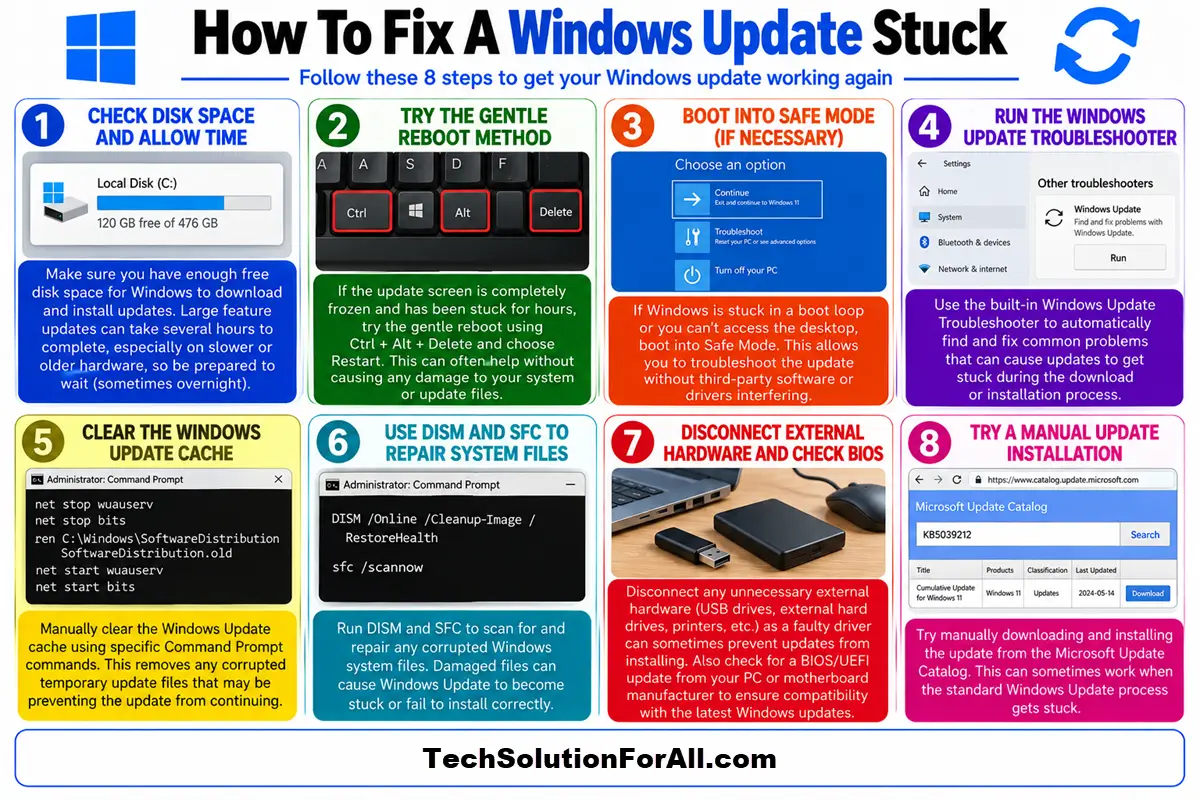
The Gentle Reboot (Ctrl+Alt+Delete)
If the screen is completely frozen and has been for hours, a simple hard reset (holding the power button) can be risky and lead to boot problems.
First, try pressing Ctrl+Alt+Delete.
On some systems, this can interrupt the frozen update screen and bring up the security options menu, allowing you to perform a proper restart.
If it works, it’s a much safer way to reboot than a forced shutdown.
Advanced Troubleshooting For A Stubborn Windows Update
If the simple fixes didn’t work, it’s time to get a bit more hands-on.
These next steps involve using built-in Windows tools to clear out the old update files and reset the update services.
This process is highly effective for a windows update stuck due to corruption or service failures.
Step 1: Boot into Safe Mode (If Necessary)
If Windows is stuck in a boot loop or you can’t access the desktop, you’ll need to boot into Safe Mode.
Safe Mode starts Windows with only the essential drivers and services, which often bypasses the update process and gives you access to the system for repairs.
To enter Safe Mode, you may need to interrupt the boot process three times in a row (by pressing the reset or power button as soon as you see the Windows logo).
This will trigger the Automatic Repair screen.
From there, navigate to Troubleshoot > Advanced options > Startup Settings > Restart.
After the computer restarts, press 5 or F5 to enter Safe Mode with Networking.
Step 2: Run the Windows Update Troubleshooter
Windows has a built-in troubleshooter designed to diagnose and fix common update problems automatically.
It can reset services and check for issues.
- Click the Start button and go to Settings > Update & Security > Troubleshoot.
- Click on Additional troubleshooters.
- Select Windows Update and click Run the troubleshooter.
Let the troubleshooter run and apply any recommended fixes.
This simple step can often resolve the problem, but even if it doesn’t, it prepares the system for the manual steps ahead.
Step 3: Clear the Windows Update Cache Manually
This is the core of the manual fix.
We will stop the update services, delete the cached update files, and then restart the services.
This forces Windows to download a fresh, uncorrupted copy of the update.
First, open the Command Prompt as an administrator.
Click the Start button, type cmd, right-click on Command Prompt, and select Run as administrator.
Now, type the following commands one by one, pressing Enter after each:
net stop wuauservnet stop cryptSvcnet stop bitsnet stop msiserverThese commands stop the Windows Update service, the Cryptographic service, the Background Intelligent Transfer Service, and the MSI Installer.
They need to be turned off before we can safely delete the cached files.
Next, we need to rename the two folders where Windows stores update files: SoftwareDistribution and Catroot2.
Renaming them is safer than deleting them.
If something goes wrong, you can always rename them back.
Execute these commands:
ren C:\Windows\SoftwareDistribution SoftwareDistribution.oldren C:\Windows\System32\catroot2 Catroot2.oldNow, restart the services you stopped earlier by typing these commands:
net start wuauservnet start cryptSvcnet start bitsnet start msiserverAfter restarting the services, reboot your computer.
Windows will recreate the necessary folders and can now attempt to download the update again.
For a visual guide on this process, this helpful YouTube video on how to fix stuck Windows Updates, walks through similar steps (and is hopefully also embedded below):
Step 4: Use DISM and SFC to Repair System Files
If the update is still stuck, there might be underlying corruption in your core Windows system files.
Windows provides two powerful tools to fix this: the System File Checker (SFC) and the Deployment Imaging Service and Management Tool (DISM).
Again, open Command Prompt as an administrator.
First, run the DISM tool, which repairs the master Windows image that SFC uses for repairs.
Type the following command and press Enter:
DISM.exe /Online /Cleanup-image /RestorehealthThis process can take some time.
Once it’s complete, run the System File Checker with this command:
sfc /scannowSFC will scan all protected system files and replace any corrupted ones.
After it finishes, restart your computer and try running Windows Update again.
For more in-depth information on these tools, the official Microsoft documentation on DISM is an excellent resource.
Less Common Causes Of Windows Update Issues And Future Problem Prevention
What if your windows update stuck problem is more unusual?
Here are a few edge cases and tips to prevent future issues.
- Disconnect External Hardware:
Unplug any non-essential USB devices (external hard drives, printers, webcams) before starting a major update.
A faulty driver for one of these devices can sometimes cause the update to hang. - Update Your BIOS:
In rare cases, an outdated BIOS can cause incompatibility with a new Windows update.
Check your computer manufacturer’s support website for information on how to update your BIOS.
This is an advanced step and should be done with care, following the manufacturer’s instructions precisely. - Manual Update Installation:
If a specific update is consistently failing, you can try downloading it directly from the Microsoft Update Catalog.
Search for the update by its KB number (e.g., KB5021233) and install it manually.
This bypasses the Windows Update service and can sometimes succeed where the automatic process fails.
Final Thoughts On A Windows Update Stuck
A Windows update stuck on your screen is a significant roadblock, but it’s rarely a fatal error.
By working through these solutions methodically, from the simplest checks to the more advanced repairs, you can almost always get your system back on track.
The key is to be patient and to understand that you are resetting a complex process, not just flipping a switch.
Regular maintenance, like keeping sufficient free disk space and running occasional system file checks, can go a long way in preventing these issues from happening in the first place.
Frequently Asked Questions About Frozen Windows Updates
Q: Can a Windows update be stuck for 8 hours?
A: Yes, it’s possible, especially for major feature updates on older or slower hardware.
However, if there is no hard drive activity (check the blinking light on your PC case) for more than an hour during that time, it is likely truly stuck.
In that case, you should proceed with troubleshooting.
Q: Will I lose my data if I force a restart during a stuck update?
A: It’s risky.
Forcing a restart can corrupt system files and potentially lead to a state where Windows won’t boot.
It should only be used as a last resort.
Always try the Ctrl+Alt+Delete method first.
If you must force a restart, there’s a chance Windows will automatically roll back the update, but data loss, while unlikely for personal files, is not impossible.
Q: Why does my Windows update get stuck at 0% or 100%?
A: Getting stuck at 0% often indicates a problem with the Windows Update services themselves or an issue connecting to Microsoft’s servers.
Being stuck at 100% usually means the update files have been downloaded, but Windows is struggling to finalise the installation, which could be due to a software conflict or a problem with system file permissions.
How To Fix A Stuck Windows Update
Here’s a step-by-step guide to manually reset the Windows Update components.
This is one of the most effective ways to fix an update that is stuck or frozen.
Time required: 15 minutes
Tools:
- Windows PC with administrator access
- Command Prompt
Supplies:
- None required
Steps:
- Open Command Prompt as Administrator:
Click the Start button, type “cmd”, right-click on Command Prompt, and select “Run as administrator”. - Stop Windows Update Services:
In the Command Prompt, type the following commands one by one, pressing Enter after each: net stop wuauserv, net stop cryptSvc, net stop bits, net stop msiserver. - Rename Update Folders:
Type the following commands to rename the folders that store update files: ren C:\Windows\SoftwareDistribution SoftwareDistribution.old and ren C:\Windows\System32\catroot2 Catroot2.old. - Restart Windows Update Services:
Restart the services you stopped earlier with these commands: net start wuauserv, net start cryptSvc, net start bits, net start msiserver. - Reboot and Check for Updates:
Restart your computer.
Once rebooted, go to Settings > Update & Security > Windows Update and click “Check for updates”.
The update process will start over with fresh files.
Finally be sure to check out our Tech Troubleshooting FAQ or our Printer Troubleshooting Tips pages for even more general tips that cover a wide range of technical problems and solutions.
(If after reading the above article you still have a “Windows Update Stuck” problem, then you might find a much less obvious solution on the above tech pages!)