It is a uniquely frustrating moment when Windows 11 printer issues prevent a simple print command from producing a result.
You have a deadline, a ticket to print, or a document to sign, but your printer sits silently, unresponsive.
If you have recently upgraded to Microsoft’s latest operating system, you may be experiencing a common (but solvable) problem that can bring your workflow to a standstill.
We understand the disruption this causes and have created this guide to get you back on track.
By systematically addressing driver conflicts, the print spooler, and connectivity, you can quickly diagnose and fix the root cause.
You are in the right place to get your printer working reliably with Windows 11 again.
Understanding The Common Causes Of Windows 11 Printer Issues
Before diving into solutions, it is helpful to understand why these problems occur.
Most Windows 11 printer issues stem from a few core areas.
When your printer and computer fail to communicate, one of these culprits is usually to blame.
Driver Incompatibility and Corruption
The most common cause of printer problems is the driver – the software that lets your computer talk to your printer.
A driver designed for an older version of Windows might not work correctly on Windows 11.
Sometimes, the driver can become corrupted, leading to communication breakdowns.
As noted by major manufacturers like HP in their official support documentation, a frequent first step after a Windows upgrade is to uninstall and reinstall the printer driver completely.
The Print Spooler Service Glitch
The Print Spooler is a small background program in Windows that organises the print jobs sent to the printer.
If this service crashes or gets stuck, print jobs will remain in the queue indefinitely, and new jobs will not be processed.
This is a classic issue that has persisted through various Windows versions and remains a primary suspect in printing failures.
Network and Connectivity Problems
For wireless or network printers, the issue might not be with your PC or the printer itself, but with the connection between them.
A change in your network settings, a weak Wi-Fi signal, or incorrect IP address configurations can prevent your computer from finding the printer on the network.
Simple things like your computer and printer being on different Wi-Fi networks can cause the printer to appear offline.
Windows Update Conflicts
Ironically, a Windows update intended to improve your system can sometimes be the source of your Windows 11 printer issues.
An update can introduce bugs, alter settings, or create conflicts with existing printer drivers.
This is why you might find your perfectly functional printer suddenly stops working after a system update.
Microsoft often releases patches to fix these issues, but identifying the update as the cause is the first step.
Step-By-Step Windows 11 Printer Issues Troubleshooting Guide
Now, let’s move from diagnosis to action.
Follow these steps in order, as they are organised from the simplest and most common fixes to more advanced solutions.
The First Response – Basic Checks
Before you start changing settings, perform these fundamental checks.
They may seem obvious, but they resolve a surprising number of issues.
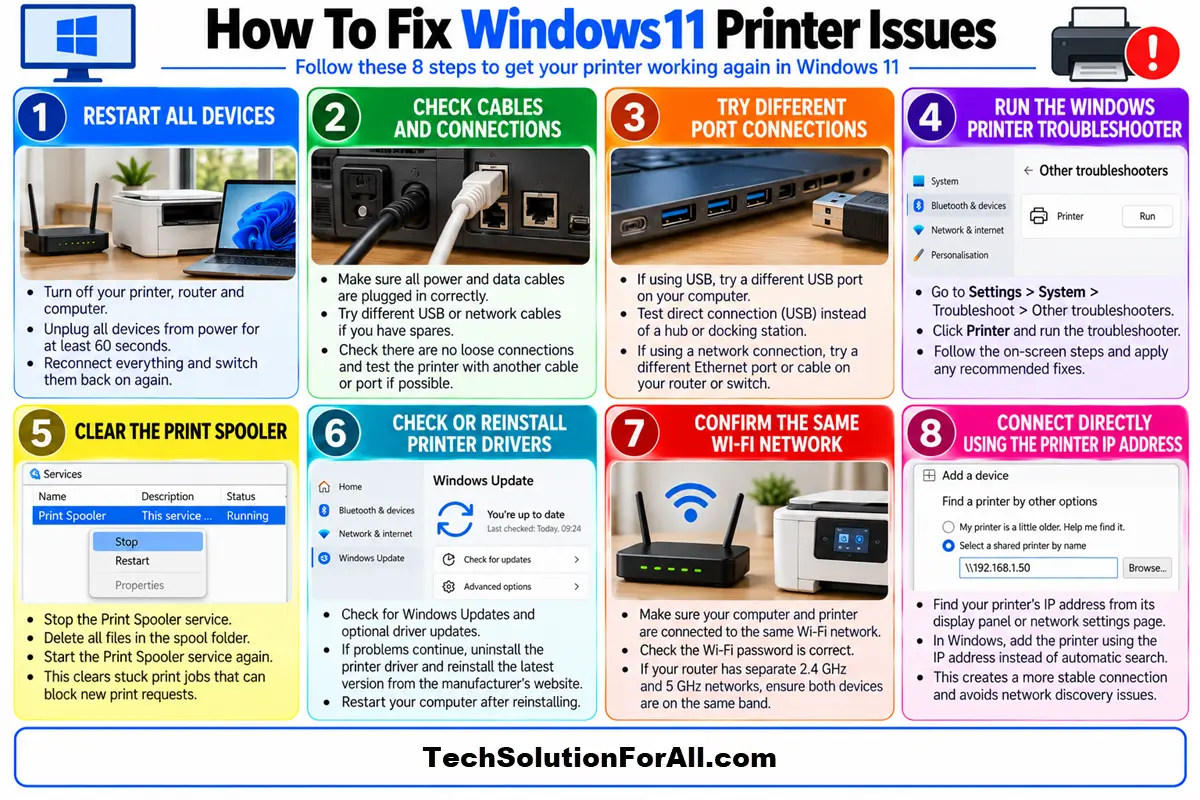
- Check Physical Connections:
For a wired printer, ensure the USB cable is securely plugged into both the printer and the computer.
Try a different USB port on your computer.
For a wireless printer, confirm it is connected to your Wi-Fi network.
Check the printer’s display for any network error messages. - Restart Everything:
The age-old advice of turning it off and on again is effective for a reason.
It clears temporary glitches and resets the communication pathways.
Turn off your printer and unplug it from the power source
Restart your computer.
Wait for a minute, then plug your printer back in and turn it on. - Check for Error Messages:
Look at your printer’s screen.
It might be telling you exactly what is wrong – low ink, no paper, or a paper jam.
Resolve any errors displayed on the printer itself before continuing.
Running the Built-in Windows Printer Troubleshooter
Windows 11 includes an automated tool designed to find and fix common printer problems.
This should always be your next step, as it can often resolve the issue without any further effort on your part.
- Open Settings by pressing Windows Key + I.
- Navigate to System > Troubleshoot > Other troubleshooters.
- Find Printer in the list and click the Run button next to it.
The troubleshooter will automatically scan for issues related to the print spooler, driver problems, connectivity, and more.
If it finds a fix, it will apply it automatically.
As detailed in a comprehensive guide by Computerworld on fixing Windows 10 and 11 printing problems, this single utility resolves the vast majority of print issues.
Addressing Driver-Related Windows 11 Printer Issues
If the troubleshooter does not solve the problem, the issue is likely with the printer driver.
Your goal is to ensure you have the correct, most up-to-date driver for Windows 11.
Step 1 – Update the Driver
Windows Update sometimes delivers new drivers.
It is a good place to start.
- Go to Settings > Windows Update.
- Click Check for updates.
If any updates are found, let them install. - After installation, click Advanced options > Optional updates.
- If you see a Driver updates section, expand it.
If your printer is listed, check the box and download and install the update.
Step 2 – Reinstall the Driver
If updating does not work, a clean reinstallation is the next logical step.
This involves removing the old driver completely and installing a fresh version.
- Go to Settings > Bluetooth & devices > Printers & scanners.
- Select your printer from the list.
- Click the Remove button at the top and confirm your choice.
- Restart your computer.
- After restarting, Windows may automatically detect the printer and install a suitable driver.
If not, go to your printer manufacturer’s website (e.g., HP, Canon, Epson, Brother), find the support or downloads section, and download the latest Windows 11 driver for your specific printer model. - Run the downloaded driver installation file and follow the on-screen instructions.
Taming The Print Spooler
When a print job gets stuck, it can block all subsequent jobs.
Clearing the print spooler forces Windows to start fresh.
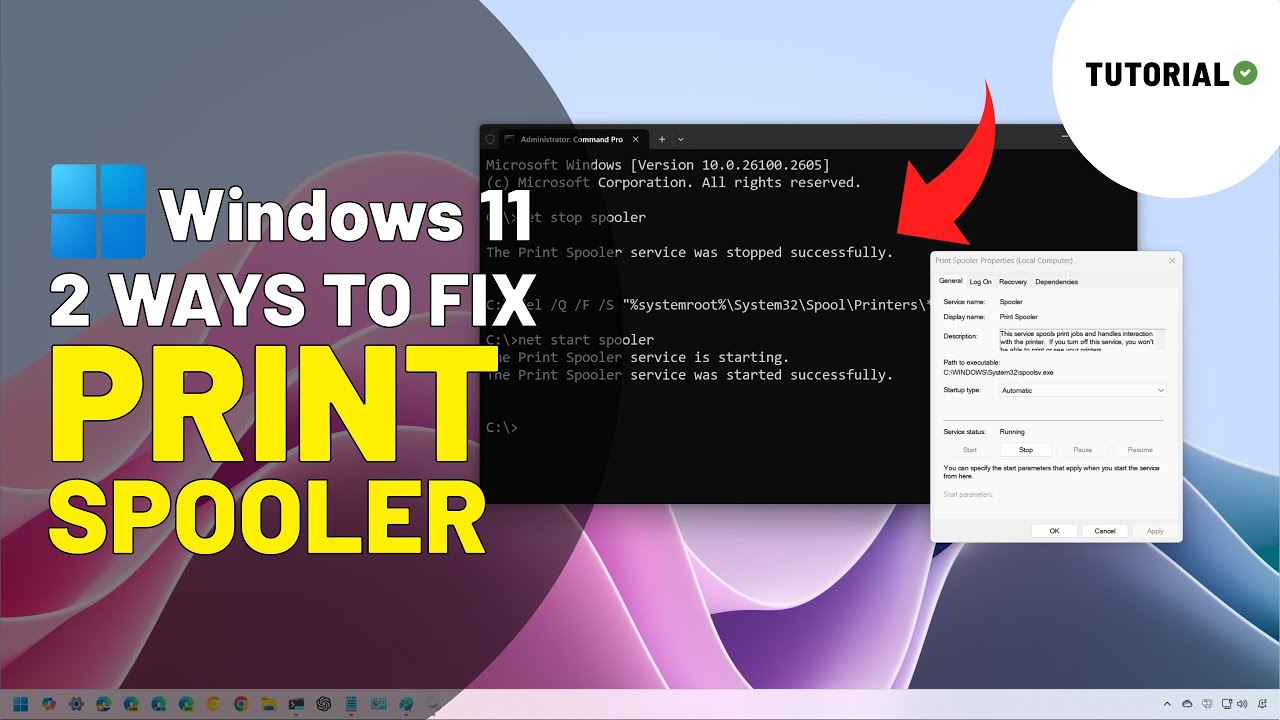
This is a powerful fix for many Windows 11 printer issues where jobs are stuck in the queue.
- Press Windows Key + R to open the Run dialog.
- Type services.msc and press Enter.
- In the Services window, scroll down and find Print Spooler.
- Right-click on Print Spooler and select Stop.
- Leave the Services window open.
Open File Explorer and navigate to:
C:\Windows\System32\spool\PRINTERS. - Delete all files inside this folder.
This will clear all stuck print jobs.
You may need administrator permission to do this. - Go back to the Services window, right-click on Print Spooler, and select Start.
After restarting the spooler, try printing a test page.
For a visual guide on this process, this YouTube video on fixing print spooler problems in Windows 11 provides a clear walkthrough of restarting the service and clearing the queue (and is hopefully also embedded below!)
Advanced Troubleshooting For Persistent Windows 11 Printer Issues
If the standard fixes have not resolved your problem, it is time to explore some more advanced solutions.
These steps address deeper conflicts within the Windows 11 operating system.
Forcing a Printer from “Offline” to “Online”
A common frustration is when a perfectly fine printer shows as “Offline.”
This is especially prevalent with network printers.
It often happens because the computer loses track of the printer’s IP address.
- First, ensure the printer is not in sleep or power-save mode.
Print a configuration page directly from the printer’s control panel to confirm it is working and to find its current IP address. - In Windows, go to Settings > Bluetooth & devices > Printers & scanners.
- Select your printer and choose Printer properties.
- Go to the Ports tab and click Add Port.
- Select Standard TCP/IP Port and click New Port.
- The “Add Standard TCP/IP Printer Port Wizard” will open.
Click Next. - Enter the printer’s IP address (from the configuration page you printed) into the “Printer Name or IP Address” field.
The “Port Name” will populate automatically.
Click Next. - Windows will detect the printer on that IP address.
Click Finish. - Your printer is now connected directly via its IP address, which is a much more stable connection method than relying on automatic network discovery.
Resolving Shared And Network Printer Connection Errors
Connecting to a printer shared from another computer can be particularly tricky due to network security settings.
Microsoft provides detailed guidance on this, but a common culprit is how Windows handles network communication.
- Enable Network Discovery:
Ensure that on both the computer sharing the printer (the host) and your computer (the client), network discovery and file and printer sharing are enabled.
You can find this in Settings > Network & internet > Advanced network settings > Advanced sharing settings. - Check RPC Connection Settings:
Recent Windows updates have increased security around Remote Procedure Call (RPC), which is used for print sharing.
If you are getting an error like “Operation could not be completed (error 0x00000709),” you may need to adjust a Group Policy setting.
In the Group Policy Editor (gpedit.msc), navigate to Computer Configuration > Administrative Templates > Printers and configure the “Configure RPC connection settings” to use “RPC over named pipes.”
For a full checklist on resolving these types of errors, the official guide from Microsoft on fixing shared printer connection problems is an invaluable resource.
Editing The Windows Registry (Use With Caution)
When a driver uninstallation leaves behind corrupted entries, sometimes the only solution is to remove them from the Windows Registry.
This is an expert-level fix.
Incorrectly editing the registry can cause system instability, so proceed with extreme caution and back up your registry before making any changes.
- Stop the Print Spooler service as described previously.
- Open the Registry Editor by typing regedit in the Run dialog.
- Navigate to:
HKEY_LOCAL_MACHINE\SYSTEM\CurrentControlSet\Control\Print\Environments\Windows x64\Print Processors. - Delete any print processors associated with your printer’s manufacturer.
- Restart the Print Spooler service and try reinstalling the printer driver.
Handling Edge Cases And Specific Scenarios
Sometimes, Windows 11 printer issues are not general but are tied to specific hardware or software situations.
- ARM-Based PCs:
Devices like the Surface Pro X or newer Copilot+ PCs use ARM processors.
Some printer manufacturers’ installation software is not compatible with this architecture.
In this case, you must use the Windows built-in “Add printer” function instead of the manufacturer’s installer, as confirmed by Microsoft’s support documentation on printer connection problems. - Disabling WSD:
Web Services for Devices (WSD) is a technology that helps Windows automatically discover network printers.
However, it can be overly aggressive and override manually configured printers, causing them to go offline.
Disabling WSD in your printer’s network settings (via its web interface) can often create a more stable connection.
How To Prevent Future Windows 11 Printer Issues
Once your printer is working, you want it to stay that way.
A few proactive steps can help you avoid future problems.
- Prefer Manufacturer Drivers:
While Windows’ built-in drivers are convenient, always try to use the latest official driver from your printer’s manufacturer for full functionality. - Set a Static IP:
For network printers, log in to your router’s administration page and assign a static (or reserved) IP address to your printer.
This prevents its address from changing and your computer from losing track of it. - Be Cautious with Updates:
Before applying a major Windows feature update, check online forums or the manufacturer’s website to see if there are any known printing issues associated with it.
Final Thoughts On Windows 11 Printer Issues
Navigating Windows 11 printer issues can undoubtedly test your patience, but the problems are rarely insurmountable.
The key is a methodical approach.
By starting with the basics, utilising Windows’ own troubleshooting tools, and then moving on to more specific driver and spooler fixes, you can resolve the vast majority of printing problems.
Remember that the transition to a new operating system often involves these kinds of compatibility hurdles.
With the right knowledge and a clear plan, you can ensure your printer remains a reliable tool rather than a source of frustration.
Frequently Asked Questions About Windows 11 Printer Issues
Why did my printer stop working after a Windows 11 update?
Windows updates can sometimes alter system files or driver configurations, leading to conflicts with your printer.
The update may have installed a generic driver that overrides your manufacturer’s specific driver, or it could have introduced a bug that affects the print spooler service.
The first step is usually to run the printer troubleshooter and then check for new driver updates.
How do I fix my printer when it says “Offline” in Windows 11?
This usually indicates a communication problem.
First, restart your printer, computer, and router.
If that fails, the most reliable fix is to reconfigure the printer port to use its IP address directly instead of relying on automatic discovery.
You can find the printer’s IP address by printing a network configuration page from the printer itself.
Can I use my old printer with Windows 11?
In most cases, yes.
Windows 11 has good backward compatibility.
However, you may need to download and install the latest Windows 11-specific driver from the printer manufacturer’s website.
If an official Windows 11 driver is not available, the driver for Windows 10 will often work.
How To Manually Reset The Print Spooler In Windows 11
Description:
A step-by-step guide to manually stopping the Print Spooler service, clearing the print queue, and restarting the service.
This process resolves many common printing problems, including stuck print jobs.
Total Time:
5 minutes
Supply:
None required
Tools:
Windows Services, File Explorer
Steps:
- Stop the Print Spooler Service:
Open the Services application by searching for “Services” in the Start Menu.
Find “Print Spooler” in the list, right-click it, and select “Stop”. - Clear the Print Queue:
Open File Explorer and navigate to the folder:
C:\Windows\System32\spool\PRINTERS.
Delete all the files within this folder to remove any stuck print jobs. - Restart the Print Spooler Service:
Return to the Services application, right-click “Print Spooler”, and select “Start”.
Your print queue is now clear and the service is reset.
Finally be sure to check out our Tech Troubleshooting FAQ or our Printer Troubleshooting Tips pages for even more general tips that cover a wide range of technical problems and solutions.
(If after reading the above article you still, then you might find a much less obvious solution on the above tech pages!)