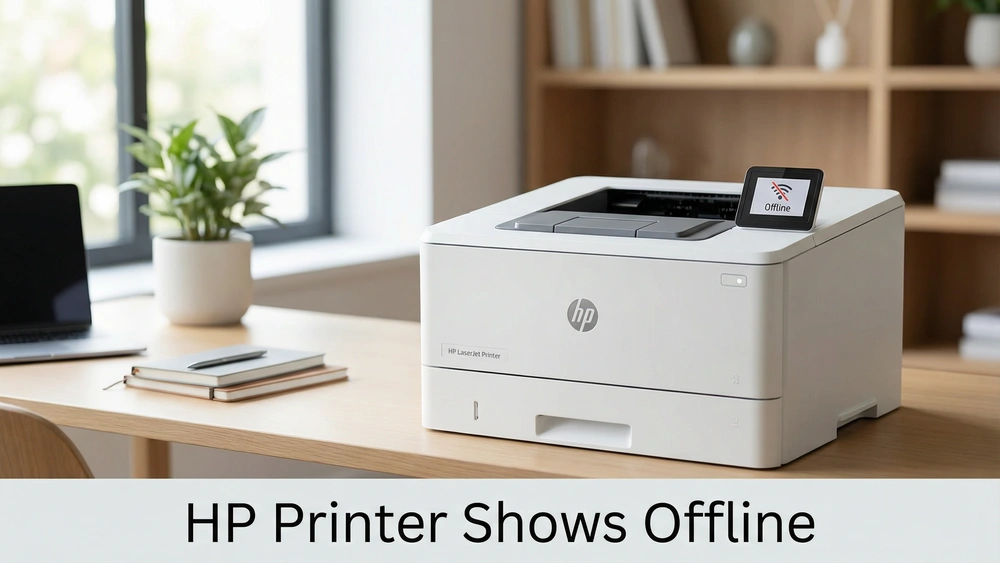
Suddenly finding your HP printer offline is a common yet frustrating problem that can really disrupt your workflow.
You send a document to print, only to be met with an error message, even when the printer seems to be on and connected.
This issue can affect any model, from a reliable HP LaserJet in the office to a compact HP DeskJet at home.
While the causes are varied, the solutions are often straightforward.
This deep troubleshooting guide focuses exclusively on HP devices, addressing the unique quirks and settings that can lead to this persistent offline status.
We will explore everything from basic connection checks to advanced configuration adjustments, providing a clear path to get your printer back online and working reliably.
This guide offers targeted, easy-to-follow solutions specifically for HP printers, helping you bypass common frustrations and restore your connection in minutes.
Move beyond generic advice and apply expert fixes that address the unique challenges of HP hardware.
Common Causes Of An HP Printer Offline
When your HP printer shows an “offline” status, it means your computer cannot communicate with it.
This communication breakdown can happen for various reasons, ranging from simple connectivity glitches to more complex software conflicts.
Understanding the root cause is the first step toward an effective solution.
Below are the most frequent culprits for HP printers losing their connection.
Network Connection Issues
One of the most common reasons is a weak or unstable network connection.
For wireless models like the HP ENVY or OfficeJet series, if the Wi-Fi signal drops, the printer will disconnect from the network and appear offline to all connected devices.
Similarly, a loose or damaged USB or Ethernet cable can sever the physical link between your printer and computer.
It is also possible that your printer and computer are not connected to the same network, a frequent oversight in homes or offices with multiple Wi-Fi networks, such as a primary network and a guest network.
Printer Driver Issues
Outdated or corrupted printer drivers are another significant source of offline errors.
Drivers are the essential software that allows your operating system to communicate with your printer.
If the driver is not installed correctly, becomes corrupted, or is rendered obsolete after a Windows or macOS update, the connection can fail.
HP frequently releases driver updates to resolve such compatibility issues, which makes keeping them current a critical part of printer maintenance.
Internal Printer Settings
Finally, the printer’s own settings and internal state can cause it to go offline.
This includes issues with the print queue, where a stuck or failed print job can block all subsequent tasks and cause the printer to appear unresponsive.
The printer’s internal software, known as firmware, can also develop glitches that are only resolved with a restart or an update.
These factors are often overlooked but are fundamental to ensuring your HP printer remains accessible.
HP-Specific Fixes To Get Your Printer Back Online
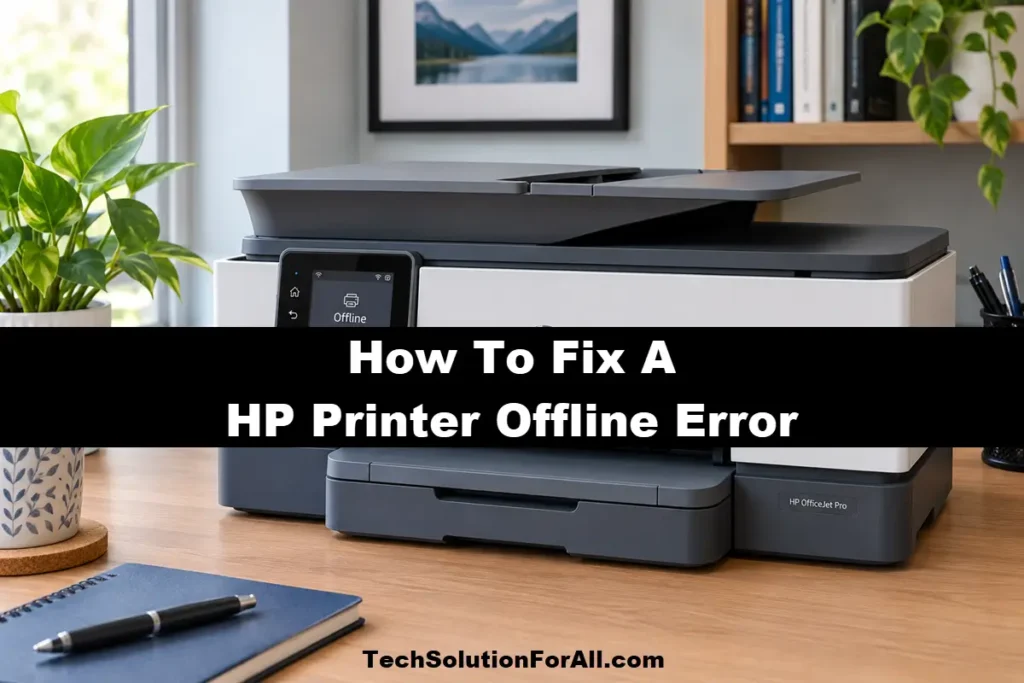
Troubleshooting an offline HP printer often involves addressing issues unique to its hardware and software ecosystem.
While general advice can be helpful, these brand-specific solutions target the known quirks of HP devices, providing a more direct path to resolving the problem.
From specialised software tools to navigating particular settings, these fixes are designed for HP printer owners.
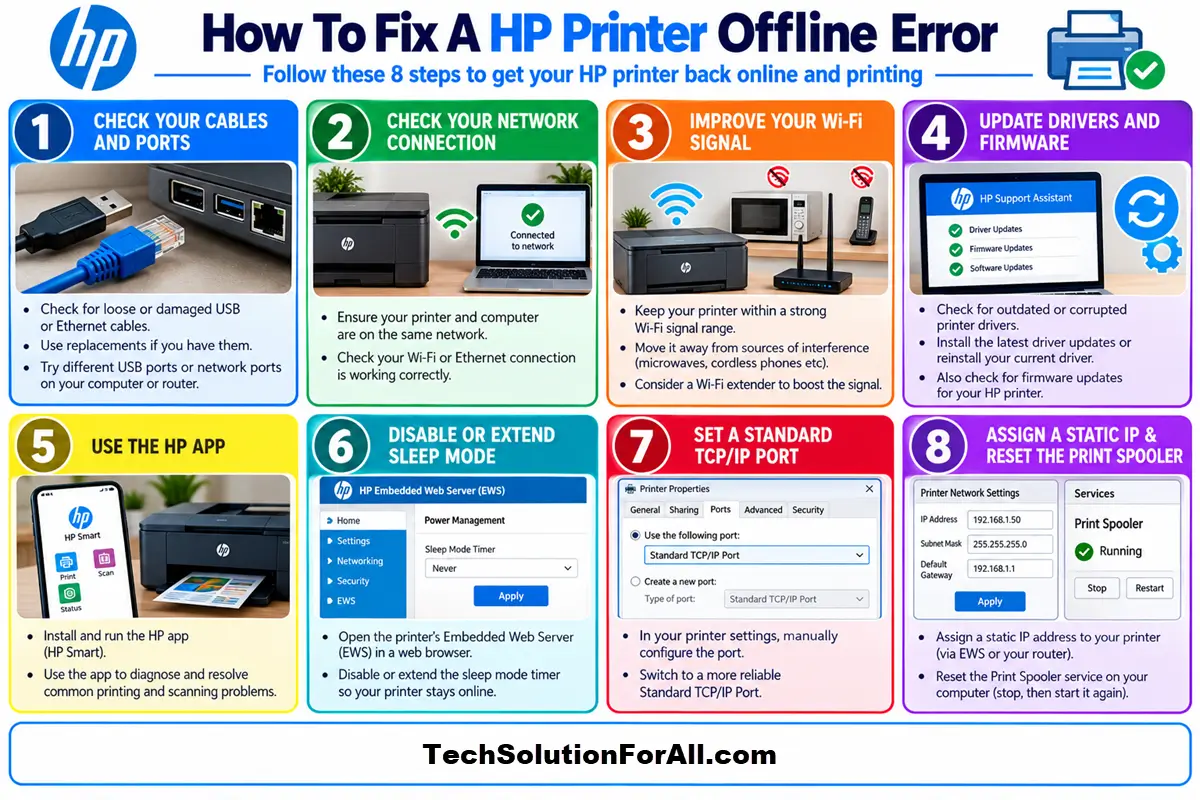
Run the HP App
HP provides a free diagnostic tool designed specifically to diagnose and resolve common printing and scanning problems.
This should be your first step, as it automates many of the troubleshooting tasks.
When you run the tool, it will check for connection issues, driver conflicts, and stuck print jobs.
If it identifies a problem, it will either fix it automatically or provide step-by-step instructions to resolve it.
This utility is particularly effective for users who are less comfortable with manual configuration and prefer a guided solution.
Check for HP’s “Unwakeable” Sleep Mode
A well-known quirk with many HP printers is an aggressive power-saving or “sleep” mode.
In some cases, the printer enters a deep sleep state to conserve energy but fails to wake up automatically when a new print job is sent.
This makes the printer appear offline, even though it is powered on.
To resolve this, you may need to adjust the printer’s power settings.
This can often be done through the printer’s control panel or, for more advanced control, through its Embedded Web Server (EWS).
Access the EWS by typing the printer’s IP address into a web browser, then navigate to the power management settings and disable or extend the sleep mode timer.
Re-add the Printer in the HP App
The HP app is central to the modern HP printing experience, but it can sometimes lose its connection to the printer, showing it as offline even when other applications can print successfully.
A simple and effective fix is to remove the printer from the HP app and then add it again.
This process re-establishes the connection and clears any corrupted configuration data within the app.
Open the app, right-click on your printer’s icon, select “Hide Printer,” and then use the “Add Printer” function to set it up again.
Advanced Troubleshooting For Persistent Offline HP Printer Issues
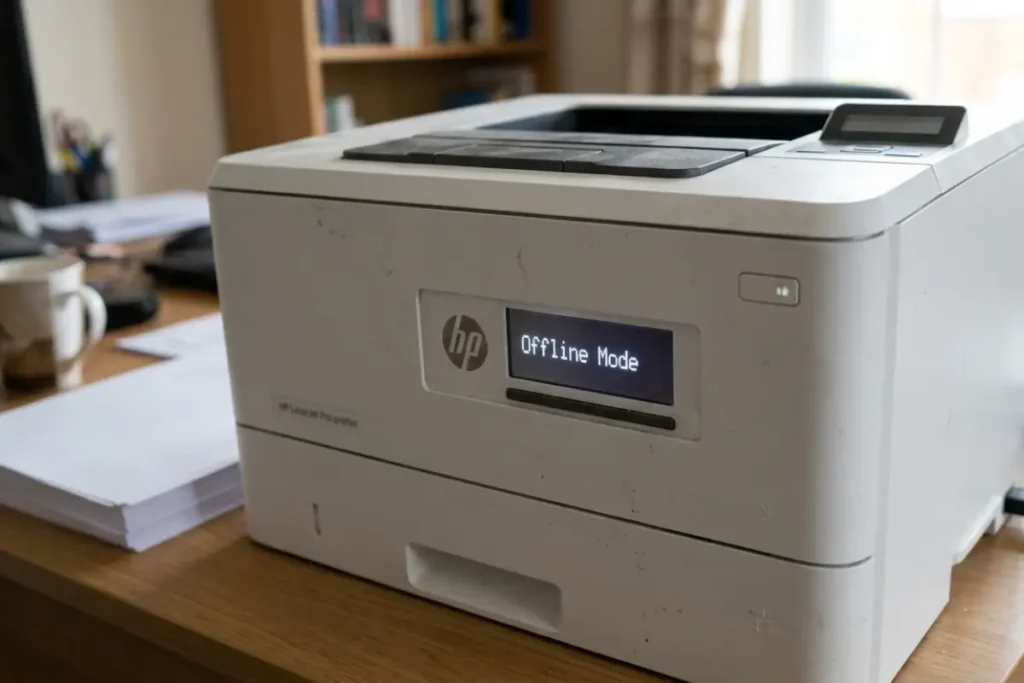
If the basic and HP-specific fixes have not resolved the offline error, it may be time to delve into more advanced troubleshooting.
These steps involve manual adjustments to your system’s settings and can help resolve deeper conflicts that prevent your printer from staying online.
These methods are particularly useful when the problem recurs frequently.
Manually Configure the Printer Port
One of the most common yet overlooked causes of chronic offline issues with HP printers is the use of a WSD (Web Services for Devices) port.
Windows often automatically assigns a WSD port during printer installation, but this type of port is known to be unstable and can cause printers to randomly go offline.
The solution is to switch to a more reliable Standard TCP/IP Port.
To do this, first obtain your printer’s IP address, which can usually be found by printing a network configuration page from the printer’s control panel.
Then, navigate to “Printers & scanners” in your computer’s settings, select your HP printer, and go to “Printer properties.”
In the “Ports” tab, click “Add Port,” choose “Standard TCP/IP Port,” and enter the printer’s IP address.
Once the new port is created, ensure it is selected for your printer.
This single change can permanently resolve frequent offline problems for many users.
Reset the Print Spooler Service
The Print Spooler is a Windows service that manages all print jobs sent to the printer.
If this service encounters an error or a print job becomes corrupted, it can stop functioning correctly and cause the printer to appear offline.
Resetting the Print Spooler can clear the queue and resolve the issue.
To do this, open the “Services” application in Windows, locate the “Print Spooler” service, right-click it, and select “Restart.”
This will stop and then start the service, clearing any pending jobs and re-establishing communication with the printer.
3 Prevention Tips To Keep Your HP Printer Online
Preventing your HP printer from going offline is more efficient than repeatedly troubleshooting it.
By adopting a few best practices and performing regular maintenance, you can ensure a more stable and reliable connection.
These preventative measures address the common root causes of offline errors and help maintain a healthy printing environment.
Tip 1
First, assign a static IP address to your printer.
By default, most routers assign a dynamic IP address that can change each time the printer reconnects to the network.
When the IP address changes, your computer may lose track of the printer, causing it to appear offline.
By setting a static IP address through your router’s settings or the printer’s Embedded Web Server, you ensure that its network location remains constant.
This is one of the most effective ways to prevent network-related offline issues.
Tip 2
Second, keep your printer’s firmware and drivers up to date.
HP regularly releases updates that include performance improvements, bug fixes, and patches for known connectivity issues.
You can typically check for firmware updates through the printer’s control panel or the HP Support website.
Similarly, ensure your computer’s printer drivers are current by periodically checking for new versions.
Proactive updates can prevent problems before they start.
Tip 3
Finally, be mindful of your network environment.
Ensure your printer is placed within a strong Wi-Fi signal range and away from sources of interference, such as microwaves or cordless phones.
If you have a large home or office, a Wi-Fi extender can help boost the signal.
Additionally, plugging the printer directly into a wall outlet rather than a power strip can prevent power-related issues that might cause it to disconnect.
Final Thoughts On An HP Printer That Suddenly Appears “Offline”
An offline HP printer is a solvable problem.
By systematically working through the common causes and applying HP-specific fixes, you can quickly restore your printer’s connection.
For long-term stability, adopting preventative measures like setting a static IP address and keeping software updated will save you time and frustration.
With these strategies, you can ensure your HP printer remains a reliable tool for your home or office.
Frequently Asked Questions About HP Printer Offline Issues
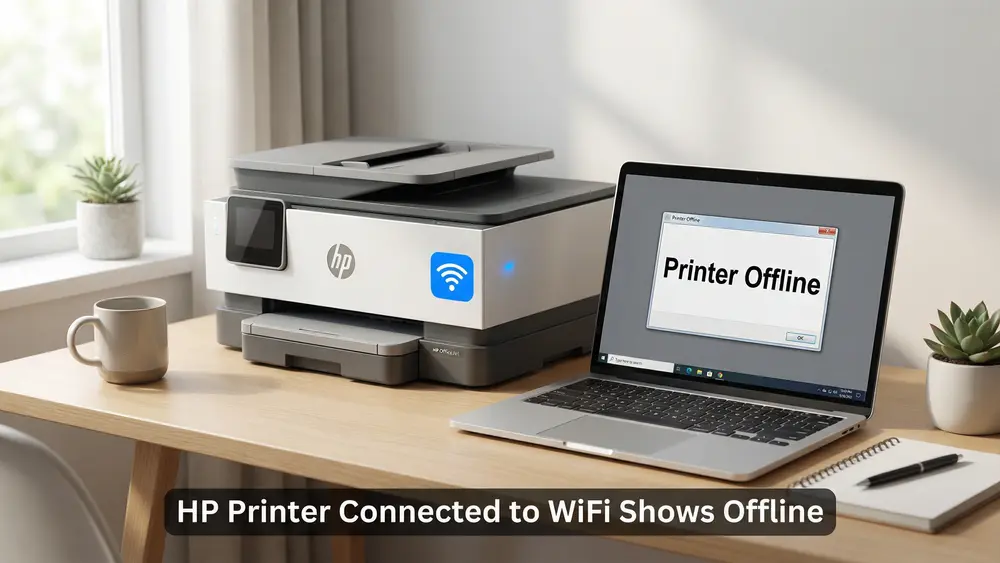
Why does my HP printer say offline when it’s connected to Wi-Fi?
This often happens due to a communication error between your printer and computer.
Common causes include the printer entering a deep sleep mode, an unstable Wi-Fi connection, or your computer connecting to a different network.
It can also be caused by a software issue, such as an outdated driver or a problem within the HP app.
How do I get my HP printer back online?
The quickest first step is to restart your printer, computer, and Wi-Fi router to clear any temporary errors.
If that doesn’t work, run the HP App tool to automatically diagnose and fix the issue.
You should also verify that your printer is set as the default printer and that the “Use Printer Offline” mode is not checked in your computer’s settings.
What is the HP App?
The HP App is a free diagnostic utility provided by HP for Windows users.
It automatically identifies common issues preventing your printer from working correctly, such as driver conflicts, connectivity problems, and print queue errors.
It then provides automated fixes or guides you through the necessary steps to resolve them.
Can a firewall make my HP printer go offline?
Yes, a firewall on your computer can sometimes mistakenly block the network communication required for your printer to function, causing it to appear offline.
To check if this is the problem, you can temporarily disable your firewall and see if the printer comes back online.
If it does, you will need to add an exception for your HP printer in your firewall’s settings to allow it to communicate freely.
How To Manually Set A TCP/IP Port For Your HP Printer
Step 1: Find Your Printer’s IP Address
Before you can create a new port, you need your printer’s IP address.
You can usually find this by printing a network configuration page from your printer’s control panel.
Look for an option in the network settings menu.
The IP address will be listed on the printed report (e.g., 192.168.1.101).
Step 2: Open Printer Properties
On your Windows computer, go to “Settings,” then “Bluetooth & devices,” and click on “Printers & scanners.”
Select your HP printer from the list, and then click on “Printer properties.”
This will open a new window with detailed settings for your printer.
Step 3: Add a New TCP/IP Port
In the “Printer properties” window, click on the “Ports” tab.
Click the “Add Port…” button.
In the dialog box that appears, select “Standard TCP/IP Port” and click “New Port…”
This will launch the “Add Standard TCP/IP Printer Port Wizard.”
Step 4: Enter the Printer’s IP Address
In the wizard, enter the IP address you found in Step 1 into the “Printer Name or IP Address” field.
The “Port Name” field will populate automatically.
Click “Next.”
Windows will then attempt to communicate with the printer at that address.
Step 5: Apply the New Port
Once the wizard is complete, you will be returned to the “Ports” tab.
Ensure the new TCP/IP port you just created is checked in the list of ports.
Click “Apply” and then “Close.”
Your printer is now configured to use a more stable connection, which should prevent it from going offline frequently.
Finally be sure to check out our Tech Troubleshooting FAQ or our Printer Troubleshooting Tips pages for even more general tips that cover a wide range of technical problems and solutions.
(If after reading the above article you still have a problem with your “HP Printer Offline”, then you might find a much less obvious solution on the above tech pages!)